26
ADOBE ILLUSTRATOR CS2
User Guide
2. Import the image into Illustrator.
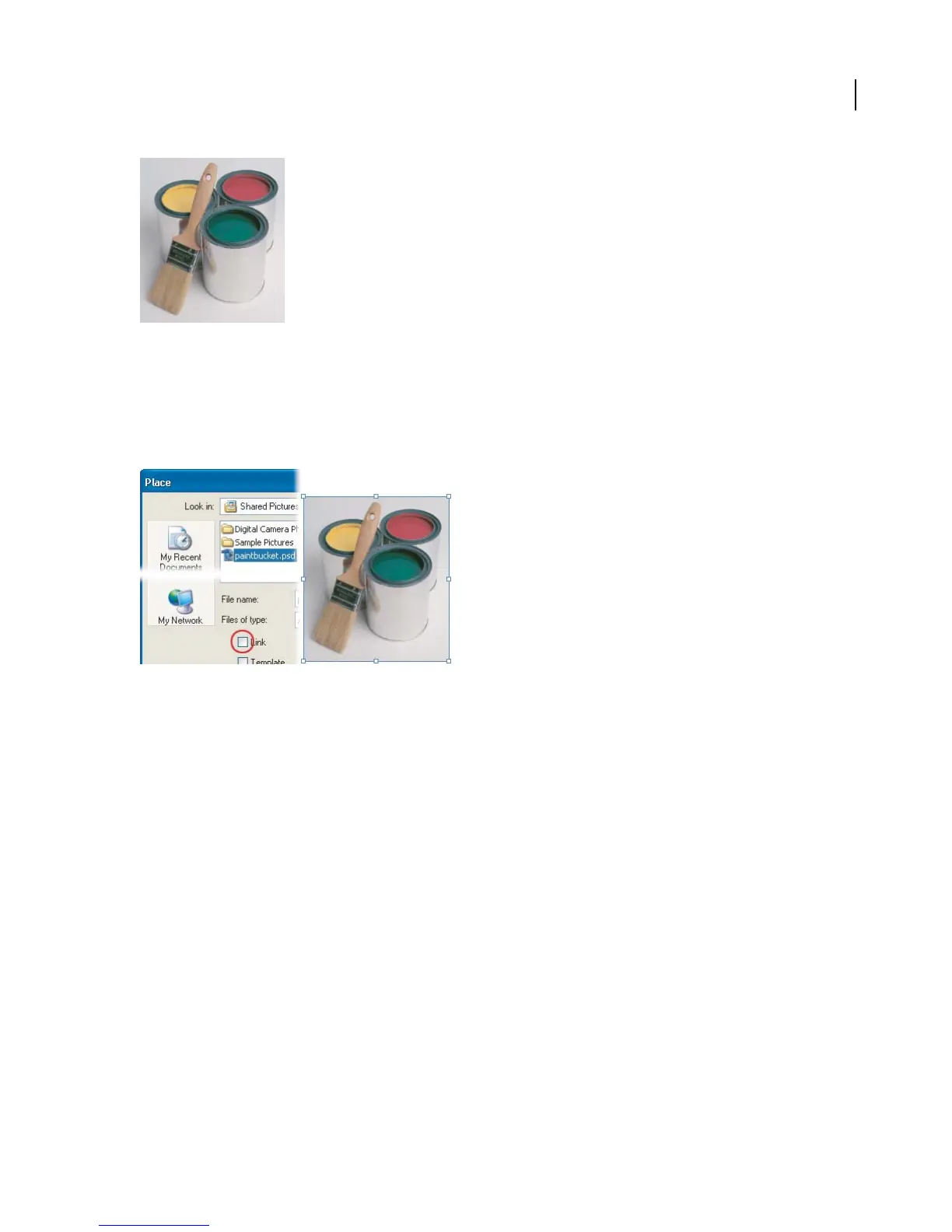
Start by creating a new document in RGB color mode. (This is important because the Artistic filters don’t work on
CMYK images.) Then choose File > Place, and select the image file. Make sure the Link option is deselected, and
click OK.
The Links palette shows all imported images. (See “To use the Links palette” on page 326.)
3. Apply the Poster Edges effect.
Target the image in the Layers palette, and choose Effect > Artistic > Poster Edges. Adjust the settings until you are
satisfied with the preview, and then click OK.
The Poster Edges effect reduces the number of colors in an image according to the posterization option you set, and
finds the edges of the image and draws black lines on them. Broader areas of the image have simple shading, while
fine, dark detail is distributed throughout the image.



 To Next Page