362
ADOBE ILLUSTRATOR CS2
User Guide
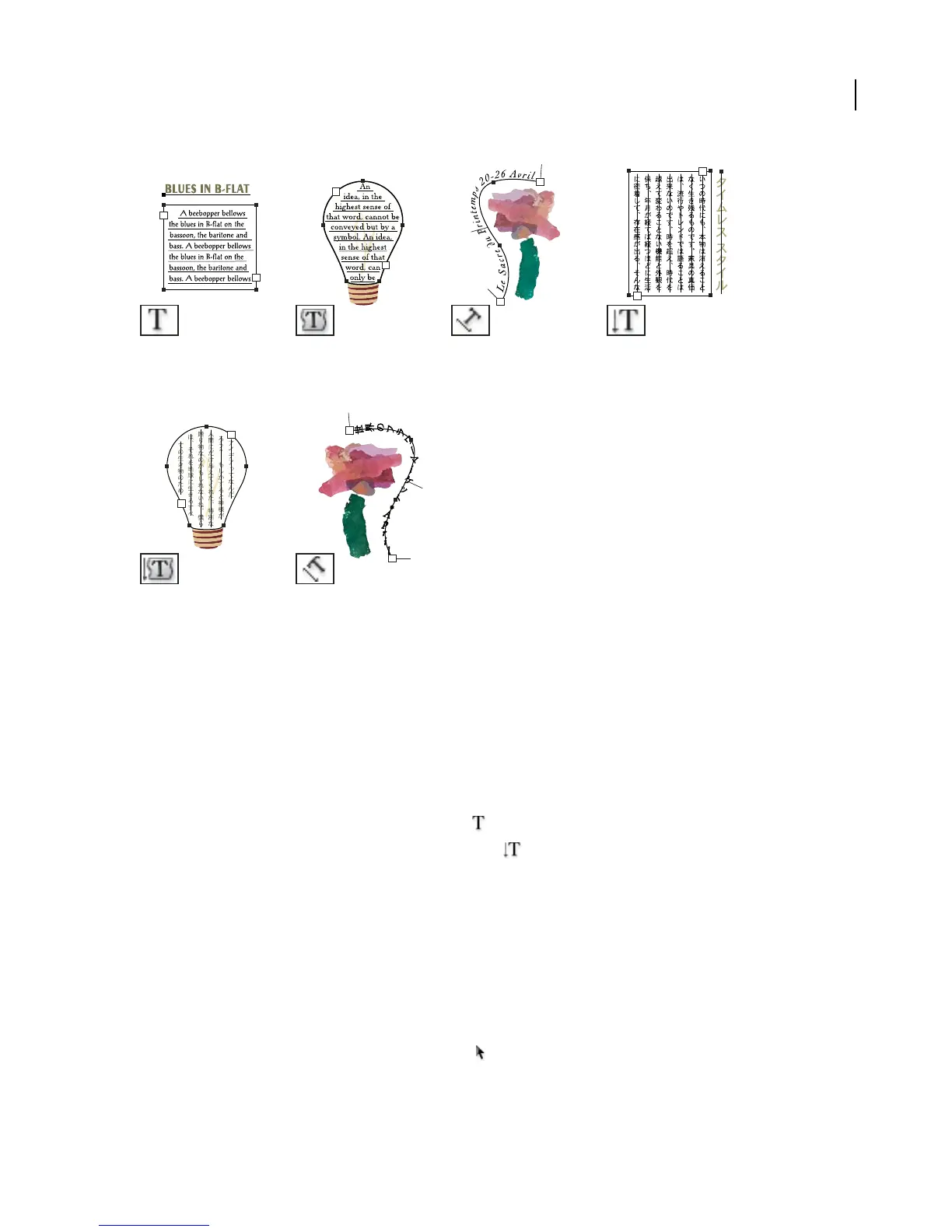
The Type tool (T) creates The Area Type tool changes
closed paths to type
containers and lets you enter
and edit type within them.
The Path Type tool changes TheVerticalTypetoolcreates
individual type and type paths to type paths, and lets vertical type and vertical
containers and lets you enter you enter and edit type on type containers and lets you
and edit type. them. enter and edit vertical type.
The Vertical Area Type tool
changes closed paths to
vertical type containers and
lets you enter and edit type
within them.
The Vertical Path Type tool
changes paths to vertical type
paths and lets you enter and
edit type on them
See also
“About the toolbox” on page 29
To enter text at a point
1 Do one of the following:
• To create a horizontal line of text, select the Type tool
• To create a vertical line of text, select the Vertical Type tool
The pointer changes to an I-beam within a dotted box. The small horizontal line near the bottom of the I-beam
marks the position of the baseline, on which the text rests.
2 (Optional) Set text-formatting options in the Control palette, Character palette, or Paragraph palette.
3 Click where you want the line of text to begin.
Important: Be sure not to click an existing object, because doing so converts the type object into area type or type on a
path. If an existing object is located where you want to enter text, lock or hide the object.
4 Enter the text. Press Enter or Return to begin a new line of text within the same type object.
5 When you finish entering text, click the Selection tool to select the type object. Alternatively, Ctrl-click
(Windows) or Command-click (Mac OS) the text.
.
.



 To Next Page