379
ADOBE ILLUSTRATOR CS2
User Guide
See also
“Modifying letterforms as graphic objects” on page 378
“About compound paths” on page 307
Transforming type
You can rotate, reflect, scale, and shear type just as you do other objects. However, how you select the type affects the
transformation results:
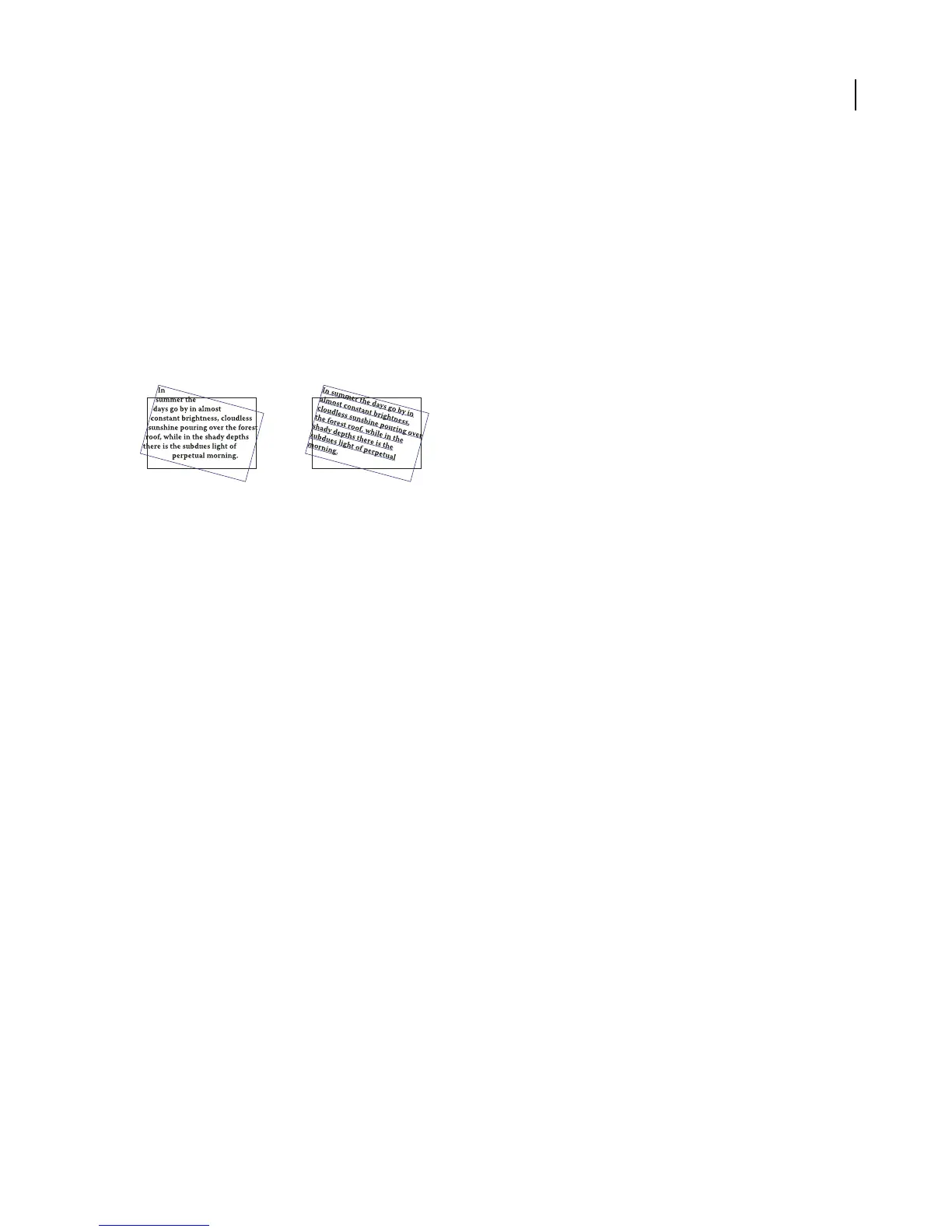
• To transform the type along with its bounding path, select the type object.
• To transform just the bounding path, but not the type it contains, select the type path.
Rotated type path (left) compared to rotated type and path (right)
See also
“Transforming objects” on page 290
To set anti-aliasing options for type
When you save artwork in a bitmap format—such as JPEG, GIF, or PNG—Illustrator rasterizes all objects at 72 pixels
per inch and applies anti-aliasing to them. However, if your artwork contains type, the default anti-aliasing settings
may not produce the desired results. Illustrator provides several options specifically for rasterizing type. In order to
take advantage of these options, you must rasterize type objects before you save the artwork.
1 Select the type object, and do one of the following:
• To permanently rasterize the type, choose Object > Rasterize.
• To create the appearance of rasterization without changing the object’s underlying structure, choose Effect >
Rasterize.
2 Choose an anti-aliasing option:
None to apply no anti-aliasing and maintain the hard edges of type when it is rasterized.
Type Optimized to apply anti-aliasing that is best suited to type. Anti-aliasing reduces the appearance of jagged
edges in the rasterized image and gives type a smoother on-screen appearance. However, it can also make small text
difficult to read.



 To Next Page