420
ADOBE ILLUSTRATOR CS2
User Guide
To show or hide thumbnails, choose Show Thumbnail or Hide Thumbnail from the Appearance palette menu.
To specify how appearance attributes are applied to new objects
You can specify whether you want new objects to inherit appearance attributes or have only basic attributes.
• To apply only a single fill and stroke to new objects, click the New Art Maintains Appearance button in the
Appearance palettetochangeittothe NewArt HasBasic Appearance button ,orchooseNew ArtHas Basic
Appearance from the palette menu.
• To apply all of the current appearance attributes to new objects, click the New Art Has Basic Appearance
button in the Appearance palette to change it to New Art Maintains Appearance button , or deselect
New Art Has Basic Appearance from the palette menu.
About targeting
Before youcan setanappearanceattribute or applyastyle or an effect to alayer,group,orobject, youmust target the
item in the Layers palette. Selecting an object or group using any selection method also targets the object or group
in the Layers palette, but layers can only be targeted using the palette.
A
C
D
E
B
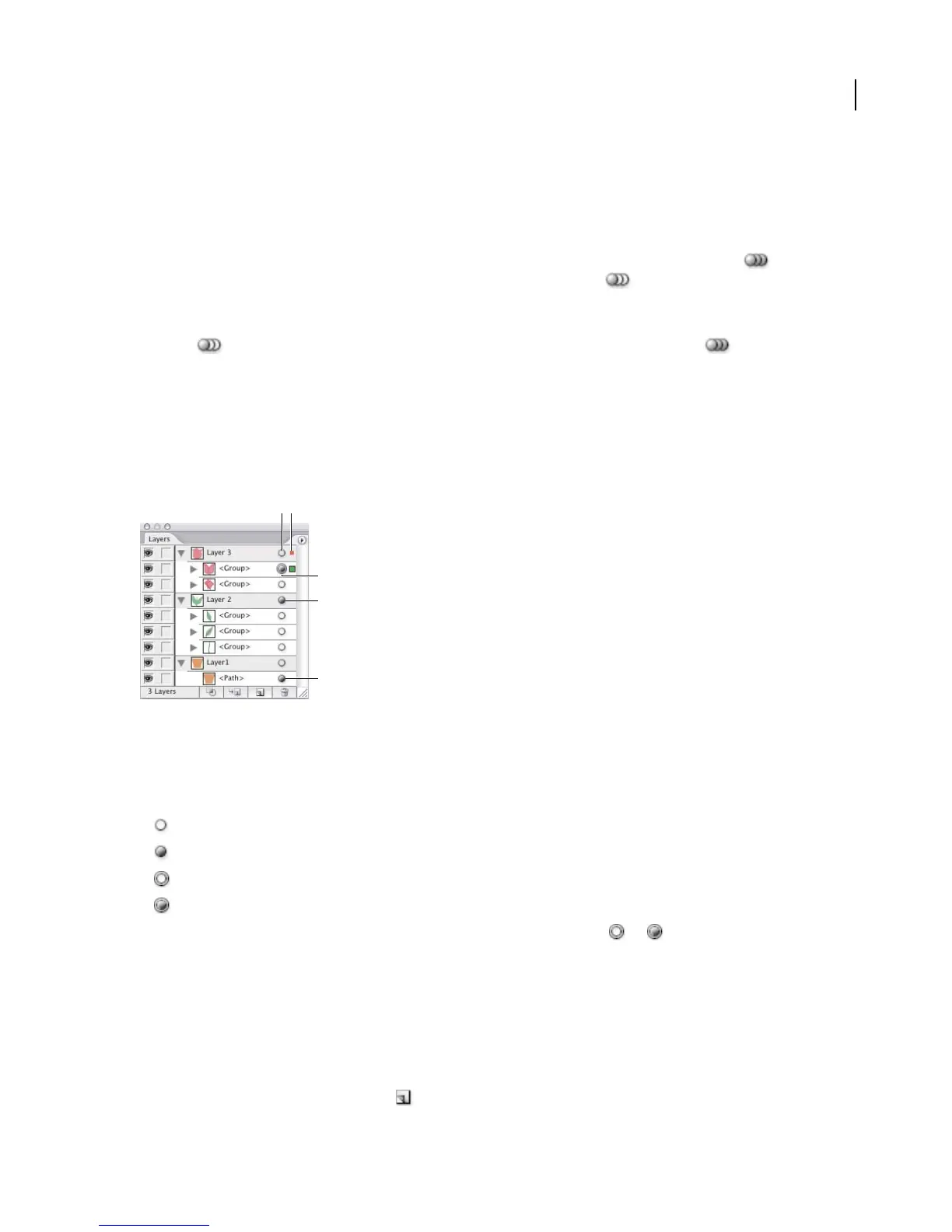
Shaded target icons in the Layers palette indicate which items contain appearance attributes.
A. Targeting and appearance column B. Selection column C. Group with appearance attributes D. Layer with appearance attributes
E. Object with appearance attributes
The target icon indicates whether an item in the layer hierarchy has any appearance attributes and whether it is
targeted:
• indicates the item is not targeted and has no appearance attributes beyond a single fill and a single stroke.
• indicates the item is not targeted but has appearance attributes.
• indicates the item is targeted but has no appearance attributes beyond a single fill and a single stroke.
• indicates the item is targeted and has appearance attributes.
To target an item in the Layers palette, click the item’s target icon. A double ring or indicates that the item is
targeted. Shift-click to target additional items.
Note: When an object or group is selected by any method, the item is also targeted in the Layers palette. In contrast, a
layer can be targeted only by clicking its target icon in the Layers palette.
To duplicate an appearance attribute
❖ Select an attribute in the Appearance palette, and do one of the following:
• Click the Duplicate Selected Item button in the palette, or choose Duplicate Item from the palette menu.



 To Next Page