444
ADOBE ILLUSTRATOR CS2
User Guide
Youcan view slices on theartboardand in theSaveFor Webdialogbox.Illustrator numbersslicesfromlefttoright
andtop to bottom,beginning in theupper left corner of theartwork.Ifyou change thearrangement or totalnumber
of slices, slice numbers are updated to reflect the new order.
When you create a slice, Illustrator slices the surrounding artwork into automatic slices to maintain the layout using
a web-based table. There are two types of automatic slices: auto slices and subslices. Auto slices accountfor theareas
of your artwork that you did not define as a slice. Illustrator regenerates auto slices every time you add or edit slices.
Subslices indicate how overlapping user-defined slices will be divided. Although subslices are numbered and display
a slice symbol, you cannot select them separately from the underlying slice. Illustrator regenerates subslices and auto
slices as needed while you work.
See also
“About the Save For Web dialog box” on page 452
“Slices output settings” on page 465
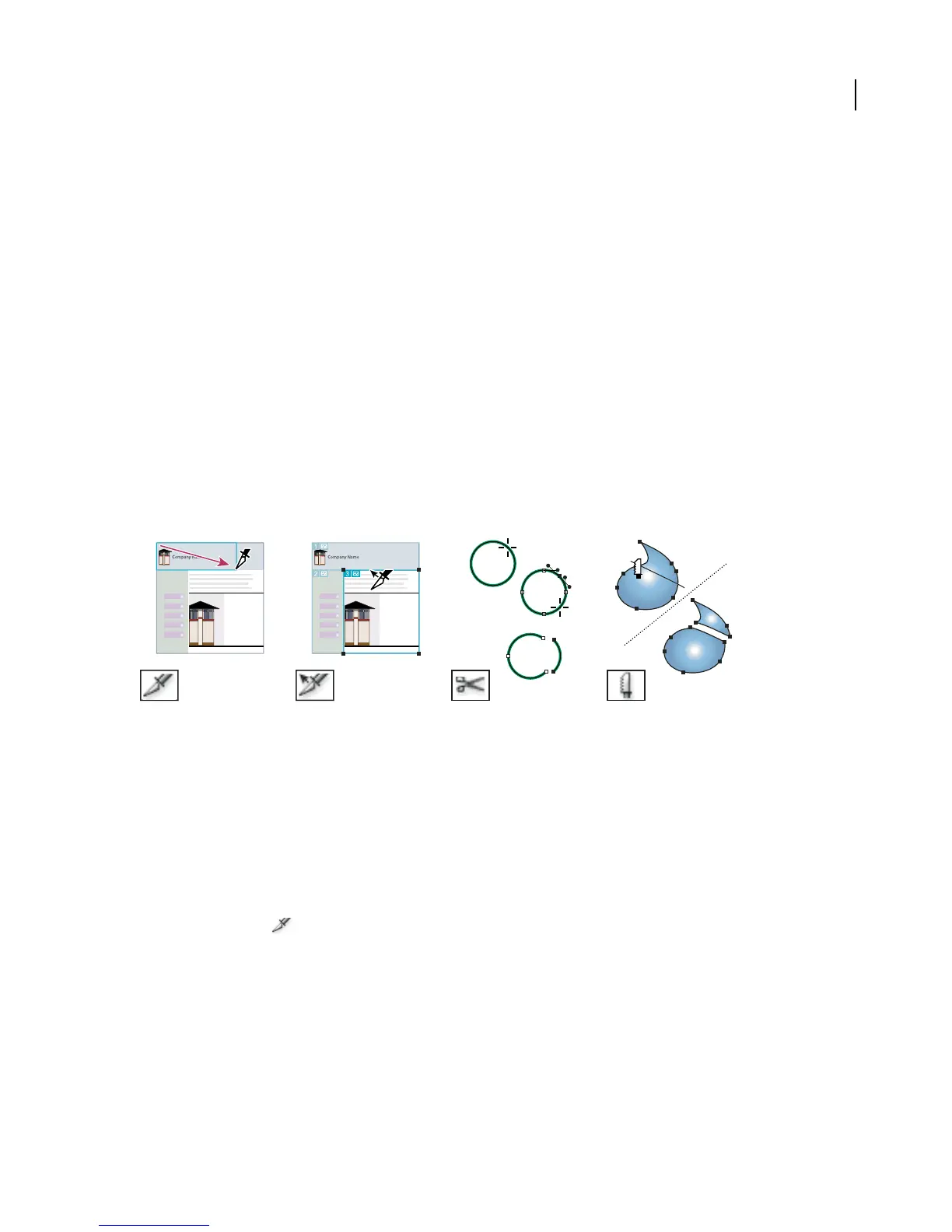
Slicing and cutting tool gallery
Illustrator provides the following tools for slicing and cutting objects:
The Slice tool divides artwork
into separate web images.
The Slice Selection tool selects
web slices.
The Scissors tool (C) cuts
paths at specified points.
The Knife tool cuts objects
and paths.
See also
“About the toolbox” on page 29
To create slices
❖ Do one of the following:
• Select one or more objects on the artboard, and choose Object > Slice > Make.
• Select the Slice tool and drag over the area where you want to create a slice. Shift-drag to constrain the slice
to a square. Alt-drag (Windows) or Option-drag (Mac OS) to draw from the center.
• Select one or more objects on the artboard, and choose Object > Slice > Create From Selection.
• Place guides where you want to slice the artwork, and choose Object > Slice > Create From Guides.
• Select an existing slice, and choose Object > Slice > Duplicate Slice.



 To Next Page