499
ADOBE ILLUSTRATOR CS2
User Guide
D
C
B
A
E
F G
H
I J K
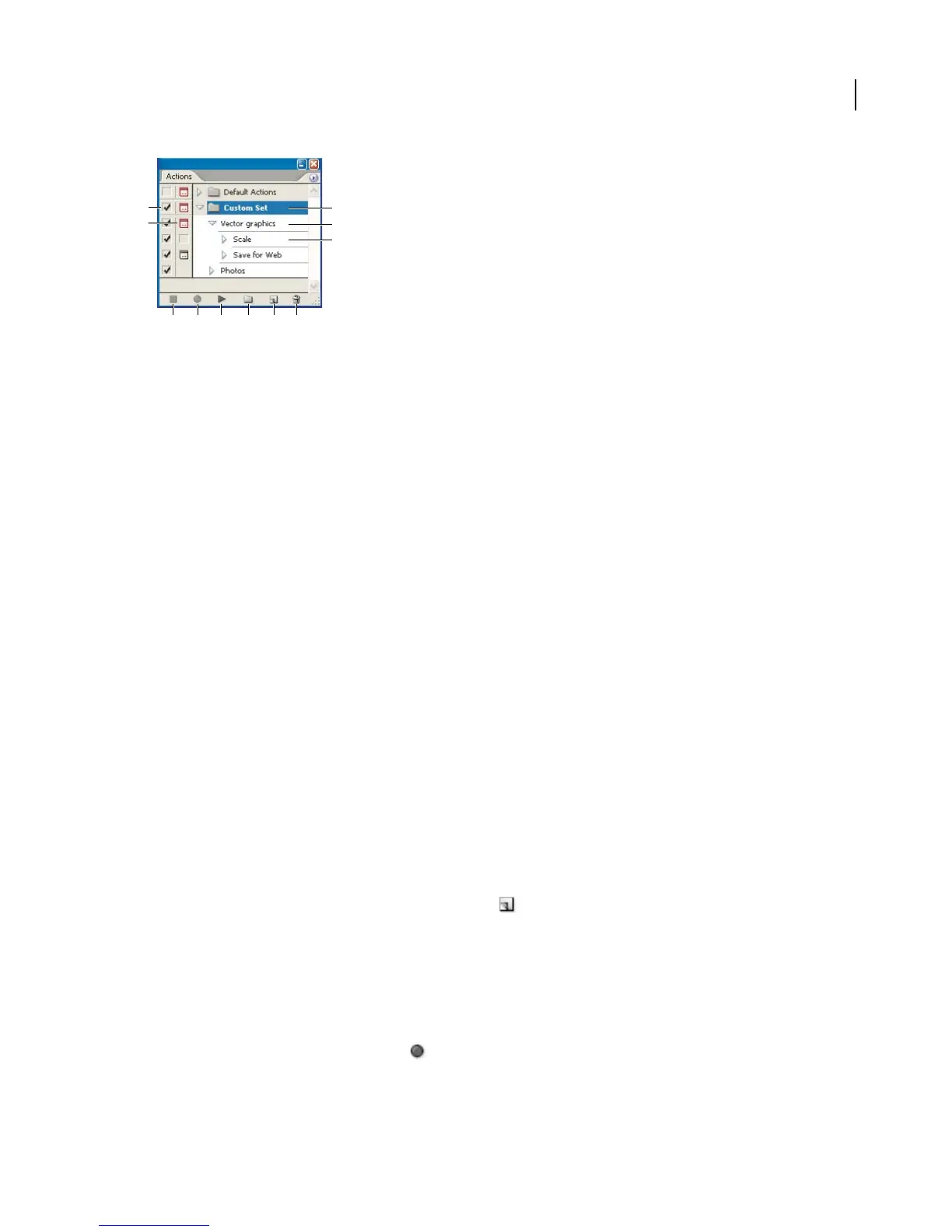
Actions palette
A. Toggles item on or off B. Toggles modal control on or off C. Set D. Action E. Recorded command F. Stop playing/recording G. Begin
recording H. Play current selection I. Create new set J. Create new action K. Delete selection
See also
“To work with palettes” on page 31
“Keys for the Actions palette” on page 533
To play an action
Some actions require that you make a selection before playing; other actions can be executed on an entire file. For
the prerecorded actions that come with Illustrator, actions that require you to make a selection have (selection) in
their names.
1 If necessary, select objects on which to play the action.
2 Do one of the following in the Actions palette:
• To play a set of actions, select the set name.
• To play a single action, select the action name.
• To play only part of an action, select the command from which you want the action to start.
3 Click the Play Current Selection button, or select Play from the palette menu.
See also
“To change how fast actions play” on page 501
“To play an action on batches of files” on page 503
To create an action
1 In the Actions palette, click the Create New Action button
2 Enter an action name, select an action set, and set additional options:
Function Key Assigns a keyboard shortcut to the action. You can choose any combination of a function key, the Ctrl
key (Windows), or Command key (Mac OS), and the Shift key (for example, Ctrl+Shift+F3). If you assign an action
the same shortcut that is used for a command, the shortcut will apply the action rather than the command.
Color Assigns a color for display in Button mode.
3 Click Record. The Begin Recording button in the Actions palette turns red.
.



 To Next Page