519
ADOBE ILLUSTRATOR CS2
User Guide
Pie graph options
Legend Determines the placement of the legend.
• Standard Legend Places column labels outside the graph; this is the default. Use this option when you combine
pie graphs with other kinds of graphs.
• Legends In Wedges Inserts labels into the corresponding wedges.
• No Legend Omits legends entirely.
Position Specifies how multiple pie graphs are displayed.
• Ratio Sizes the graphs proportionally.
• Even Makes all the pie graphs the same diameter.
• Stacked Stacks each pie graph on top of the other, and each graph is sized proportionally to each other.
Sort Specifies how wedges are sorted.
• All Sorts the wedges of the selected pie graphs from largest to smallest value proceeding clockwise from the top
of the pie graph.
• First Sorts the wedges of the selected pie graphs so that the largest value in the first graph will be placed in the first
wedge, and the rest will sort from largest to smallest. All other graphs will follow the order of the wedges in the first
graph.
• None Sorts the wedges of the selected pie graphs in the order in which you entered values proceeding clockwise
from the top of the graphs.
To combine different graph types
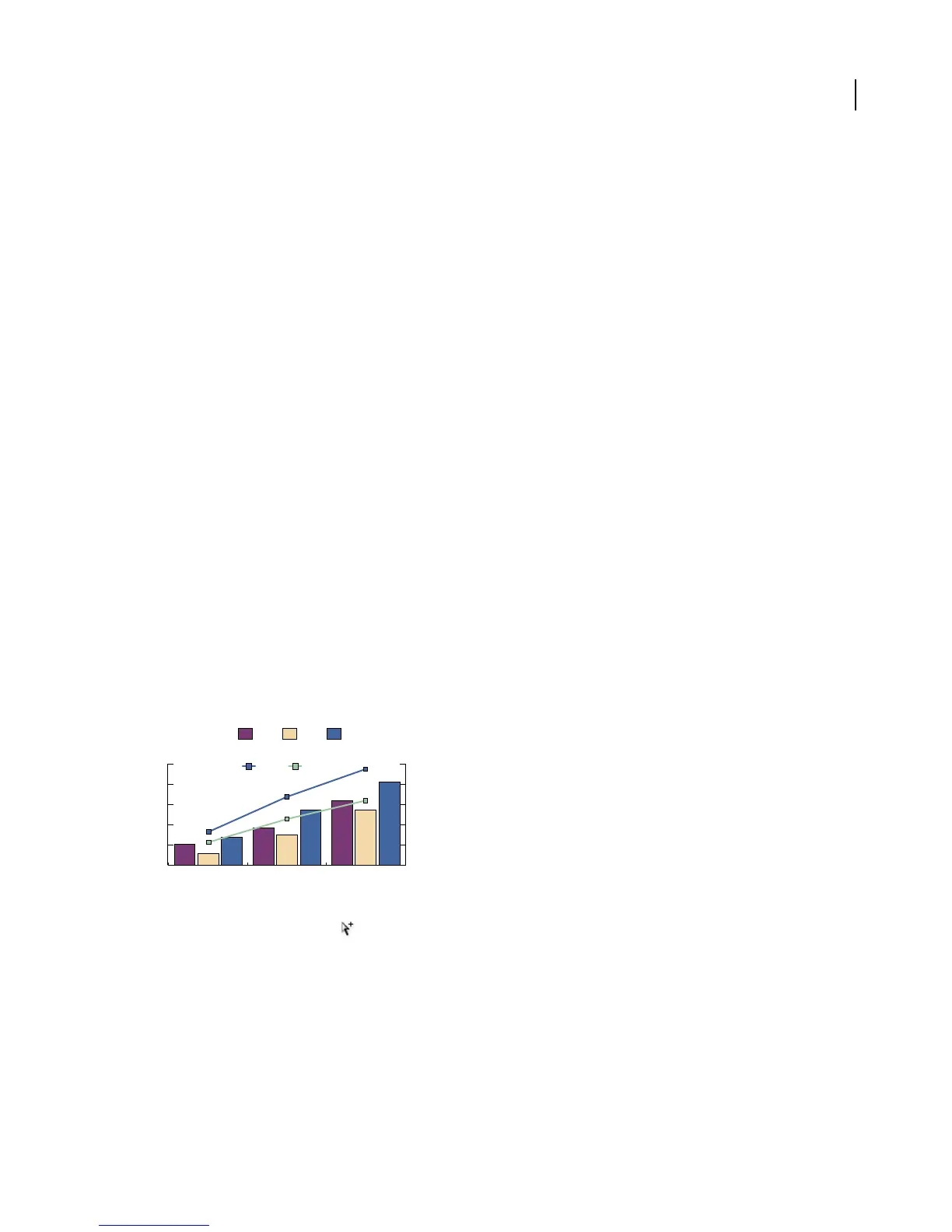
You can combine different graph types in one graph. For example, you may want one set of data to appear as a
column graph and other sets of data to appear as a line graph. You can combine any type of graph with any other,
with the exception of scatter graphs. Scatter graphs cannot be combined with any other graph type.
Retail and
Wholesale
Varietal Retail
Product A Product B Product C
Price Index
Price per Unit
250% $25
200% $20
150% $15
100% $10
50% $5
0% $0
Combining columns and lines in one graph
1 Select the Group Selection tool
2 Click the legend for the data whose graph type you want to change.
3 Without moving the Group Selection tool pointer from the legend, click again. All of the columns grouped with
the legend are selected.
4 Choose Object > Graph > Type, or double-click the graph tool in the toolbox.
5 Select the graph type and options you want.
Wholesale
Retail
200019901980
.



 To Next Page