49
ADOBE ILLUSTRATOR CS2
User Guide
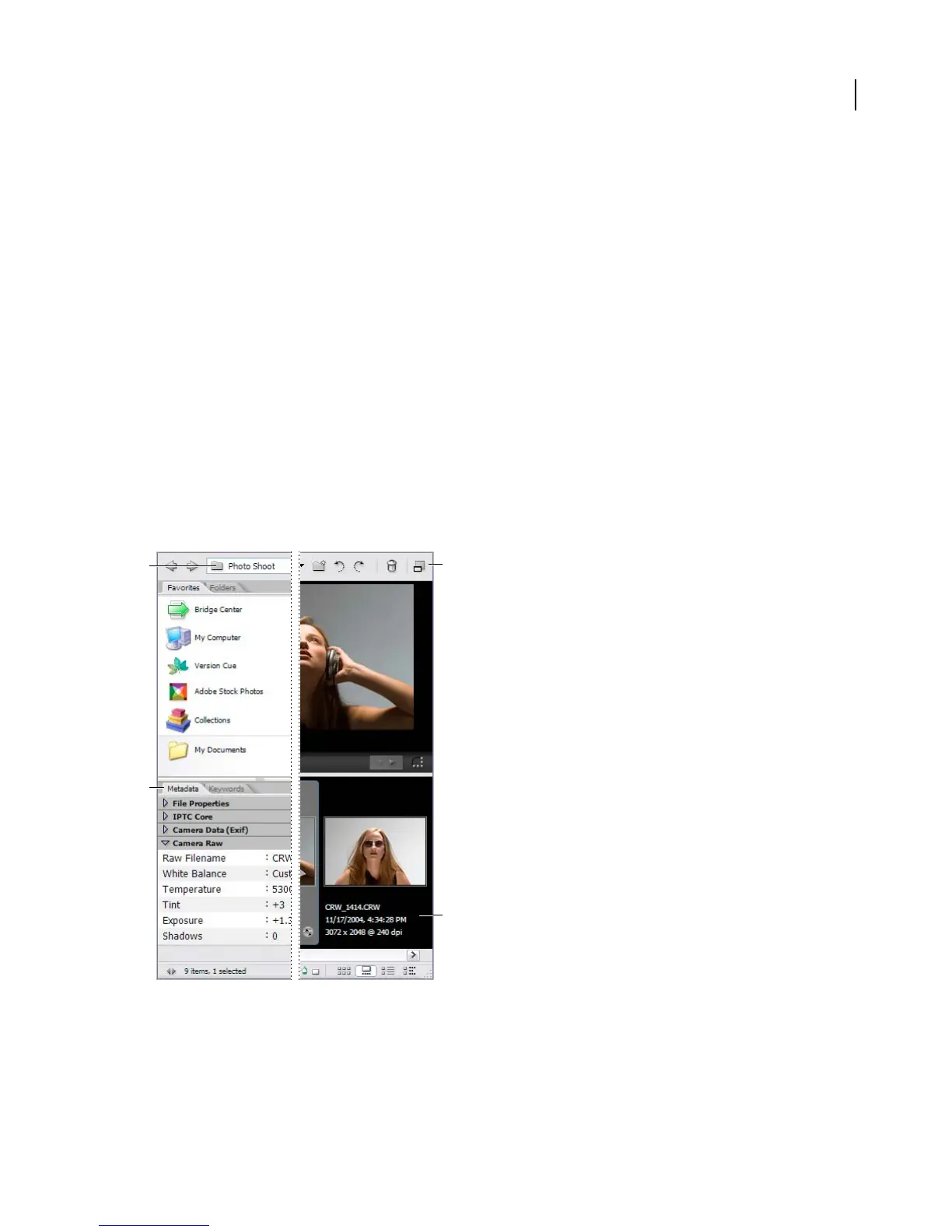
The Look In menu Lists the folder hierarchy, as well as favorite and recent folders. This menu gives you a quick way
to find folders containing the items you want to display. The menu is at the top of the Bridge window.
The shortcut buttons Help you work efficiently with your files. They are located to the right of the Look In menu, at
the top of the Bridge window.
The Favorites panel Gives you quick access to folders as well as to Version Cue, Adobe Stock Photos, collections, and
Bridge Center (Adobe Creative Suite only). Like all panels, it’s located on the left side of the Bridge window.
The Folders panel Shows the folder hierarchy. Use it to navigate to the correct folder.
The Preview panel Displays a preview of the selected file, separate from and typically larger than the thumbnail
image displayed in the content area. You can reduce or enlarge the preview.
The Metadata panel Contains metadata information for the selected file. If multiple files are selected, shared data
(such as keywords, date created, and exposure setting) is listed.
The Keywords panel Helps you organize your images by attaching keywords to them.
The content area Displays thumbnail previews of the items in the current folder, along with information about those
items.
The bottom of the Bridge window displays status information and contains buttons for toggling the display of the
panels, a slider for setting the size of thumbnails, and buttons for specifying the type of display in the content area.
C
D
A
B
Bridge window in filmstrip view
A. The Look In menu B. The Metadata panel C. The shortcuts buttons D. The content area



 To Next Page