83
ADOBE ILLUSTRATOR CS2
User Guide
Note: In InDesign, if you deselect Always Save Preview Images With Documents in either the File Handling preferences
or the Save As dialog box, you won’t see thumbnails for InDesign files in the Adobe dialog box or in Bridge.
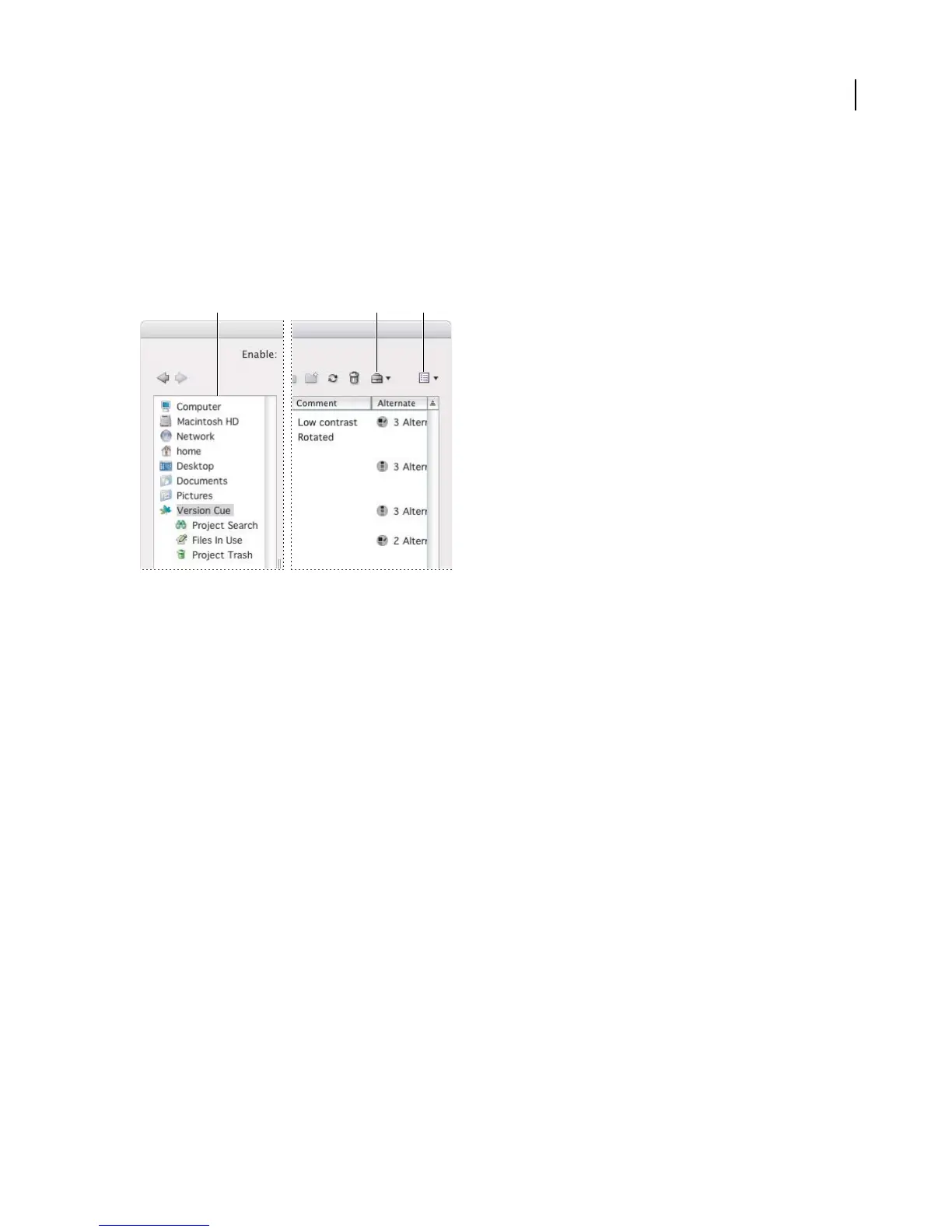
By default, when you choose the Open, Import, Export, Place, Save, or Save As commands, the operating system
(OS) dialog box appears. To use the Adobe dialog box instead and set it as the default, click Use Adobe Dialog. Use
the View menu options to customize the display. You can change back to the OS dialog box at any time by clicking
Use OS Dialog.
A B C
The Adobe Dialog Box
A. Favorites panel B. Project Tools menu C. View menu
You can use the Adobe dialog box to accomplish these tasks:
• Add frequently used files and folders to the Favorites panel for quick access.
• View thumbnail images of files.
• Determine whether a file is open in another Adobe Creative Suite application on your computer.
• Rename or delete files (Mac OS only).
• Connect to Bridge by using the Reveal In Bridge command.
• View metadata about files in the Properties panel. Metadata includes author, keyword, and copyright information.
• Access Version Cue projects and files as well as non-Version Cue files.
• View detailed information about Version Cue projects, such as the status of individual files.
• View and work with Version Cue versions and alternates.
• Search for files in a Version Cue project.
• Move Version Cue files to the Project Trash.
• Determine which Version Cue files are in use, and who is using them.
• Create a new Version Cue project, or connect to an existing Version Cue project.
See also
“To view Version Cue Workspace, project, and file information” on page 89
“Availability of Version Cue features” on page 81



 To Next Page