Maintenance and Troubleshooting 11-5
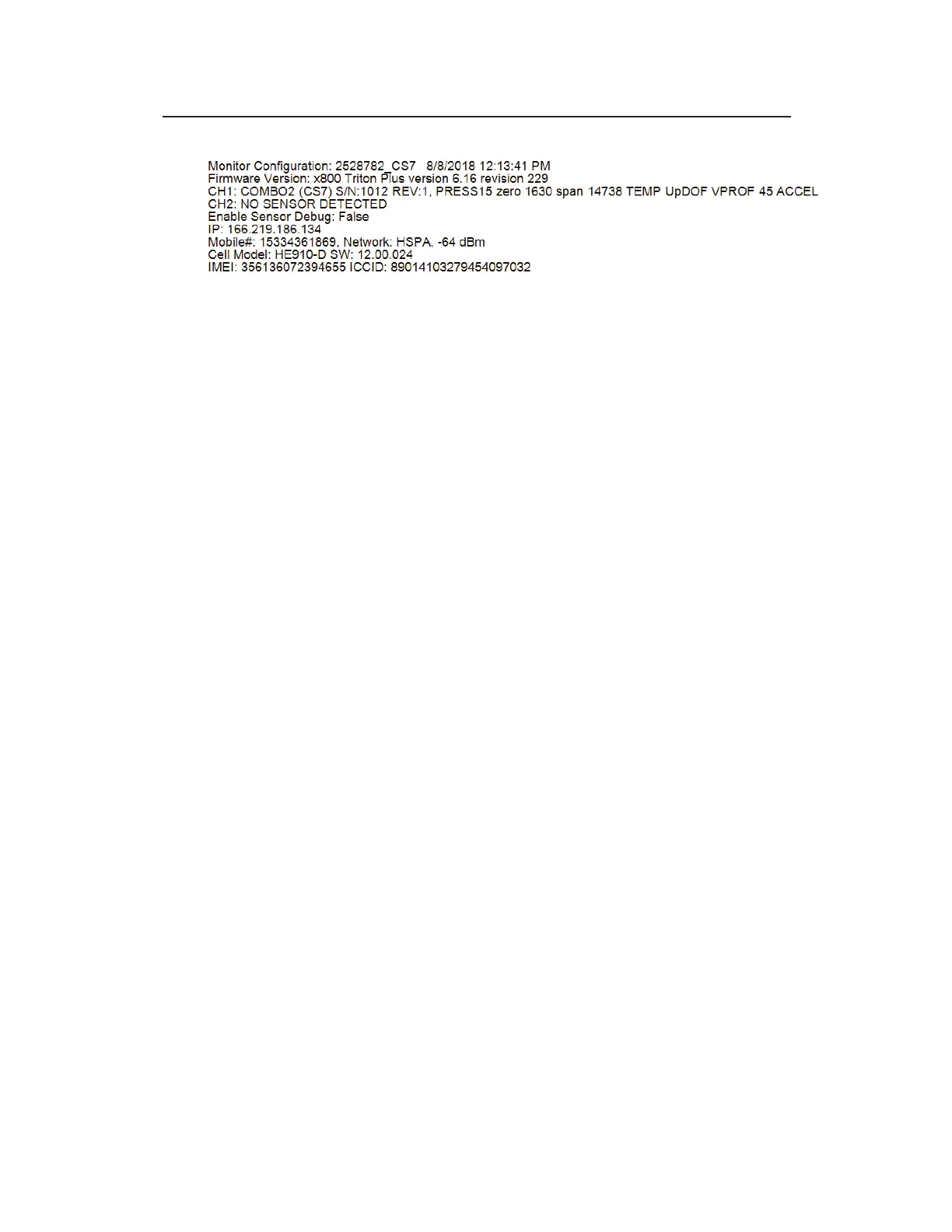
Sample Uploaded Configuration Log
Obtaining (Uploading) the Monitor Configuration
Uploading the monitor’s current configuration parameters can assist
in monitor troubleshooting. The uploaded monitor information
shows the information currently stored in the monitor’s memory―
current device configuration and installation details. This
information can be useful to review prior to performing a monitor
activation to verify the monitor location information matches the
computer location information.
Use Qstart
XML
to upload the monitor configuration by performing
the following:
1. Open Qstart
XML
and select the monitor from the Location
Name drop-down list.
2. Select the Upload button to establish communications with the
monitor and automatically perform the location information
upload process. Qstart
XML
provides feedback concerning
whether the information matches between the computer and the
monitor and the user chooses whether to update the computer
or not.
3. Choose Hangup to disconnect from the monitor when the
upload is complete.
4. If the location parameters on the local computer have been
updated, select Save.
Obtaining Diagnostic Codes from the Monitor
The TRITON+ enables you to observe monitor activity, view
diagnostic information, and confirm test cryouts from the monitor
through a small LED status window on the monitor top. The



 To Next Page