Introduction
3
1.1.2. Safety
The ALBEDO Telecom xGenius test unit contains built-in batteries, improper use of
which may result in explosion. Do not heat, open, puncture, mutilate, or dispose of the
product in fire. Do not leave the device in direct sunlight for an extended period of time,
which could cause melting or battery damage. Batteries must be replaced by ALBEDO
Telecom authorized staff only. Use only the AC power adapter supplied by ALBEDO
Telecom.
The equipment includes an active cooling mechanism. Do not block the air flow inputs
and outputs during operation. Any use of this equipment other than the specified by the
manufacturer may compromise the product electrical or mechanical safety.
The unit does not require any special maintenance. Use a soft cotton or microfibre cloth
to keep your unit clean. A dry cloth for cleaning should be normally used. Using an
aqueous product for cleaning is also allowable but it must be avoided putting liquid
directly onto the equipment.
1.1.3. WEEE Notice
This product must not be disposed of or dumped with other waste. You are liable to
dispose of all your electronic or electrical waste equipment by relocating over to the
specified collection point for recycling of such hazardous waste. For more information
about electronic and electrical waste equipment disposal, recovery, and collection
points, please contact your local city centre, waste disposal service, or manufacturer of
the equipment.
1.2.The Tester
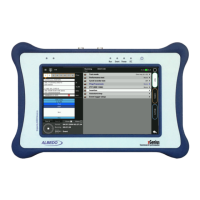
Interaction with xGenius is based on a high resolution capacitive colour touch screen,
and different kinds of status LEDs There are six LEDs (Run, Event, Power, DC, Port A
summary, Port B summary). Their description is given below:
•Run: This is a LED that shows the current test status. The green colour is used to
display a test running status. Off, means that there is no test running. Orange is
displayed in the period of time between the action from the user to start / stop a
test and the actual test start / stop.
•Event: A green Event LED is displayed when the equipment is generating some
kind of impairment configured through the event insertion menu. The LED stays in
off status when no event is being inserted
• Power: Displays the current tester on / off status. The green colour is displayed
under normal operation conditions. Orange and red are shown to indicate a low
battery load.
• DC: This led is lit when the DC input is connected. Orange indicates a charging
batteries status and green means that the internal batteries are ready.
• Port 1 / Port 2 Summary: These LEDs provide a permanent indication of the cur-
rent input signal (or signals) status. The LEDs summarize the Port A and Port B


 To Next Page