29
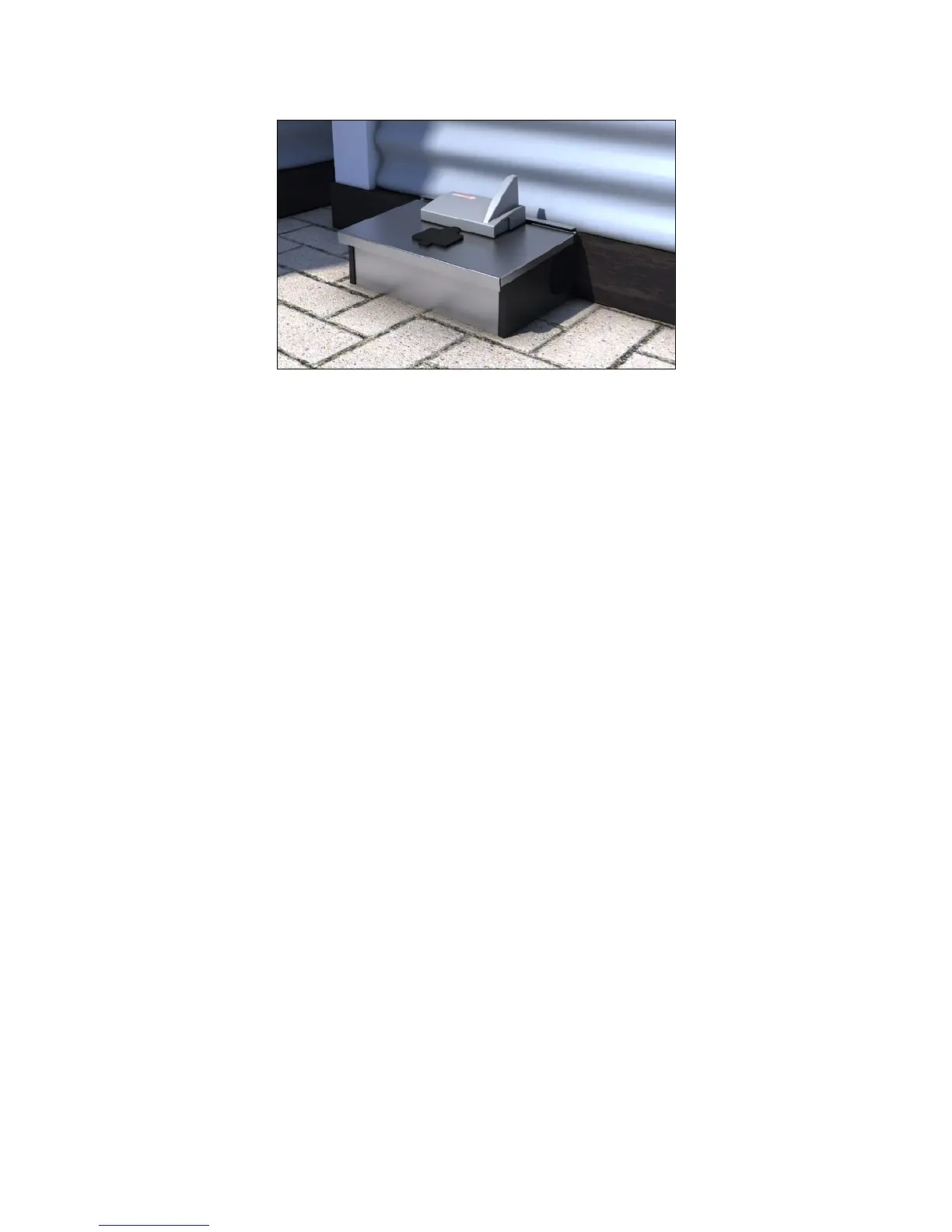
3. Place the box.
4. Smart Eye is now installed and is ready to detect activity from rats and mice.
Service mode remote activate / deactivate (only via WisePlan
Pro)
It is an advantage to set a Smart Connect system in Service mode via WisePlan Pro before you
go to the installation’s location, as it otherwise can take up to an hour before the system wakes
up (due the normal poll period of 60 minutes). By activating the Service mode via WisePlan Pro
it is ensured that the installation can be inspected right away when you arrive at the location.
1. To activate Service mode via WisePlan Pro, you have to choose the Smart Connect of a
specicinstallationinyourtraplistorbysearchingfortheserialnumber.
2. When you have chosen a Smart Connect press [Setup] in the menu.
3.CheckotheServicemodebox.
4. Afterwards press [Apply changes] to activate the Smart Connect next time it contacts
WisePlan.
5.Whenyouarenishedwithyourinspection,remembertocheckotheServicemodebox
and press [Apply changes], so the system start to run normally again (If you forget -
Service mode will automatically be exited after 8 hours (see image next page)).



 To Next Page