13
Start Smart Connect
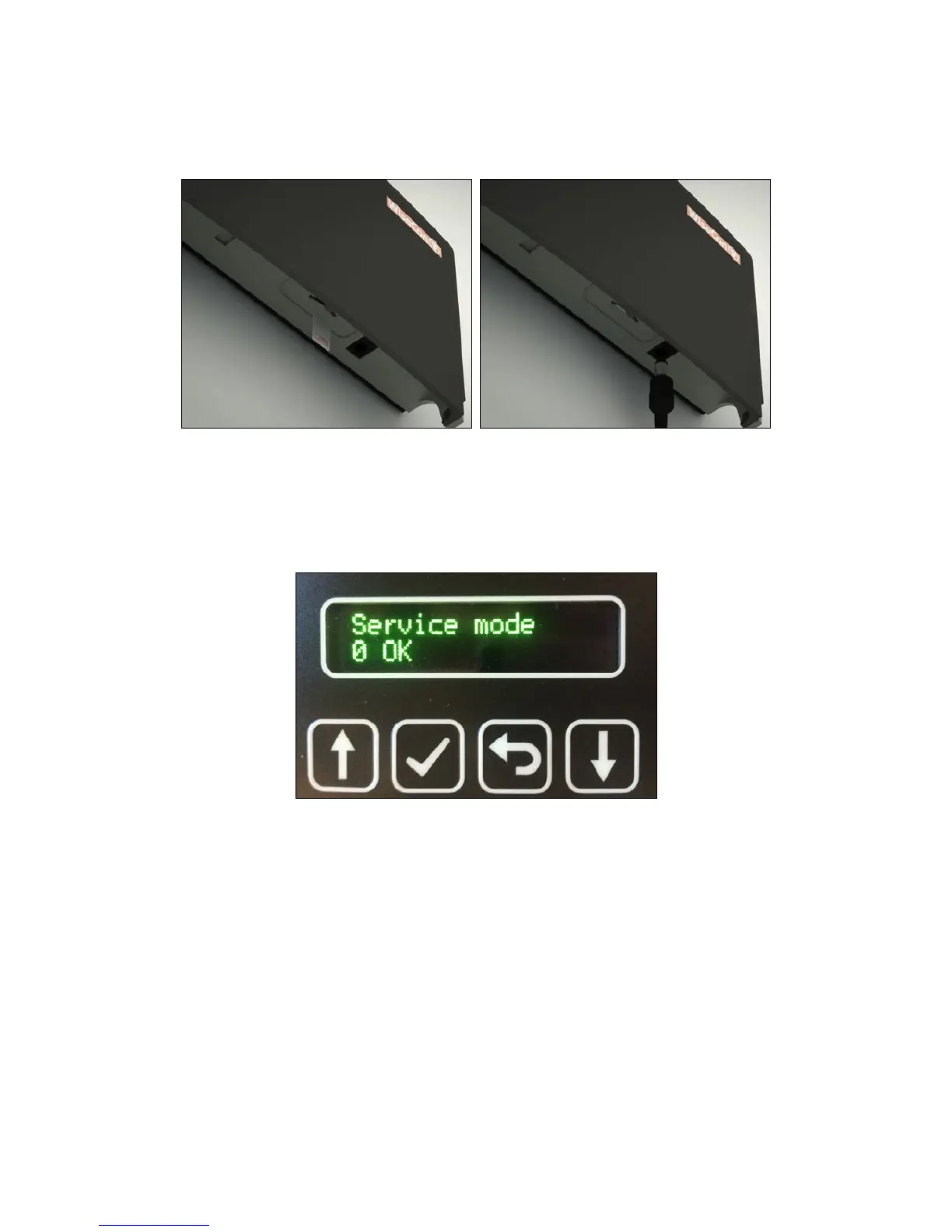
1. Insert the SIM card and connect Smart Connect to the power supply. Pull battery slip out
of the back.
2. After a short while, Smart Connect will turn on. When a Smart Connect is started up for
thersttime,itwillgodirectlyintoServicemode,soSmartCatchandSmartEyedevices
can be connected securely. It is seen by the display showing [Service mode - 0 OK] (see
illustration and explanation of the Service mode below).
Service mode
EVERY TIME you need to work with a Smart Connect system installation ON SITE, it must be
put in Service mode to work in Link, LQI and Unlink. This is done by pressing [Enter Service
Mode].
As long as a Smart Connect has not linked with any Smart Catch or Smart Eye devices it will go
directly into Service mode, when it is turned on, but as soon as devices have been linked to the
Smart Connect, you must put the Smart Connect system devices in Service mode.
This is explained on the next page.
Service mode is one of the most important features. In Service mode you can safely work/
handle all Smart Connect devices, as the Service mode prevents traps from shooting and
prevent any PIR registration. This means that you will not get harmed or accidently activate PIR
sensors.



 To Next Page