2.3.3. Clear a pattern
If you want to start recording on the selected sequencer with a pattern that’s completely
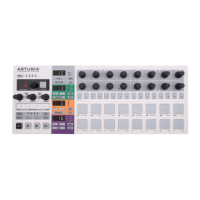
empty, hold the SHIFT button and press Step button 1. This will clear all of the data in the
current pattern, so be careful!
If you want to copy the current data to a different location first, follow the instructions in the
Saving a Sequence [p.36] section. You can also use the MIDI Control Center [p.84] to back up
the pattern to your computer.
There's a less destructive option that will clear only the step data from the pattern: SHIFT +
Step button 2. This will leave the following sequence-level parameters as they were:
• Sequence Length
• Playback Direction
• Time Division
• Transposition
• Scale
2.3.4. Set the tempo
When Sync is set to Internal, the tempo range of BeatStep Pro is 30-300 beats per minute
(bpm).
There are two ways to set the tempo for your project:
• Turn the RATE/FINE encoder.
• Use the TAP/METRO button.
There are some more very useful features in this section:
• For fine tempo adjustment, hold SHIFT and then turn the RATE/FINE encoder.
• To enable the metronome, hold SHIFT and press TAP/METRO.
The MIDI Control Center offers even more features related to tempo and the metronome.
See the Sync [p.121] section of the MIDI Control Center [p.84] chapter for details.
!: When Sync is set to External the BeatStep Pro may respond less reliably if the external source is
set outside the range of 30-300 bpm.
2.3.5. Enable the metronome
The metronome sends note data on MIDI channel 10 to an external device or your DAW. The
MIDI channel and note can be changed using the MIDI Control Center [p.84].
To enable the metronome, hold SHIFT and press the TAP/METRO button. The same action
will disable it.
♪: If the metronome has been enabled the TAP/METRO button will be lit when you press the SHIFT
button.
Arturia - User Manual BeatStep Pro - Basic Operations 20






 To Next Page