9.4. Working with Scenes
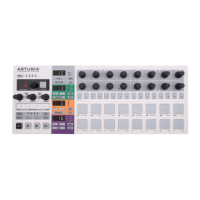
The MIDI Control Center has an option that affects what the Step buttons do in Control Mode.
There are two options:
1. The Step buttons will transmit MIDI data as specified in the Controller Map [p.96],
or
2. The Step buttons allow you to save and recall one of 16 Scenes [p.82].
9.4.1. What is a Scene?
A Scene will remember the following information:
• Which pattern was active on each sequencer
• The pattern chains you have constructed for each sequencer
The BeatStep Pro can store 16 Scenes per Project.
9.4.2. How to make a Scene
1. Enable Scene mode [p.82] in the MIDI Control Center. It's in the Global parameters
[p.114] section.
2. Select the patterns you want each sequencer to load when the Scene is selected,
or
3. Construct the pattern chains [p.66] you want each sequencer to load when the
Scene is selected.
4. Enter Control Mode.
5. Hold the Save button.
6. Press one of the Step buttons. It will flash a few times to indicate that the Scene
has been stored.
♪: Scenes can be overwritten but they cannot be "cleared" or erased.
9.4.3. Recalling a Scene
Here's how to recall one of the Scenes you have stored:
1. If Scene mode [p.82] has not been enabled, you must do so using the MIDI
Control Center [p.84].
2. Enter Control Mode.
3. Press the Step button that corresponds to the Scene you wish to recall.
If a Scene has never been stored to a particular Step button then a default pattern number
will be loaded when that Scene is recalled. In other words, if you recall Scene 10 and it is
"empty", all three sequencers will load pattern 10.
♪: The Wait to Load Pattern [p.122] setting also determines when the next Scene will load.
Arturia - User Manual BeatStep Pro - Control Mode 82





 To Next Page