9.2. Top panel functions
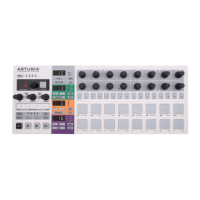
Most of the performance controls on the left side of the front panel will control the same
features in Control Mode unless configured otherwise with the MIDI Control Center. There
are some slight variations, though, which we’ll point out as we go through them:
9.2.1. RATE/FINE encoder
The RATE/FINE encoder works exactly the same in all modes. Its functions are described
here: Tempo [p.50].
9.2.2. Metronome/Tap Tempo button
The Metronome/Tap Tempo button works exactly the same in all modes:
• SHIFT + TAP/METRO toggles the metronome on and off.
• Tap the TAP/METRO button several times to set the tempo.
The MIDI Control Center [p.84] allows you to specify the number of taps [p.50] it will take to
set the tempo.
9.2.3. Swing Encoder
The Swing encoder controls the Swing percentage of the entire Project in Control Mode. In
other words, the Swing percentage is applied to all three sequencers equally. The CURRENT
TRACK button is not available in Control Mode.
For a description of the Swing feature see the Swing [p.51] section of the Projects [p.49]
chapter.
9.2.4. Randomness/Probability Encoders
The Randomness and Probability encoders still control their respective parameters in
Control Mode. The difference is that the amounts are applied equally to all three sequencers;
the shared CURRENT TRACK button does not have any effect over these parameters.
For a full description of the Randomness and Probability features see the Randomness/
Probability [p.52] section of the Projects [p.49] chapter.
9.2.5. The Touch strip
The touch strip can function either as a Roller or a Looper in Control Mode. To toggle between
these two behaviors, hold the SHIFT button and press Step button 9. If the button is lit blue
then the touch strip is in Roller mode. If it is not lit, the touch strip is in Looper mode.
To use the touch strip in Roller mode, press and hold one of the pads while the unit is
running. Then place a finger on the touch strip and it will repeat the MIDI note that was
assigned to that pad using the MIDI Control Center [p.84]. That event will be repeated at the
time division you select with your finger.
For more information about Roller mode, click here [p.54]. For more information about
Looper mode, click here [p.55].
See also Using the Touch Strip with a DAW [p.117] in the MCC [p.84] chapter.
Arturia - User Manual BeatStep Pro - Control Mode 80




 To Next Page