5.4.12.2. Pad General Settings
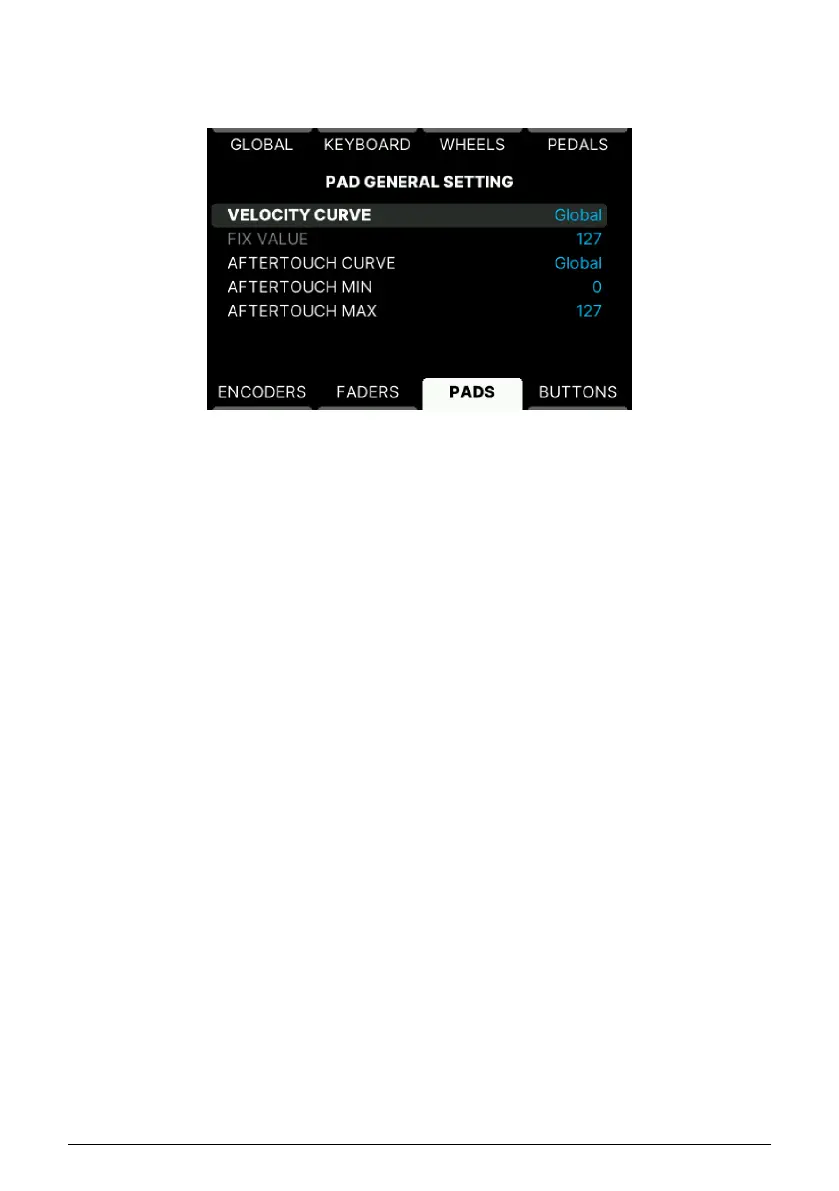
These are your options when adjusting the Velocity Curve for the Pads.
• Linear: Playing a Pad softly sends out a low velocity value, play harder and
KeyLab mk3 will output higher velocity. "What you play is what you get".
• Logarithmic: Going from soft to a little louder results in a much louder sound. This
curves rises fast and flattens out at higher velocities.
• Exponential: The opposite of logarithmic. An exponential curve changes slowly at
first, but then the rate of change speeds up.
• Fixed: No velocity sensitivity at all. Set the fixed value in the row below.
• Custom: You can freely edit the velocity response in the Custom Editor on the
Global settings page.
• Pad Aftertouch can be edited in a similar fashion, except there is no Fixed
parameter for Aftertouch.
• Aftertouch Min/Max: You can limit the aftertouch range. This is useful if, for
example, you want to avoid using excessive amounts of modulation.
5.4.12.3. Pad Bank A–D
These 4 menus are identical. Each one contains 12 submenus for the 12 Pads.
There is a clever shortcut that lets you reach the right page for every Pad in every Bank.
Simply long-press Settings and tap any Pad. If you land on the wrong Bank, long-press
Settings, then hit Bank– or Bank+, and finally the Pad you want to edit.
65 Arturia - User Manual KeyLab mk3 - User Program



 To Next Page