6. MIDI CONTROL CENTER
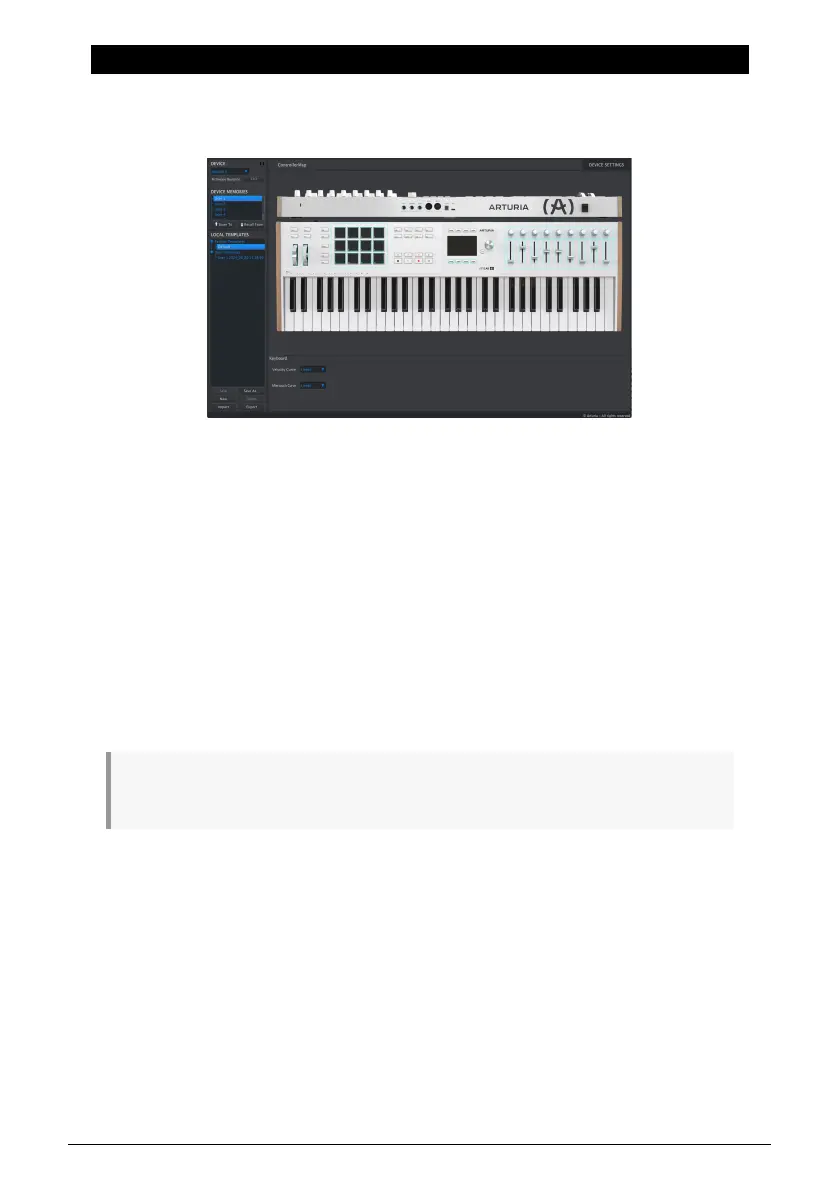
KeyLab mk3 has been designed to provide quick access to the controls you use most
frequently. And though editing from the front panel is quick and easy, the MIDI Control
Center (MCC) offers an alternative computer based method.
MCC also provides an elegant way to save and recall many more User memories than the
6 Programs in KeyLab mk3.
When the KeyLab mk3 is connected to your computer, you may prefer to use the MCC to
design your presets to match whatever software or instruments you might use.
Functionality of the MIDI Control Center for KeyLab mk3 is currently being finalized. There
will be a manual update with more detailed info coming soon.
6.1. Connecting to MIDI Control Center
Once you have downloaded the MCC and installed it, simply open the program while your
KeyLab mk3 is connected to your computer.
MCC will automatically connect to your KeyLab mk3 and display it in the main window.
♪: If you have multiple Arturia devices connected to your system, you can specify which one you
will be editing by selecting it from the drop-down menu in the Device section of the MCC.
Now that your KeyLab mk3 is connected and selected, let’s go over a few of the simple
ways to personalize your controller.
6.1.1. Device Memories
The Device Memories section of the MCC displays the 6 Memories that correspond to the 6
User presets within KeyLab mk3, as well as two Read-Only Memories dedicated to Analog
Lab and DAW modes.
Arturia - User Manual KeyLab mk3 - MIDI Control Center 68



 To Next Page