Overview 3
STERRAD VELOCITY Reader User’s Guide 11
The Status Screen
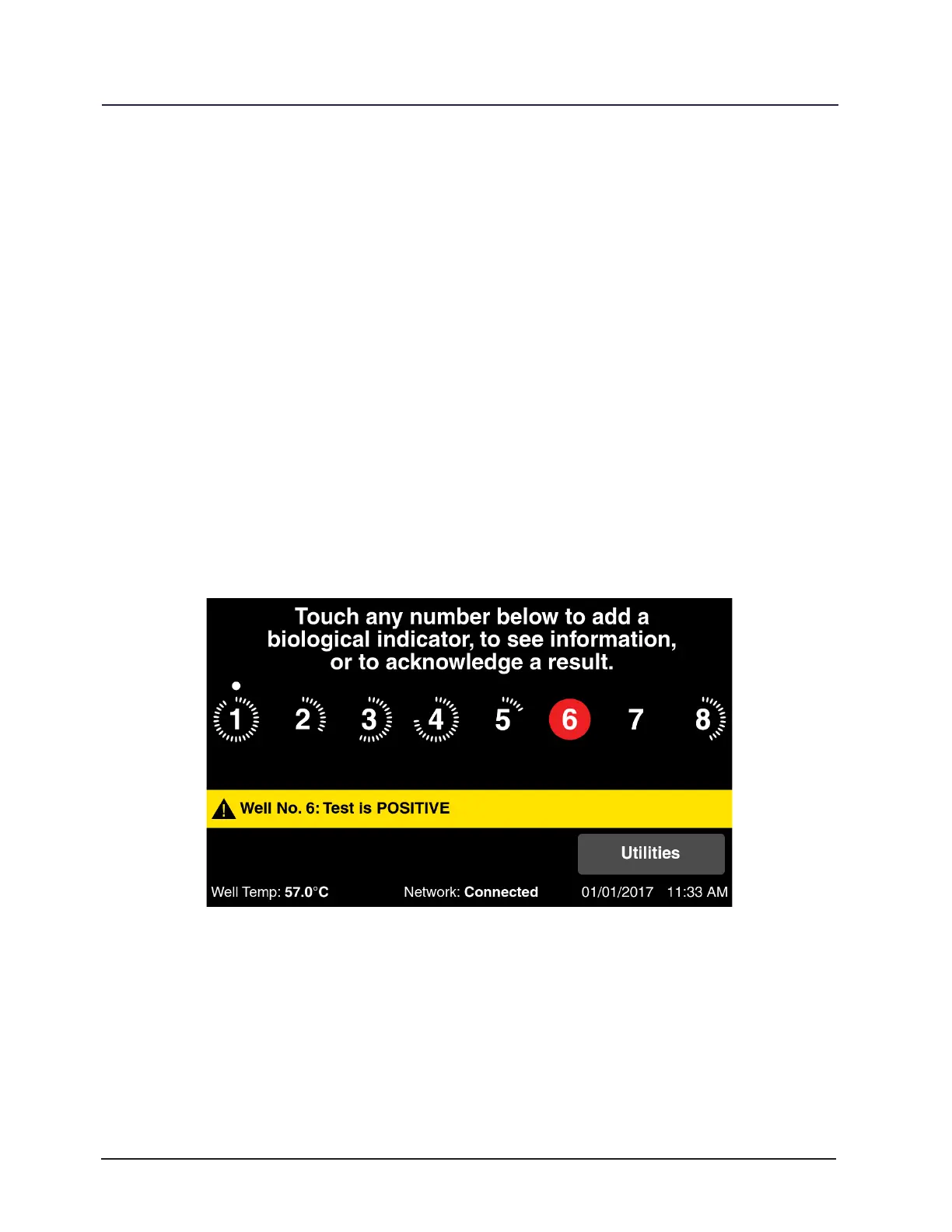
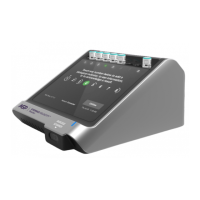
The Status Screen is the default home screen for the reader. It displays the
current status of the wells, the current well temperature, the network connection
status, the date, and the time. It also provides access to the Utilities Menu, which is
explained in the “Utilities Menu” section (Chapter 7). The Status Screen will also display
important alert messages and helpful hints about the next steps to take.
When a BI is added to a well an audible tone plays and a teal circle briey
appears on the well number to indicate success. After a BI is added to a well and
the reading process has begun, a series of small tick marks will appear around the
well number. The small tick marks indicate the elapsed time since the BI began the
incubation process and give a visual representation of the remaining time. A green
circle on a well number indicates either a positive control BI result or a negative test
BI result. A red circle on a well number indicates either a positive result on a test BI
or a negative result for a positive control BI. A yellow well number and caution symbol
indicate the reader has detected a problem and locked the well. A small circular dot
above a well number indicates that a positive control BI is currently in the well.
Figure 3. The Status Screen with Alert Message


 To Next Page