E Appendix
68 STERRAD VELOCITY Reader User’s Guide
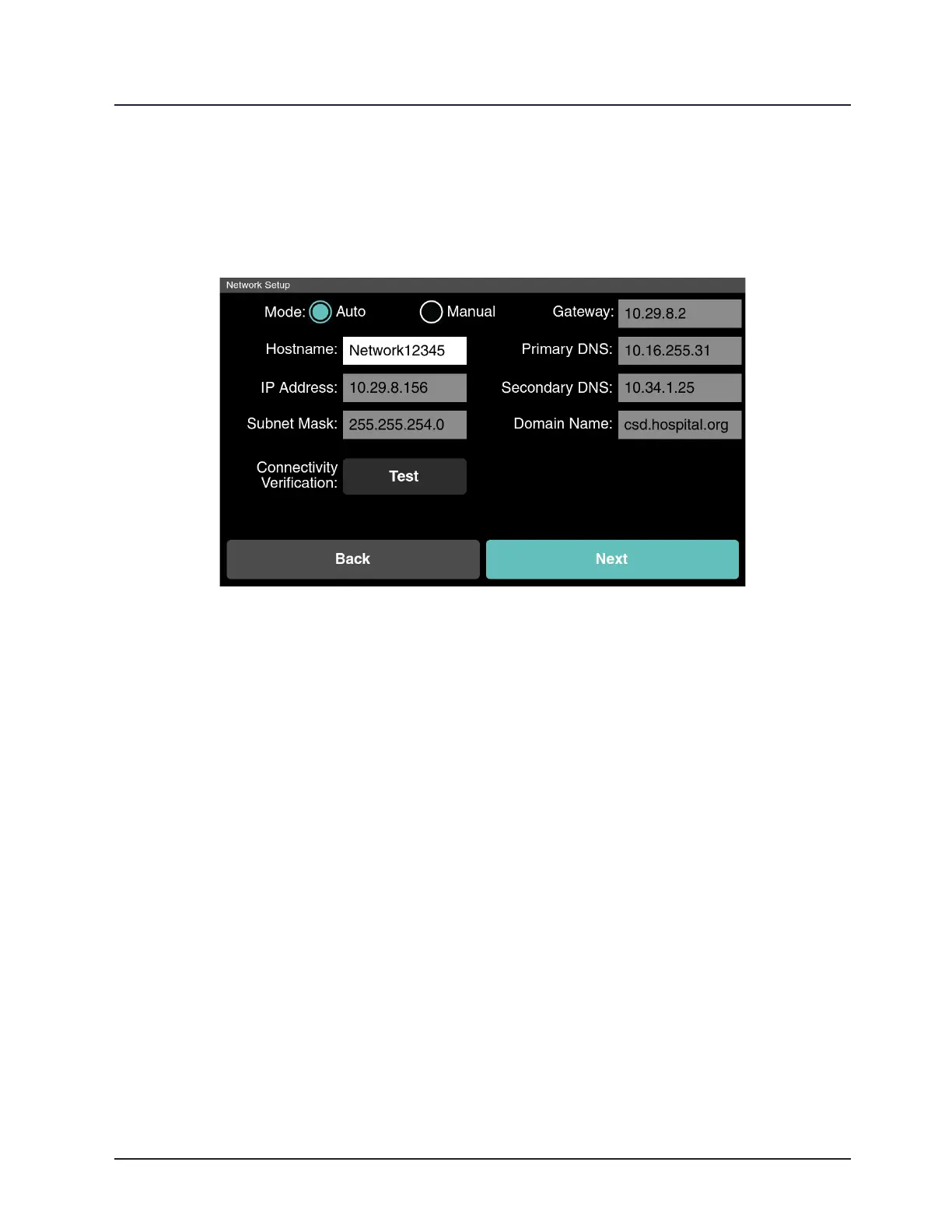
An unsuccessful connection test will display a yellow circle with an exclamation
point and the message “No Connection”. After returning to Network Setup, check the
network settings and try the test again. If the test is unsuccessful a second time refer
to the “Troubleshooting“ section of this guide (Chapter 8).
Figure 27. Network Setup
ASPACCESS Setup
ASP ACCESS Setup should be performed by a trained ASP Representative.
Enter the ASP ACCESS Server which can be found on the ASP ACCESS user interface.
Once the IP address for the reader is entered in ASP ACCESS it will generate a Pairing
Code. Enter the ASP ACCESS Username and Pairing Code and touch Test to verify the
connection. The reader will show a loading screen with the message “One Moment…
Verifying Connection” while it is testing the connection with ASP ACCESS.
A successful connection test will display a green circle with a check mark and the
message “Connection Veried”. If the network connection test is successful, the user will
be returned to the ASP ACCESS Setup screen. Touch Next to continue with the setup.
An unsuccessful connection test will display a yellow circle with an exclamation
point and the message “No Connection”. After returning to ASP ACCESS Setup, check
the ASP ACCESS settings, and try the connection test again. If the test is unsuccessful
for a second time refer to the “Troubleshooting“ section of this guide (Chapter 8).


 To Next Page