IFD500 Series Pilot Guide
5-18 Aux Subsystem
When you have finished naming the new checklist, press the
“Enter” button on the keypad or push the right knob. Repeat this
process for naming new checklists until all desired checklist
names are created.
When done naming checklists, press the “Edit” box again to get
out of Edit mode (background of Edit box should now be gray).
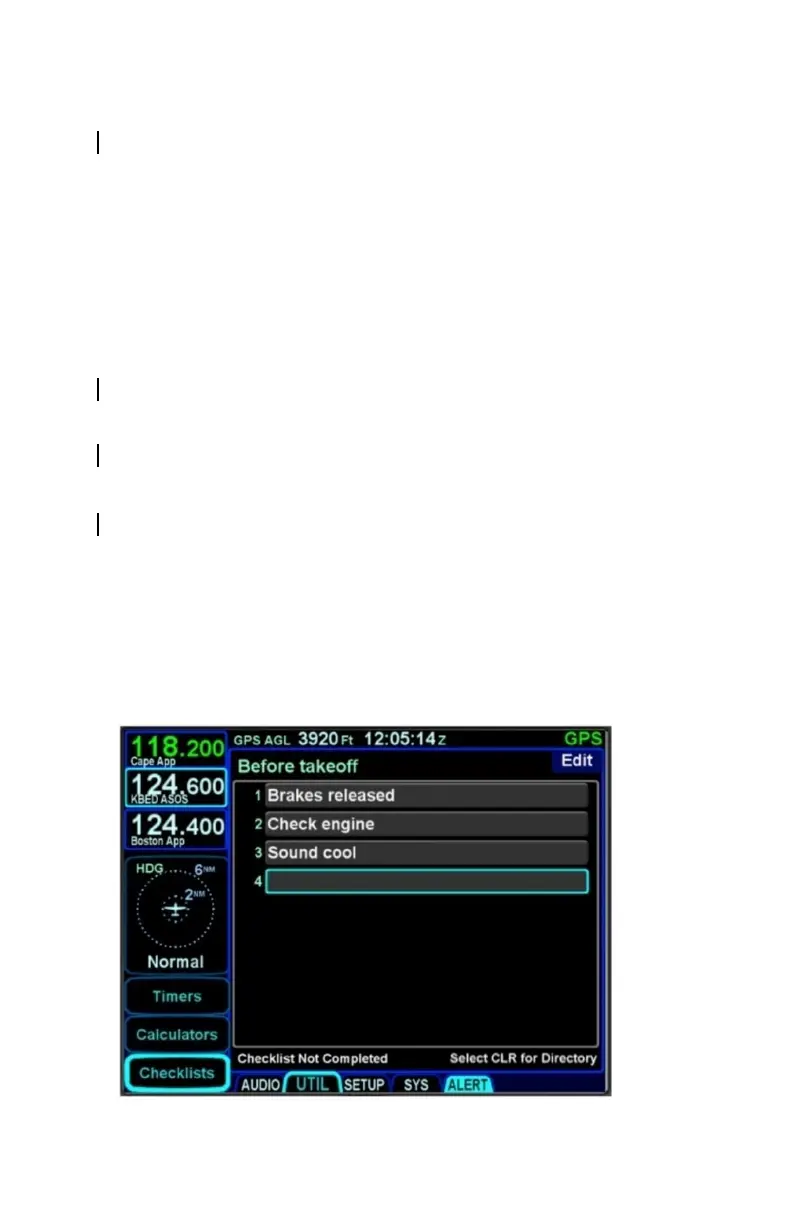
The second step is to create the checklist content. To create the
checklist content, select the checklist title that is to be filled out
from the directory list. First put the system back into checklist edit
mode by touching the “Edit” box again or using the bottom right
knob to select it and then pushing the knob. This will produce an
empty gray checklist step item.
Touch or use the bottom right knob to select the step to be
created or edited and this will put a bright blue outline around the
step. Touch the highlighted row a second time or push in the
bottom right knob to generate a keypad. Type the desired text
(Note: there is no ability to manually generate upper case
characters) and then press the “Enter” button to accept. This will
generate another empty gray checklist step item below and
repeat the process as required. When done creating all the
desired checklist steps, press the “Edit” button in the top right
corner again to exit edit mode.
Creating/Editing a Checklist


 To Next Page