601–0445 /05 Loki98
5. Repeat the same procedure for the other projector,
6. Disable the “Show lines” when the Black level adjustment is completed.
8.5.5 Black level files
About custom Black Level Files
Next to setting your specific Black Level Adjustment in the GUI, you can also upload or download a custom
Black Level adjustment file in png, jpeg or tiff format to/from the projector.
To upload or download Black Level masks you can use the Prospector tool. Alternatively, you can contact the
“file endpoint” directly via the curl program or some other tool that supports http upload.
For more information on uploading/downloading Black Level files using the Prospector, refer to the Prospector
user manual.
For more information on uploading/downloading Black Level files using curl or other tools that supports HTTP
upload, refer to the Pulse API Reference Guide.
How to activate an uploaded Black Level adjustment file?
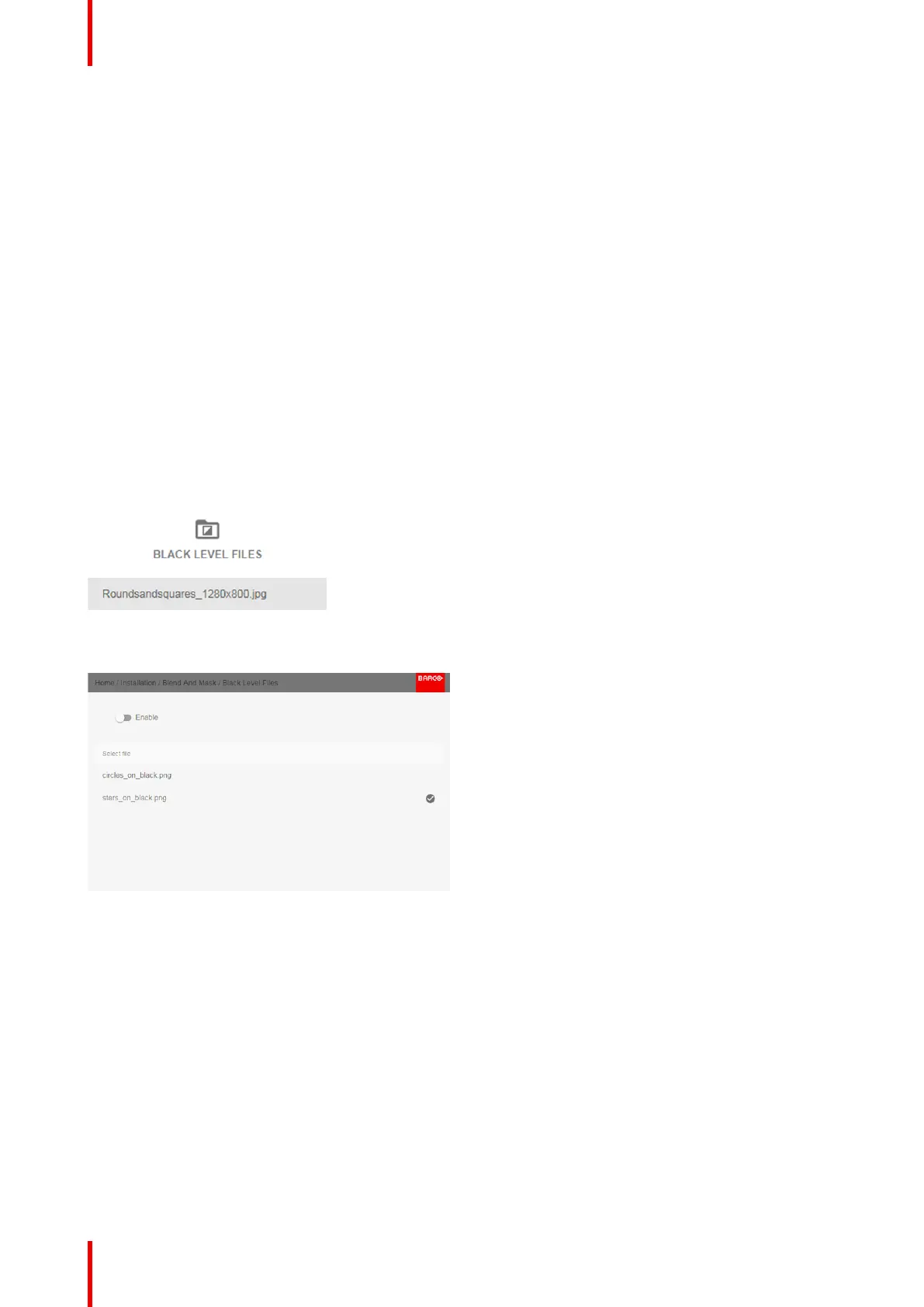
1. In the main menu, select Installation → Blend and Mask → Black Level .→ Black Level Files
Image 8-51: Blend and Mask menu, Black Level Files
The Black Level Files menu is displayed.
Image 8-52
2. If any custom Black Level adjustment files are available, select the desired file.
Installation menu



 To Next Page