Code: IU.01.09.0007
Version / Revision: 6.001
Page: 67 de 143
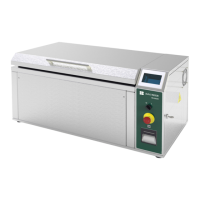
Ultrasonic washer
Model: E0201
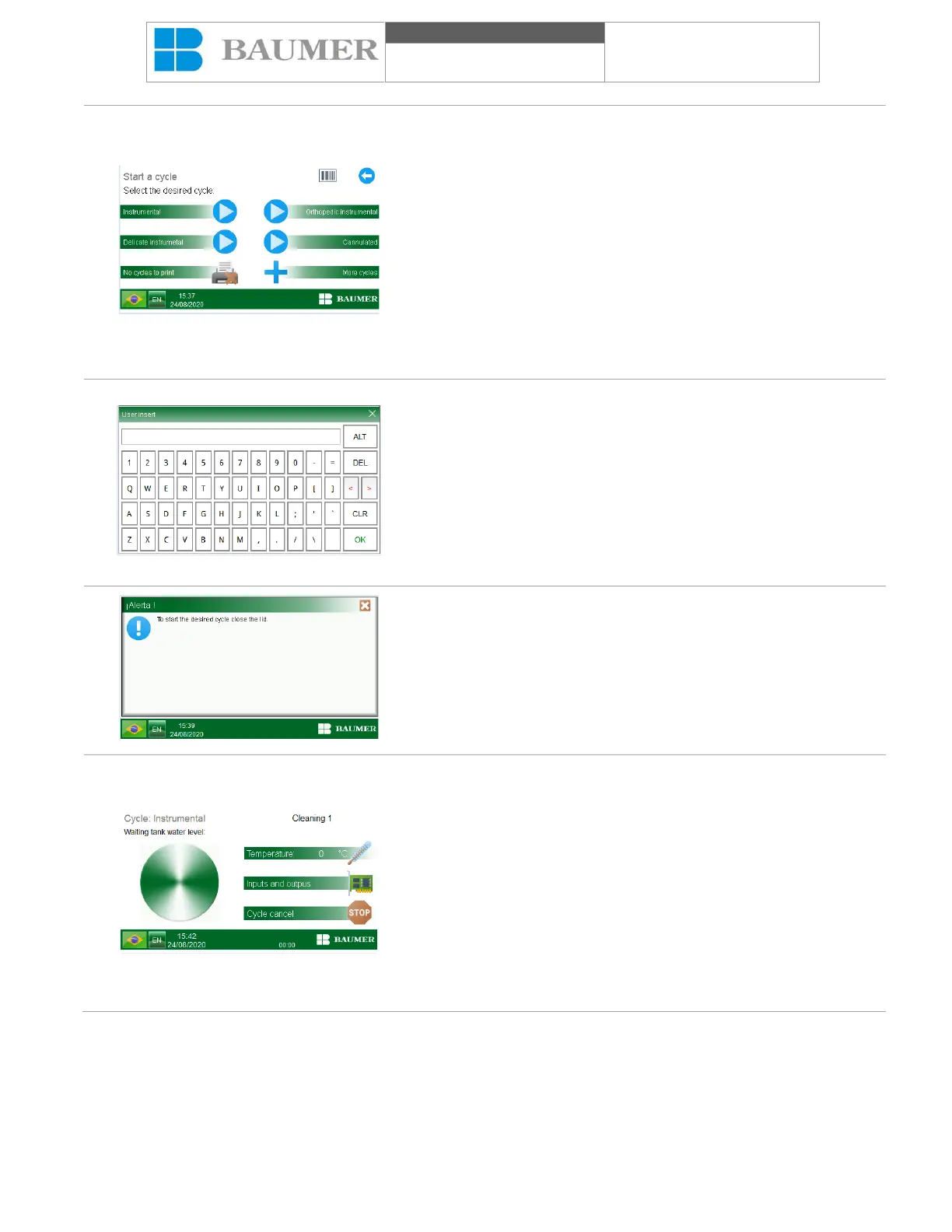
When you touch the icon or the text "Start a cycle", the cycle start
menu will be accessed.
On the "SELECT DESIRED CYCLE" screen, you can see the
cycles available and press the "More cycles" button and see the
other cycles available to you by the Ultrasonic washer.
Select the desired cycle by pressing the corresponding key, the
"START CYCLE" screen will appear;
Here you can go back to the beginning display by clicking on the
back icon (represented by an arrow).
Before starting a cycle, you can enter a code to control your load,
called a "load code". To perform this action, touch the "load code"
icon (represented by a bar code). In the game, an alphanumeric
keyboard will appear.
Insert the desired code. To confirm the insertion of the charge code,
tap the "Accept" button on the keyboard. To cancel this action,
close the keyboard window by clicking on the "X" on the keyboard
bar. You can enter another code at any time by touching the icon
and entering it through the keyboard, eliminating it by touching the
"CLR" button (which deletes all characters) or "DEL" (which deletes
characters individually) on the keyboard. The maximum number of
characters allowed to enter the load code is 12 characters. The
code entered can be seen in the head of the printing belt.
Note: It is not mandatory to complete the charge code.
To start the cycle, the box must be closed. If this condition is not
fulfilled, the cycle will not start and a visual alarm will warn you that
the slap must be closed to start the cycle. To recognize the alarm,
close the slap.
To start an instrumental cycle, touch the icon "Instrumental".
Touching the icon the text "Instrumental", if the slap is closed, the
chosen cycle will begin and the process slope will be shown.
This display will show the selected cycle, the step of the cycle that
is in progress and the process temperature in ° C.
The icon "Inputs and outputs" allows you to see which components
are active at a certain stage of the cycle, and are suitable for access
to maintenance users.
The icon "Cancel cycle" allows you to cancel the cycle at any time,
according to the user's needs.
The cycle time can be seen graphically through the "cycle time
graph", which will be completed in real time, giving an estimate of
how much time has dropped to the end of the cycle.


 To Next Page