Code: IU.01.09.0007
Version / Revision: 6.001
Page: 76 de 143
Ultrasonic washer
Model: E0201
• User: ADM (Administrator)
• Password: 2667
• Permissions: They have full access to the equipment and all permits.
11.9.2 Inclusion of the name of the institution
The Ultrasonic washer allows to include the customer's name, the same is printed on the upper part of the printing
belt. To release this function, proceed according to the instructions below:
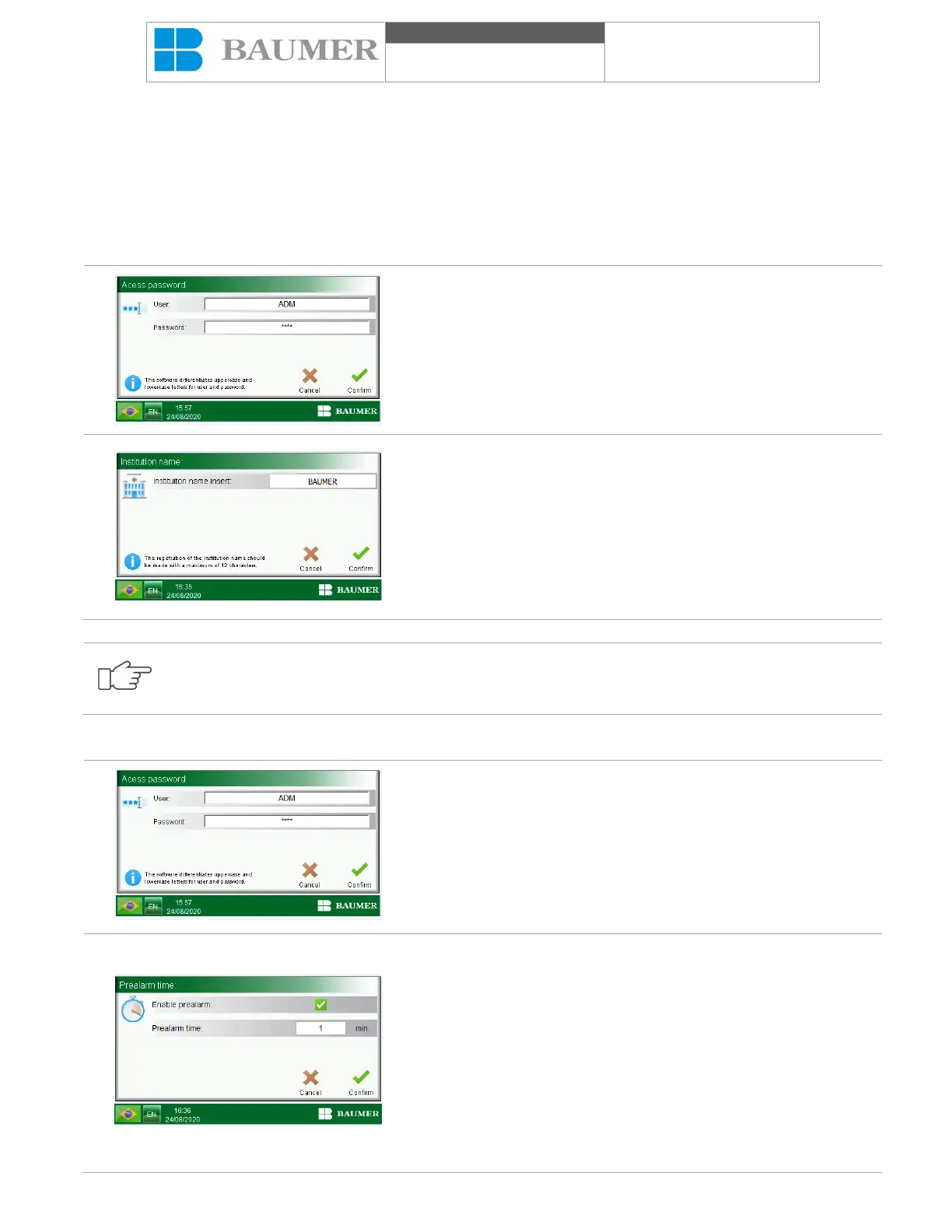
In the "User area and supervision", pressing "Name of the
institution" will open a screen requesting the inclusion of a user and
password that allows the level of "Supervision and programming".
Then the "Institution name" window will open.
When playing the field "Insert name of the institution", an
alphanumeric keyboard opens allowing the inclusion of the name
of the institution with up to 18 characters.
The name of the institution will be printed on the top of the printing
belt.
• The icon the text "Confirm" confirms the actions or changes made.
The "Cancel" text cancels the actions or changes made.
The "Institution name" is used to enter the name of the Hospital, Company, Lab, etc. This name will be
printed on the top of the printing belt.
11.9.3 Inclusion of the time of pre alarm
In the "User area and supervision", by pressing "Time of pre alarm",
a screen will open asking for the inclusion of a user and password
that allows the level of "Supervision and programming".
Then the "Pre alarm time" window will open.
The "Activate pre alarm" field allows you to activate this function by
inserting a check mark in the "verification box" on the side of the
field.
This audible signal is different from the alarm at the end of the cycle
and allows the operator to be alerted that the cycle is approaching
its end and that a new load must be prepared.
• The icon "Confirm" confirms actions and changes made and
returns to the previous display.
The text "Cancel" cancels the actions or changes made and returns
to the previous display.


 To Next Page