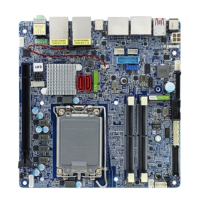
MX680RD User’s Manual
3.7 Intel VMD (RAID):
1. For RAID 0/1: Install two PCIe (NVMe) SSDs on both M.2 slots. Or two SATA signal SSDs
on two SATA ports of MX680RD.
2. For RAID 5: Install 3 SATA signal SSDs on both SATA ports and M.2 slots.
3. For RAID 10: Install 4 SATA signal SSDs on both SATA ports and M.2 slots.
NOTE: For the RAID configuration:
1. Use only all SATA signal SSDs, OR all M.2 PCIe (NVMe) SSDs.
2. Do not mix SATA signal SSDs with M.2 PCIe (NVMe) SSDs. Only either type of SSD
can be used on the same board for RAID configuration.
4. Turn-on system, enter BIOS.
5. Enter “Chipset”->”System Agent (SA) Configuration”->”VMD Setup menu”->”Enable
VMD Controller”; set it to “enabled”>. Then save and exit BIOS.
6. Enter BIOS again. Enter “Advanced”->”Intel Rapid Storage Technology”, where it
displays the model name of installed two M.2 NVME SSDs (or model names of installed
two SATA disks).
7. Click on “Create RAID Volume”, and set the “RAID level” as “RAID 0 (Stripe)” or “RAID 1
(Mirror)”.
8. Under “Select Disks”, mark “x” on both identified disks.
9. Click on “Create Volume”. The BIOS will prompt with screen that shows “Volume1, RAID
mode, storage capacity, normal”.
10. Save and exit BIOS.
11. Insert USB keys that contains the Win10 installation files and BCM provided driver
“(OPTIONAL) RST_19.2.0.1003” to MX680RD board.
12. Turn-on system, the Win10 installation process begins.
13. Under the screen “Where do you want to install Windows” (the HDD partitions), there is
no any partition displays on the list. Click on “Load driver” Option.
14. Click on “Browse”, then point to the directory where the BCM provided driver
“(OPTIONAL) RST_19.2.0.1003”->”F6 (browse during Win installation)” ->”VMD”
-> ”f6vmdflpy-x64”, then click on “OK”.
15. Click on the option “Intel RST VMD Controller 467F”, then click on “Next” to proceed.
16. The partition will be displayed, click on “Next” to continue Win10 installation process.


 To Next Page