Creative embroidering
78
Undoing entries
All entries can be undone and redone again step by step.
Prerequisite:
• An embroidery motif has been selected and alterations have been done.
> Touch the icon «Undo» to cancel the last entry.
> Touch the icon «Undo» several times to cancel the last entries step by step.
> Touch the icon «Redo» to restore the last entry.
> Touch the icon «Redo» several times to restore the last entries step by step.
Grouping embroidery motifs
Embroidery motifs can be added to a combination or removed. The grouped embroidery motifs can be
edited like one single embroidery motif.
The sequence of the embroidery motifs in the combination can be changed (see page77).
As soon as an embroidery motif has been ungrouped, in other words, it has been decomposed in different
elements/colors, the colors won't be recomposed. With alphabets, the jumpstitch length needs to be
adjusted to 1 in the Setup so that ungrouping will work with all the letters.
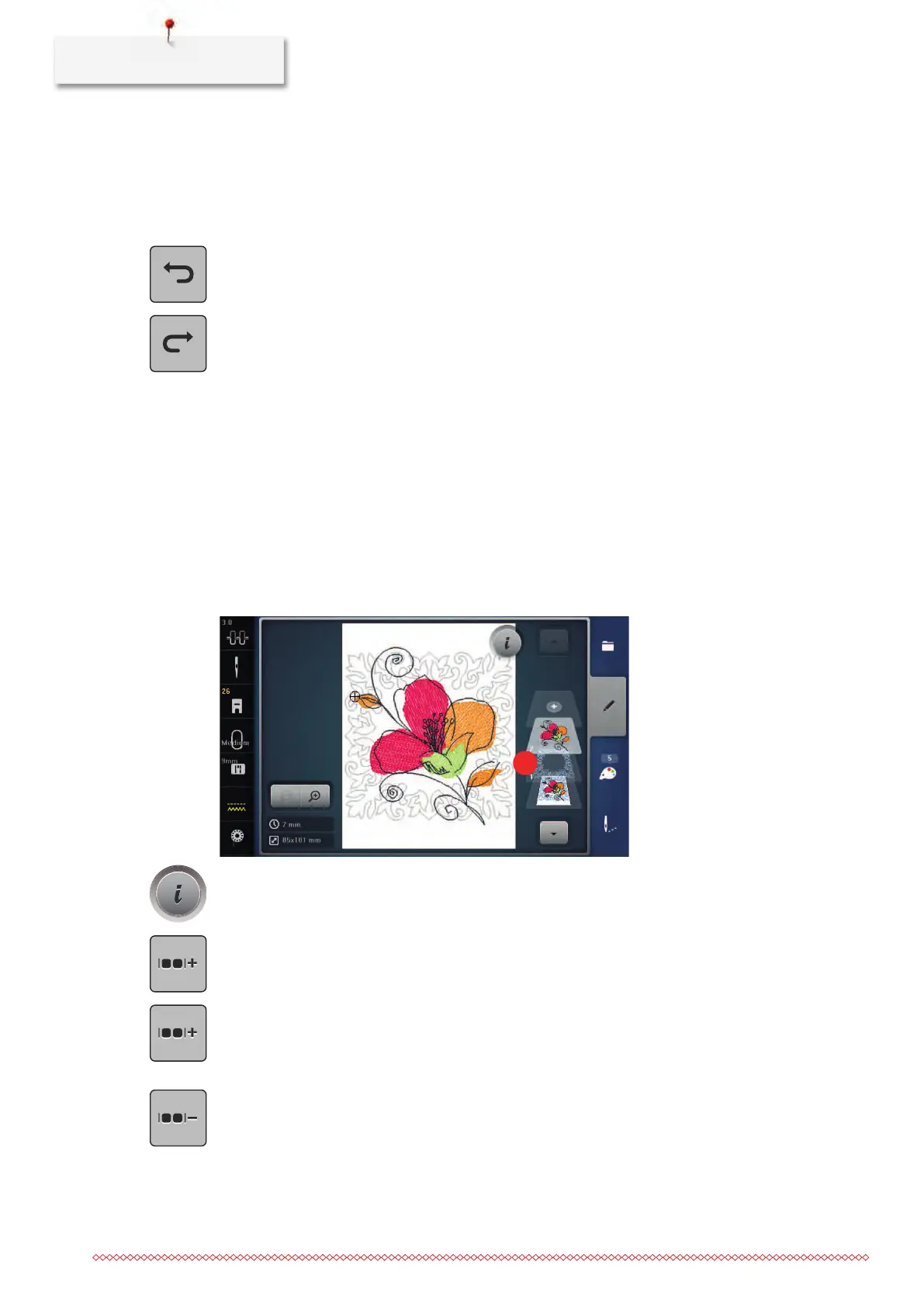
> Create an embroidery motif combination.
> Select an embroidery motif (1) within the embroidery motif combination.
> Touch the icon «i»-Dialog.
> Touch the icon «Group».
> Touch the icon «Group».
– The embroidery motif above the selected embroidery motif is added to the embroidery motif
combination.
> Select an embroidery motif combination.
> Touch the icon «Ungroup».
– The combination is ungrouped.
or
> Create an embroidery motif combination.


 To Next Page