
 To Next Page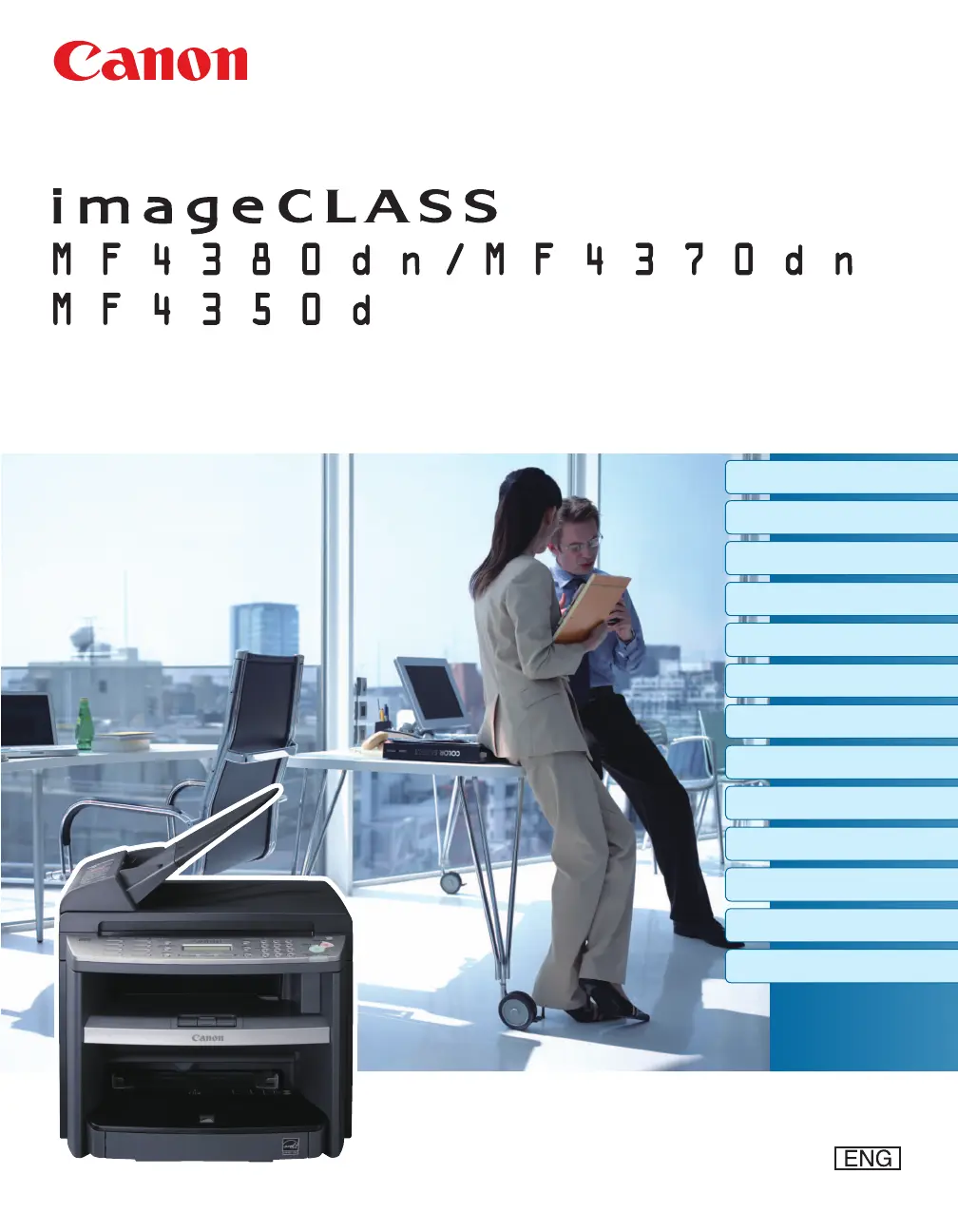
J
jonathan79Sep 12, 2025
What does 'CANNOT PRINT RX DATA' mean on Canon Printer?
- LlevyjamesSep 12, 2025
This error message appears with another message. When the error is resolved, the received data will be printed out.

What does 'CANNOT PRINT RX DATA' mean on Canon Printer?
This error message appears with another message. When the error is resolved, the received data will be printed out.
Why does my Canon imageCLASS MF4370dn Printer say 'NOT REGISTERED'?
To use the Address Book function on your Canon Printer, you need to register the recipients first.
Names and functions of the machine's parts.
Detailed view and explanation of the main control panel.
Explanation of the display information in various modes.
Information about the toner cartridge and its yield.
Specifications for documents that can be scanned or copied.
Instructions on how to place documents on the platen glass and in the ADF.
Details on paper types, sizes, and weights supported by the machine.
Step-by-step guide for loading paper into the cassette and tray.
How to configure the machine's paper size and type settings.
Overview of the Address Book feature for storing fax numbers.
Step-by-step guide to register new one-touch fax numbers.
Guide for registering new coded dial fax numbers.
How to create and register new group fax addresses.
Introduction to the various copying features available.
Step-by-step guide for performing a standard copy job.
How to cancel an ongoing or pending copy job.
Adjusting image quality settings for copies.
How to adjust the darkness or lightness of copies.
Features for resizing copies using preset or custom ratios.
Making copies on both sides of the paper.
Reducing two documents to fit on one sheet of paper.
Introduction to fax operations, including PC fax and forwarding.
Essential settings and preparations for using fax functions.
Explains different modes for receiving faxes automatically or manually.
Procedures and settings for sending fax documents.
Settings for automatic or manual redialing.
Using an external phone to initiate fax reception.
Storing received faxes in memory before printing.
Introduction to basic print features.
Essential steps before using print functions.
How to send print jobs from a computer.
Adjusting document size for printing.
Printing multiple pages on a single sheet of paper.
Printing on both sides of the paper.
Monitoring and canceling active print jobs.
Introduction to scanning capabilities.
Prerequisites for using scanner functions.
Core procedures for scanning documents.
Visual guide for setting up network functions.
Explanation of network concepts and LAN.
Summary of actions possible via network connection.
Introduction to managing the machine via a web browser.
Procedure for accessing the machine's remote user interface.
Procedures for routine cleaning of the machine's exterior and interior.
Steps and precautions for replacing the toner cartridge.
Information on Canon's cartridge recycling program.
Required procedures before transporting the machine.
Procedures for resolving paper and document jams.
Table of error messages and their descriptions.
List of error codes and their meanings.
Steps to resolve the 'Load Correct Paper' error.
What happens to the machine during a power failure.
Information on customer support services.
Overview of adjusting machine settings.
Steps to navigate the machine's setting menu.
Details on navigating and using the setting menu.
General specifications like type, power, weight, dimensions.
Alphabetical list of topics and their page numbers.
 General
| Print technology | Laser |
|---|---|
| Maximum resolution | 1200 x 600 DPI |
| Print speed (black, normal quality, A4/US Letter) | 23 ppm |
| Scanner type | Flatbed scanner |
| Input color depth | 24 bit |
| Image formats supported | BMP |
| Faxing | Mono faxing |
| Fax memory | 256 pages |
| Modem speed | 33.6 Kbit/s |
| All-in-one functions | Copy, Fax, Scan |
| Compatible operating systems | Win Vista, Server 2003, XP, 2000 Mac OS X 10.2.8 |
| Total output capacity | 100 sheets |
| Auto document feeder (ADF) | Yes |
| Auto document feeder (ADF) input capacity | 35 sheets |
| Standard interfaces | USB 2.0 |
| USB 2.0 ports quantity | 1 |
| Power consumption (PowerSave) | 3 W |
| Power consumption (average operating) | 630 W |
| Market positioning | Business |