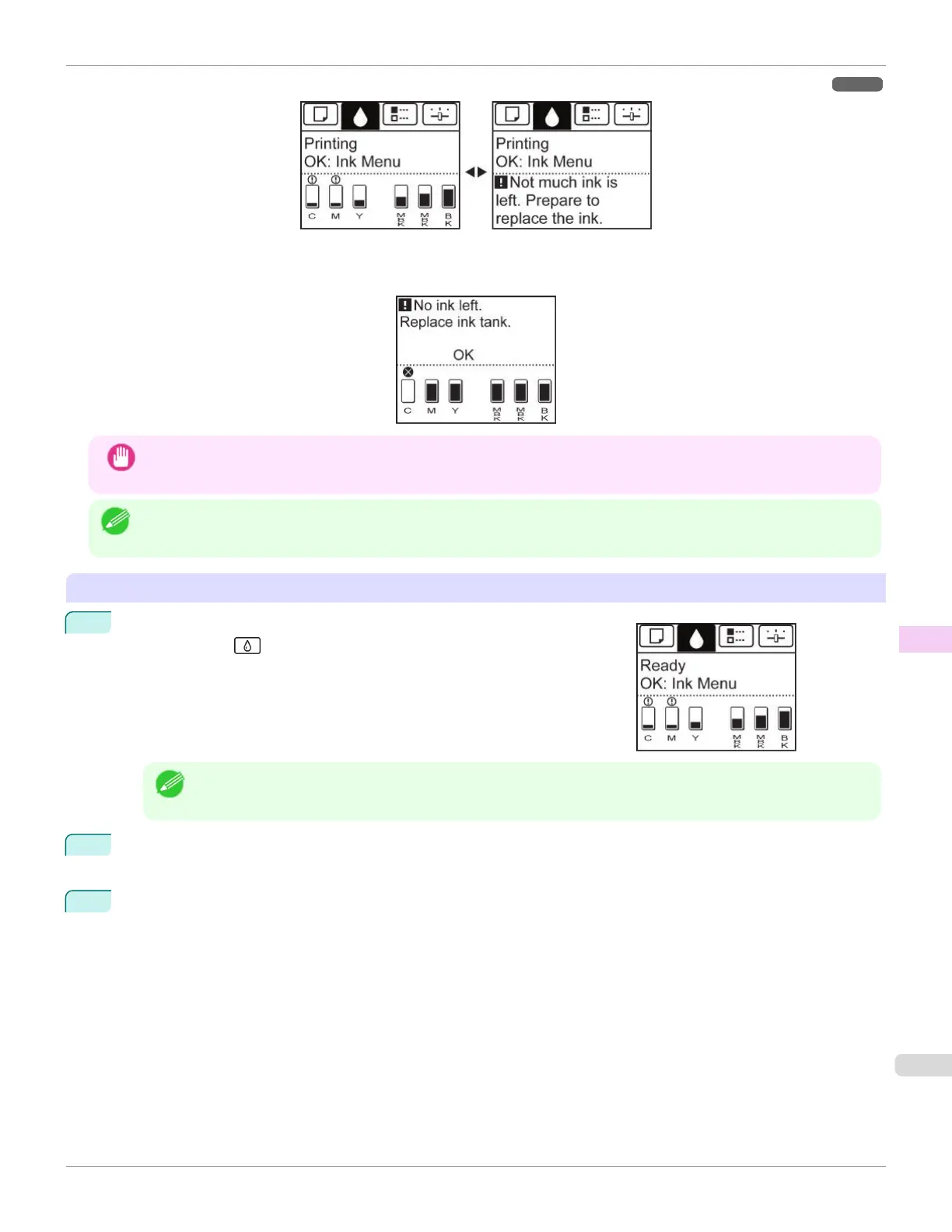
According to the message, replace the ink tank or prepare a new ink tank. (See "When to Replace Ink Tanks.") ➔P.547
If a message requests you to replace an Ink Tank, press the OK button. In this case, you can skip the step Access the
menu for ink tank replacement. Follow the instructions in Remove the ink tanks.
Important
•
Do not remove an Ink Tank during initialization immediately after turning on the printer, or during printhead cleaning.
Ink may leak out.
Note
•
Ink Tank replacement is possible even during printing, when print jobs are being canceled, or when paper is being ad-
vanced.
Access the menu for Ink Tank replacement
1
On the Tab Selection screen of the Control Panel, press ◀ or ▶ to se-
lect the Ink tab ( ).
Note
•
If the Tab Selection screen is not displayed, press the Menu button.
2
Press the OK button.
The Ink Menu is displayed.
3
Press ▲ or ▼ to select Rep. Ink Tank, and then press the OK button.
A message on the Display Screen requests you to open the Ink Tank Cover.
iPF670
Replacing Ink Tanks
User's Guide
Maintenance and Consumables Ink Tanks
543













 To Next Page