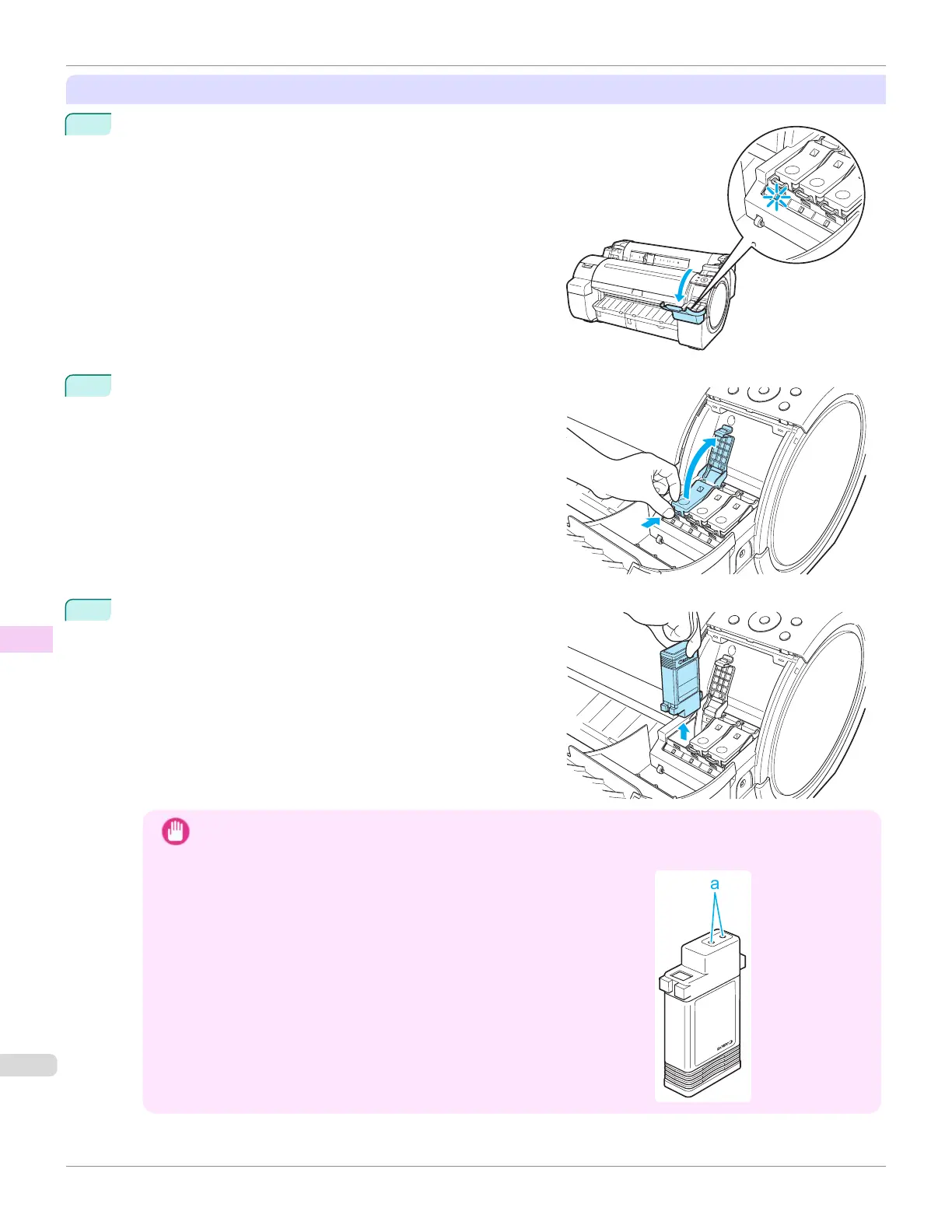
Remove the Ink Tank
1
Open the Ink Tank Cover and check the ink lamps.
Ink lamps flash when there is little ink left.
2
Press the tip of the Ink Tank Lock Lever of the color for re-
placement horizontally and pull the Ink Tank Lock Lever up to
open it.
3
Hold the Ink Tank by the grips and remove it. Press the OK
button.
Important
•
Do not turn off the printer while the Ink Tank is removed.
It may cause the interior of the Ink Tank Cover to become soiled.
•
If there is still ink in the Ink Tank you removed, store it with the ink
holes (a) facing up. Otherwise, ink may leak and cause stains. Put the
Ink Tank in a plastic bag and seal it.
Replacing Ink Tanks
iPF670
User's Guide
Maintenance and Consumables Ink Tanks
544













 To Next Page