74
Contents
Preparation/
Setup
Print Using a
Computer
Appendix
IndexPrint/SaveInput/Edit
Names of
Components
Maintenance/
Printer Settings
Trouble-
shooting
8
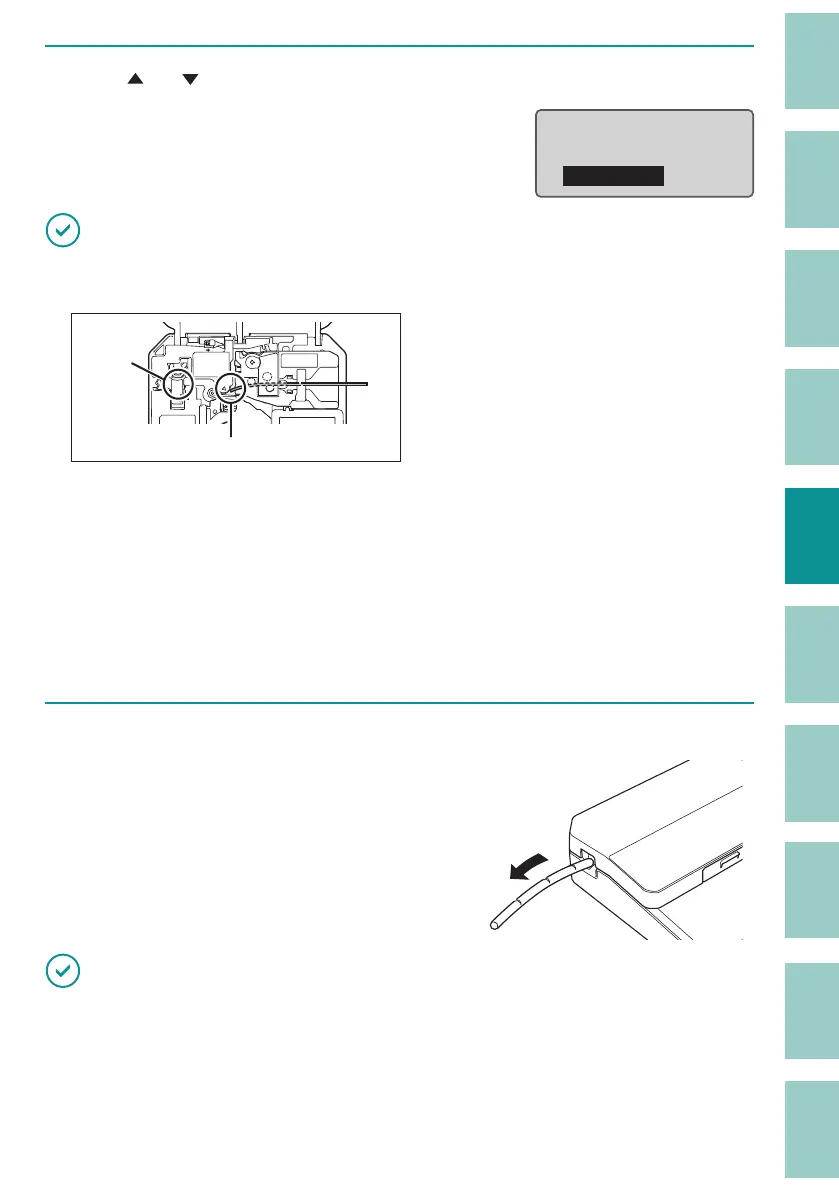
Use [ ] or [ ] to select "Print head" and press [Enter] key.
Printing will be started.
Media Head Position
ɻɻ
Cutter
Print head
IMPORTANT
• Check the head position of the loaded print media, then select "Cutter" or "Print head." Select "Print
head" to print on the print media directly after loading it.
Cutter
Print head
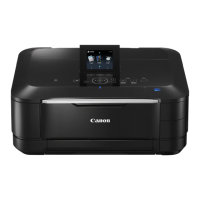
• If the media head position is set incorrectly, you may end up printing on the transport roller or have a
big margin at the tip.
• After the media head position is set, the "Media Head Position" screen will not be displayed again in
the following cases.
- When the cover is not opened.
- When the power is not turned o .
- When you do not change the type or size of the print media in the print settings.
- When the feed function
(P.171)
and remove function
(P.28)
are not used.
9
Removing the tube.
When printing is nished, the tube will be
automatically cut (Full cut). Also, a cut (Half cut)
can be made between the tubes.
IMPORTANT
• After printing, remove the print media from the printer to prevent warping or deformation of the print
media.
• Do not place any objects around the outlet of this product. If there is an object blocking the outlet, the
tube or label tape may not be ejected straight and may be cut in a bent shape.



 To Next Page