2.
Slide to . SMARTH is in DMC intercom mode
3.
Tap .
4.
Tap Group.
5.
Tap New Group.
6.
Enter your New Group name and tap OK. Your DMC intercom group appears in group list.
To create a new DMC group for SMARTH with Cardo headsets through the headset voice-assisted menu:
1.
Confirm your SMARTH is in DMC intercom mode:
■
Normal battery state - LED flashes green slowly.
■
Low battery state - LED flashes red slowly.
■
Charging - LED flashes purple slowly.
2.
Tap ~ and ~Volume Up twice.
3.
When the voice-assisted menu reaches "Advanced Features", tap ~Intercom or use VOX.
4.
When the voice-assisted menu reaches the required option, tap ~Intercom or use VOX.
4.7.2
Joining DMC intercom Groups
You can join a DMC intercom group created by another rider. If you leave a group, see "Leaving DMC intercom Groups"
on the next page
To join an existing DMC group for SMARTH with Cardo headsets through the headset buttons:
1.
Confirm your SMARTH is in DMC intercom mode:
■
Normal battery state - LED flashes green slowly.
■
Low battery state - LED flashes red slowly.
■
Charging - LED flashes purple slowly.
2.
On your headset, press ~Intercom for 5 seconds.
To join an existing DMC group for SMARTH with Cardo headsets through SmartSet:
1.
Make sure that your headset is paired to the mobile device on which SmartSet is installed.
2.
Slide to . SMARTH is in DMC intercom mode.
3.
Tap .
4.
Tap Group.
5.
Tap Join Group. SmartSet confirms groups starts.
6.
{cannot see next in }
7.
Enter your New Group name and tap OK. Your DMC intercom group appears in group list.
If your SMARTH is not in DMC intercom mode, press ~Intercom and ~Audio.
If your SMARTH is not in DMC intercom mode, press ~Intercom and ~Audio.


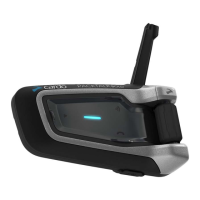


 To Next Page