6.
Troubleshooting
6.1
Soft Reset
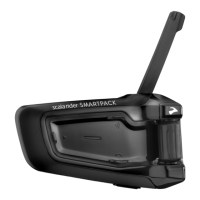
If your SMARTH stops responding, reset it by either:
■
Turning it off and then on again (see "Switching Your Headset On/Off" on page 8
■
Connecting the USB cable Type A plug to either the wall charger supplied with your SMARTH, or to a
computer USB port.
6.2
Reset Pairing
To reset pairing:
■
Press ~Intercom and ~Phone for 5 seconds.
6.3
Reset to Factory Settings
To perform a factory reset through the headset, do one of the following:
●
To use the headset buttons:
a.
Check that your SMARTH is in Standby (see "Features and System Modes" on page 1).
b.
Simultaneously press ~+~Volume Up+~Volume Down for 5 seconds
●
To use SmartSet:
a.
Check that your SMARTH is in Standby (see "Modes and Events SMARTH" on page 1).
b.
Open SmartSet and tap .
c.
Tap Settings.
d.
Tap Reset to Factory.
●
To use the headset voice-assisted menu:
a.
Tap ~ and ~Volume Up twice.
b.
When the voice-assisted menu reaches "Advanced features menu", tap ~ or use VOX.
c.
When the voice-assisted menu reaches "Reset to factory settings", tap ~ or use VOX.
6.4
FAQ
Additional answers to common problems can be found at www.cardosystems.com/faqs.
This option deletes all paired devices and all configuration settings.





 To Next Page