13
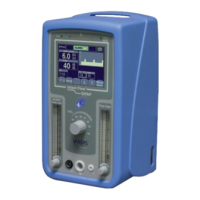
Infant Flow SiPAP set-up guide
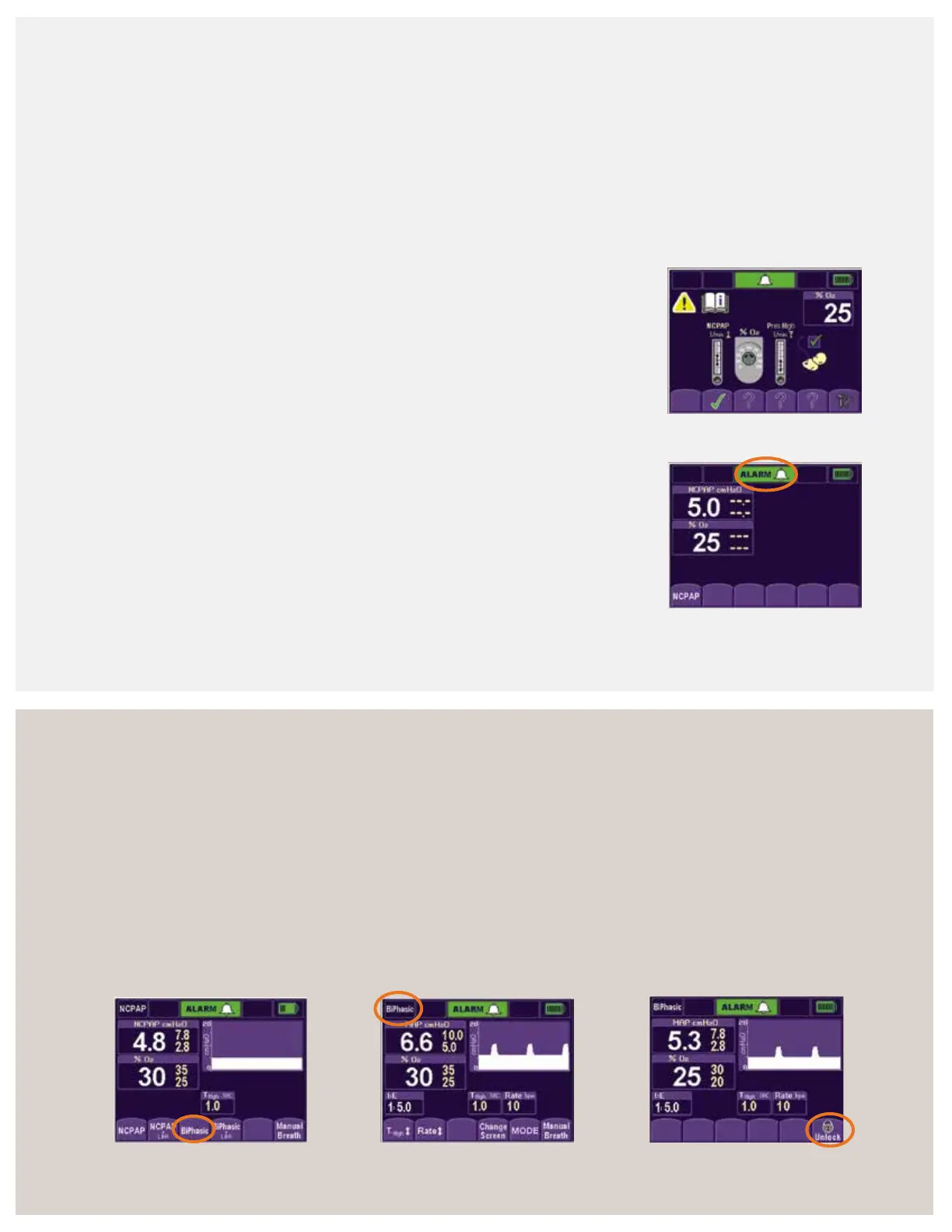
Set-up menu screen
1. Adjust the pressure low flowmeter until the desired
nCPAP pressure displays on the screen. Press the flashing
question mark icon, which changes to a static checkmark
to confirm the setting.
2. Adjust the oxygen control dial to set the desire FiO
2
%.
Press the flashing question mark icon. A checkmark
appears to confirm the setting.
3. Adjust the pressure high flowmeter until the pressure
displays 2 to 3 cmH
2
O above the set nCPAP pressure.
Press the flashing question mark icon. A static checkmark
appears to confirm the setting.
4. To use the low breathing rate/apnea monitor, connect
the transducer interface to the Infant Flow SiPAP driver.
Press the flashing question mark under the infant
respiratory sensor icon. This will change to a static
checkmark to confirm the setting. This does not confirm
that you want to use the respiratory monitoring option
but ensures that all modes are available for later use.
5. After completing the above steps, the screen changes
and displays the nCPAP mode. The infant can now be
connected to the Infant Flow SiPAP system.
Alarm set/conrm screen
Press the nCPAP button or alarm bar for three seconds
to set the alarm limits and move to the next screen. If no
button is pressed within two minutes, the alarm limits
automatically set and the screen changes to the mode
select screen.
Mode select screen
All available modes display at the bottom of the screen.
1. For low breath rate/apnea modes, attach the abdominal
respiratory sensor to the transducer and properly place
it on the infant’s abdomen.
2. Select the desired mode of operation by pressing the
corresponding button (mode select screen). The parameter
adjust screen displays, and the new mode displays in the
upper-left corner (parameter adjust screen).
3. Make the desired setting changes, and press the
selected mode to confirm the settings and activate
the new mode.
4. If no selection is made within two minutes and no
alarms sound, the screen locks to prevent entries. The
mode buttons go blank, except for the last button on
the right (locked screen). To unlock the screen, press
the lock icon.
Set-up menu screen
Alarm set/confirm screen
Mode select screen
Parameter adjust screen
Locked screen



 To Next Page