68
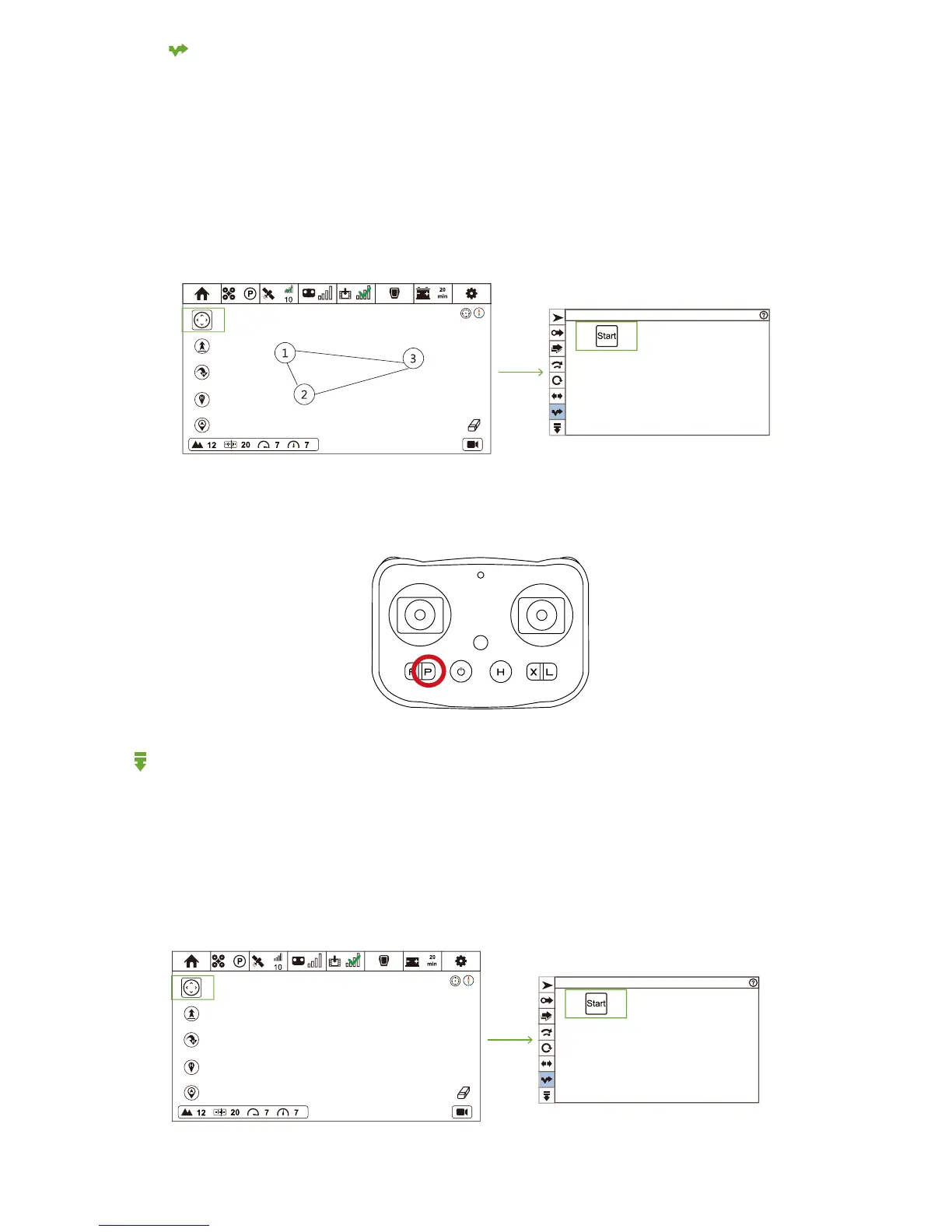
You need to set more than one waypoint in the map. These waypoints will auto generate route, and Drone will fly along this route
with Follow Module. If Follow Module goes beyond the route range, Drone will stay and hover at the nearest waypoint with camera
pointing to the direction of Follow Module.
CEEWA APP will auto check the reliability of route. If the route is not reasonable, waypoints will turn to red.
Follow-Line
① Ensure Drone has taken-off.
② Set waypoints in the map and these waypoints will automatically turn form a route. Click these waypoints to set different height.
③ Click Follow Mode icon and enter Follow Mode menu.
④ Click Follow-Line icon and enter Follow-Line menu. Click "Start". After all parameters have been uploaded, Follow-Line enables.
How to activate?
CEEWA APP
:
Follow-Line
How to deactivate?
Remote Controller:
Press P Button. When RC vibrates once P Button Status LED is constantly on, P Mode has been activated.
Drone will hover in the sky, but its gimbal will point straight down to support the camera to shoot. In this mode, the position of
Follow Module has nothing to do with Drone.
Freeze
① Ensure Drone has taken-off and achieve your desired position.
② Click Follow Mode icon and enter Follow Mode menu.
③ Click Freeze icon and enter Freeze menu.
④ Click "Start". After all parameters have been uploaded, Freeze enables.
How to activate?
CEEWA APP
:
Freeze



 To Next Page