37
Tap each waypoint in the map to edit its altitude and velocity in the pop-up window. Also, delete this waypoint in this pop-up
window.
Tap the eraser icon ( ) to delete all the waypoints.
How to deactivate?
Sports Watch:
Sports Watch:
CEEWA APP:
When pressing STOP button, “Hovering…” shows in the screen and Sports Watch vibrates once. At this moment, Nav. Mode has been
cancelled.
Hovering
Step 13: Go-Home
Go-Home brings the drone back to the latest recorded Home Point.
CEEWA Drone supports three kinds of Go-Home, including Smart Go-Home, Low-Battery Go-Home, and Failsafe Go-Home.
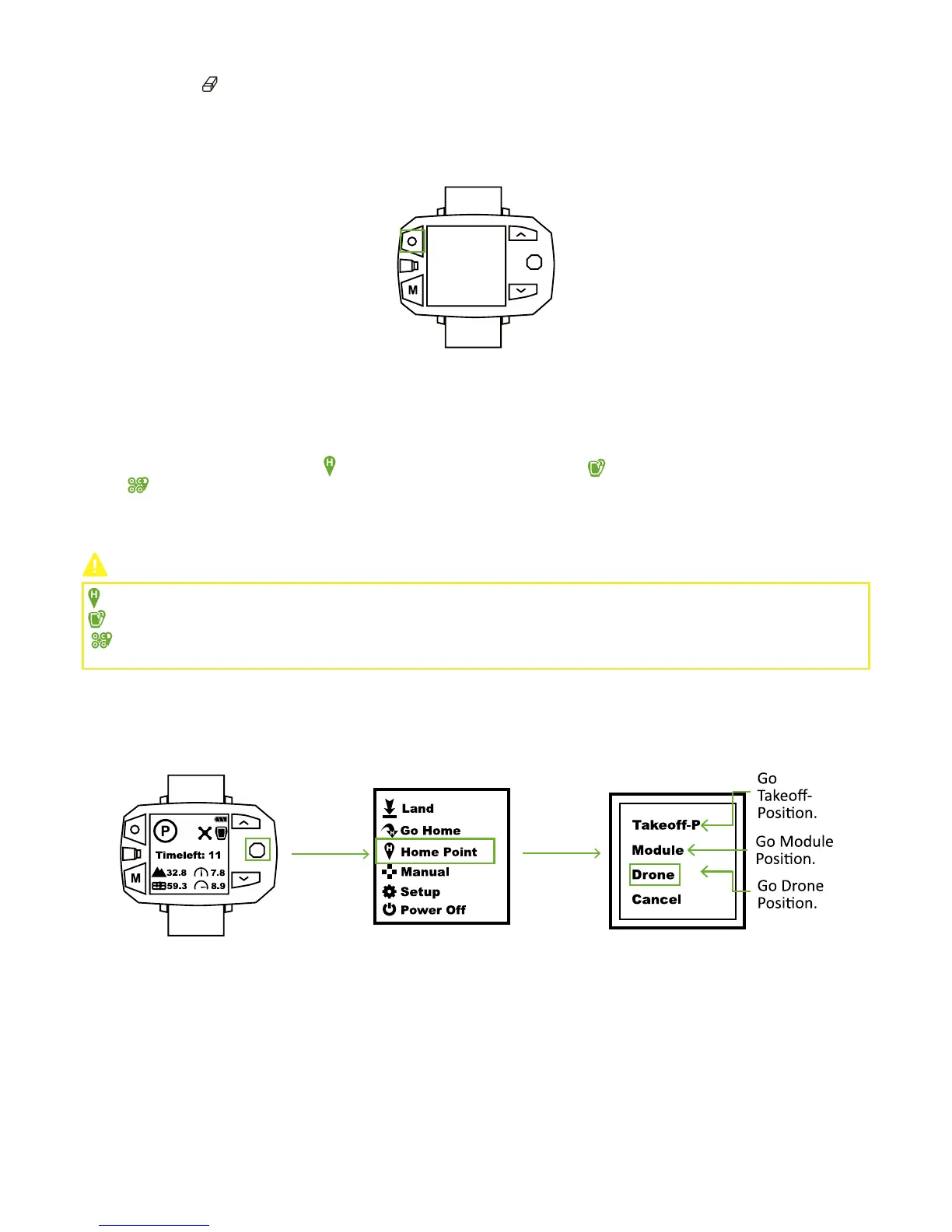
Before going-home, you should set Home Point through Sports Watch or CEEWA APP. Three are three kinds of Home Points, including
“Set Take-off Position as Home Point” ( ), “Set Module Position as Home Point”( ) and “Set Current Drone Position as Home
Point”( ).
If you have not set Home Point, Drone would return to Take-off position by default.
:
Set Take-off Position as Home Point
: Set Module Position as Home Point
: Set Current Drone Position as Home Point
Set Home Point
Take “Go Drone Position” as an example.
Toggle the Nav. Button to the right, and enter Menu Interface. Select “Home Point” option and choose ”Drone” in the pop-up
window. Home Point activates.
If you want to enable Go-Home, it is suggested to set Home Point at first. Otherwise, Drone will return to take-off position by
default.
Take “Set Drone Current Coordinate as the New Home Point” as an example.



 To Next Page