46
Turn on/off Smart Battery
4K Camera
:
Refer to 4K Camera User Manual for details. (from Download Page of CEEWA.COM)
1080P Camera
:
Refer to 1080P Camera User Manual for details. (from Download Page of CEEWA.COM)
4K Camera
:
Connect Camera to Charging Dock or USB port of the computer by the USB cable. When charging, RED LED is on.
After finishing charging, RED LED is off.
1080P Camera
:
Connect Camera to Charging Dock or USB port of the computer by the USB cable.
4K Camera
:
Refer to 4K Camera User Manual for details. (from Download Page of CEEWA.COM)
1080P Camera
:
Refer to 1080P Camera User Manual for details. (from Download Page of CEEWA.COM)
Turn on Smart Battery, Remote Controller, Follow Module and Camera.
Step 6: Turn on/off Devices
Mount Smart Battery into the drone and fix it tightly.
Power ON:
Press the Power Button once, and then press this button for over 3s till all LEDs have blinked once.
Power OFF:
Press the Power Button once, and then press this button for over 3s till all LEDs turn off.
Camera Battery Level Check & Charging
1. Check Battery Level
2. Charging
Step 5: Check AV-OUT Mode & AV cable & TF Card
Detach the camera from the gimbal. Press Power Button ( ) over 5s. When GREEN LED is blinking, the camera has been turned on.
If there is no image in the screen, AV-OUT Mode is enabled.
If there are images from the screen, AV-IN Mode is enabled. Please press the Up Button ( ) on the side of camera until image
disappears.
Check TF Card
Ensure TF card has been inserted into the camera.
Check AV-OUT Mode
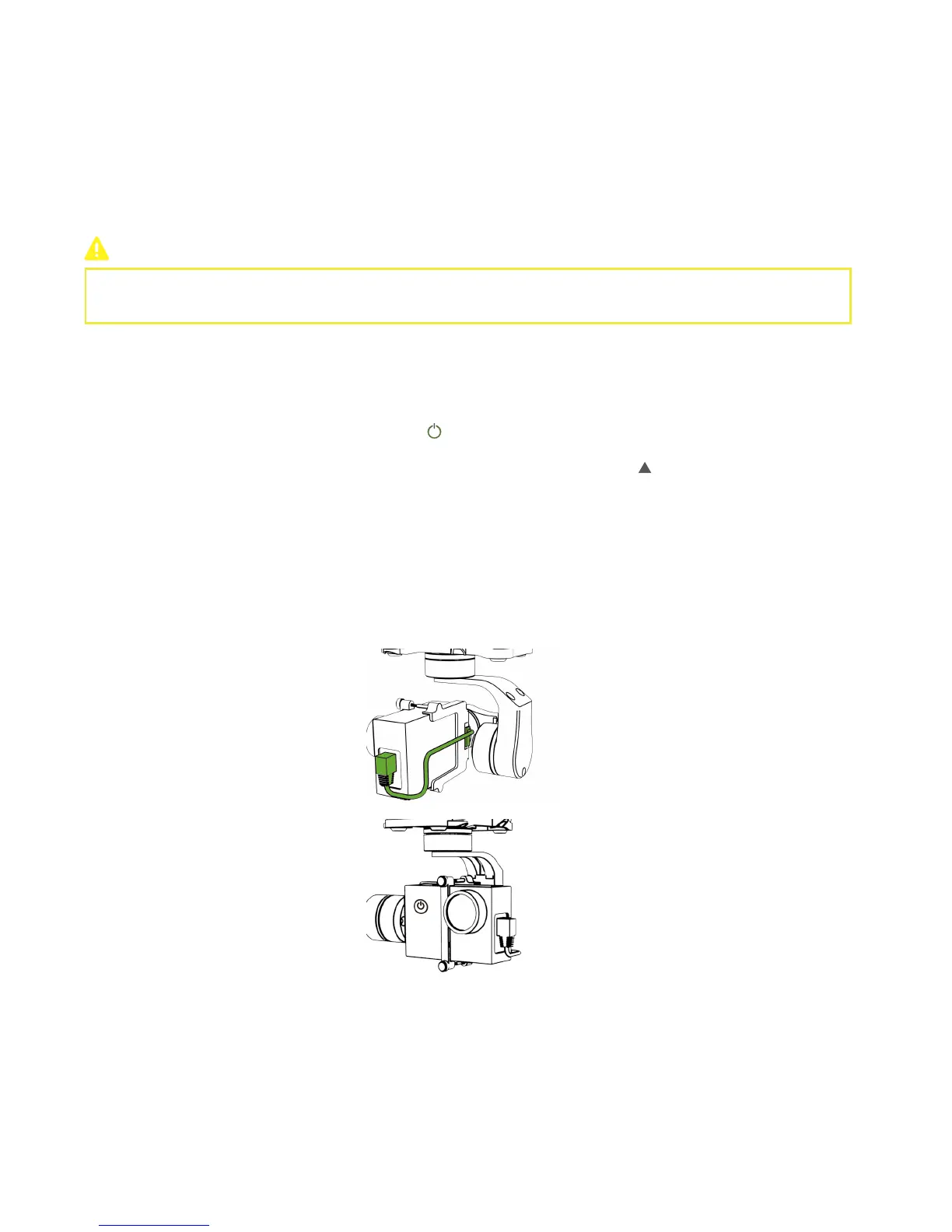
Mount the camera back to the gimbal and fix all the screws. Connect the AV port and gimbal like the diagram.
Check AV Cable



 To Next Page