When Drone has connected to Remote Controller:
Drone will ascend to 5 meters and hover to wait for the next order.
When Drone has NOT connected to Remote Controller:
Drone cannot take off.
Step 10: Adjust Drone’s Attitude
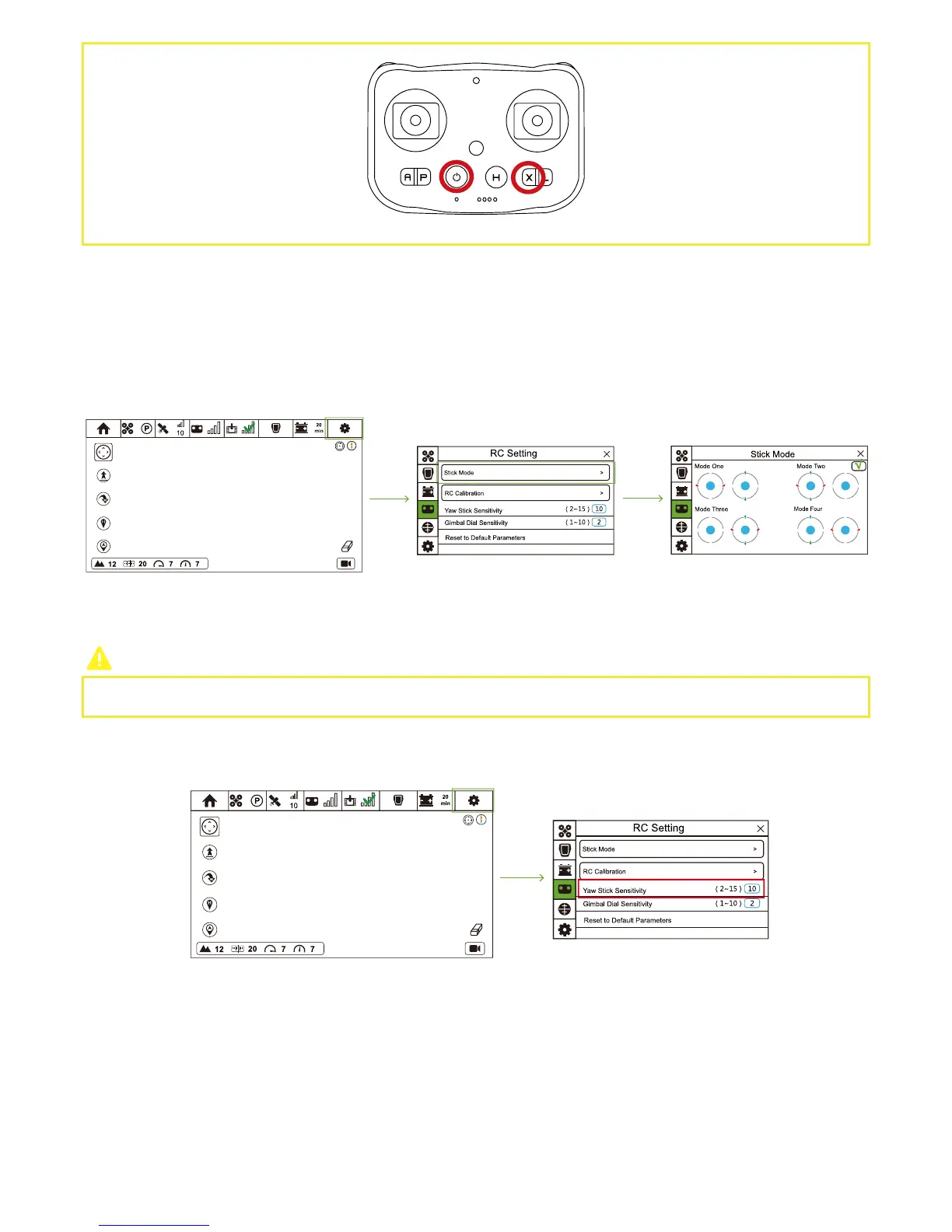
The default stick mode is Mode 2. Please change Stick Mode through CEEWA APP.
Change Default Stick Mode
Change Yaw Stick Sensitivity
Change Gimbal Dial Sensitivity
① Ensure Remote Controller and CEEWA APP has been connected.
② Turn on CEEWA APP and enter Flight Interface. Tap “Others” icon and choose Calibration icon to enter RC Setting interface.
③ Select “Stick Mode” option and choose your preference mode.
① Ensure Remote Controller and CEEWA APP has been connected.
② Turn on CEEWA APP and enter Flight Interface. Tap “Others” icon and choose Calibration icon to enter RC Setting interface.
③ Fill an appropriate value in the Yaw Stick Sensitivity box.
Yaw Stick Sensitivity: when pushing yaw stick, the rotation speed of drone head.
Gimbal Dial Sensitivity: Toggling gimbal dial, and the rotation speed of drone head.
It is not suggested to modify default value without flight experience.



 To Next Page