63
① Ensure Drone has taken-off.
② Click Follow Mode icon and enter Follow Mode menu.
③ Click Simple Follow icon and enter Simple Follow menu.
④ Click "Start". After all parameters have been uploaded, Simple Follow enables.
Step 11: Follow Mode
Before switching, please ensure parameters have been set correctly, flight environment is safe (e.g. no tall buildings and
interference sources), and distance between Drone & target is suitable.
Before Follow Mode, please put Drone & Follow Mode at the same height to calibrate!
There are 8 Follow Mode supported by CEEWA Drone: Simple-Follow ( )
,
Hover-and-Aim ( )
,
Follow-Shadow( )
,
Follow-
Track( )
,
Orbit( ), Selfie( )
,
Follow-Line( )
,
Freeze( ) .
Simple Follow
Drone will auto follow the target with a fixed distance and altitude.
Attentions: ONLY activate Simple-Follow after taking-off. When this mode has been triggered, Drone will remain the relative altitude
and distance between Drone & Follow Module.
Keep a safe distance between Drone & Follow Module.
How to activate?
CEEWA APP
:
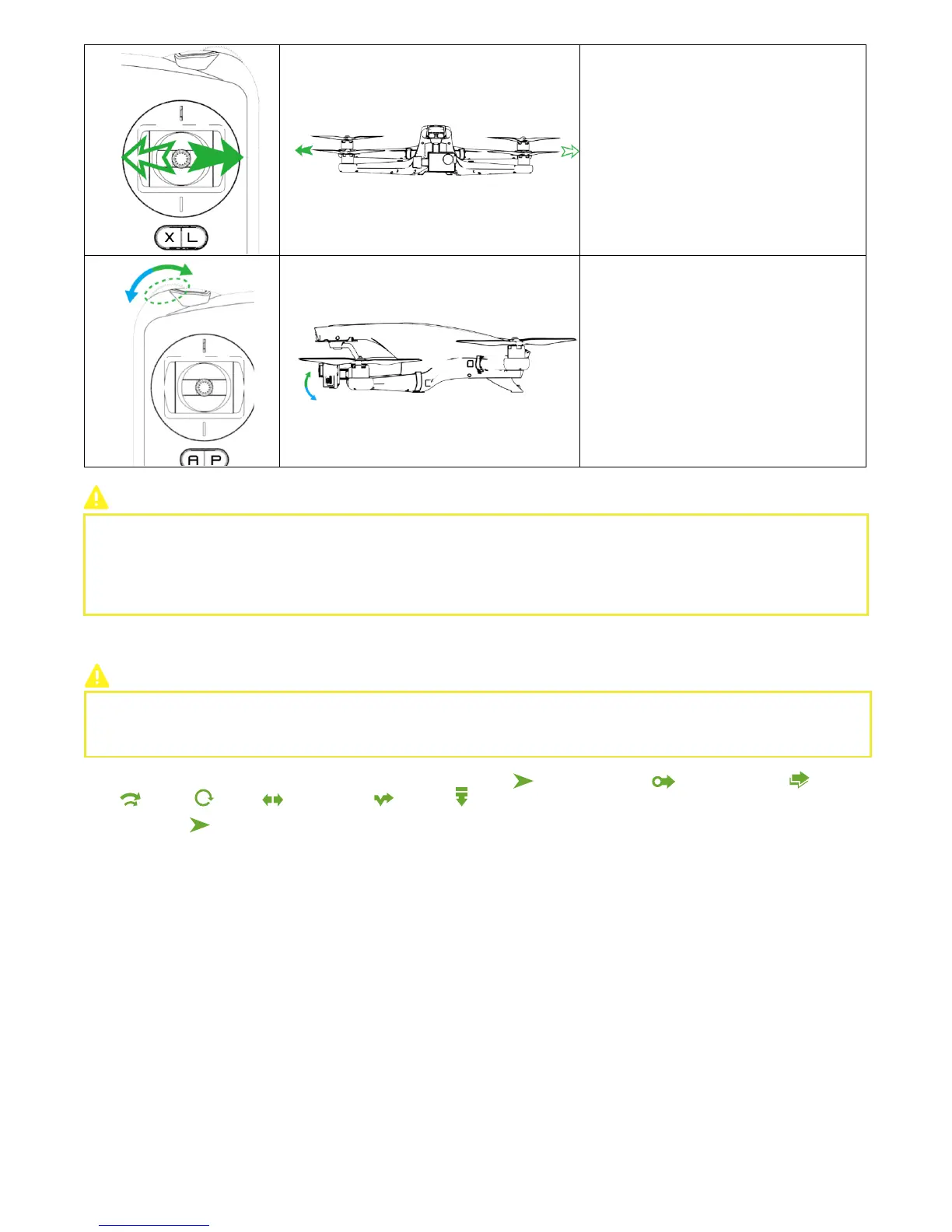
When pushing the stick to left, Drone flies to
the left. When pushing the stick to right, Drone
flies to the right. If the stick is centered, Drone
will hover.
Push the stick further away from the centered
position for a larger pitch angle (30 degrees at
max) and faster flight speed.
Gimbal Pitch Dial: Turn the dial to right and the
camera will shift to point upwards. Turn the
dial to the left and camera will shift to point
downwards.
After activating Follow Mode, the camera will always focus on the target. If you need to adjust Drone’s attitude, please pay
attention to the position and direction of nose. It is suggested to adjust drone’s attitude gradually and make sure you have set the
drone to the correct direction.
When head of drone faces Follow Module, you should pay special attentions because its orientation may be in the opposite
direction.



 To Next Page