54
6. Calibrate RC
(1)When should I Calibrate?
① It is suggested to finish RC Calibration at first time.
② When adjusting drone's attitude and deviation happens, please finish RC calibration.
(2)Calibration Steps
① Ensure all the connection is OK.
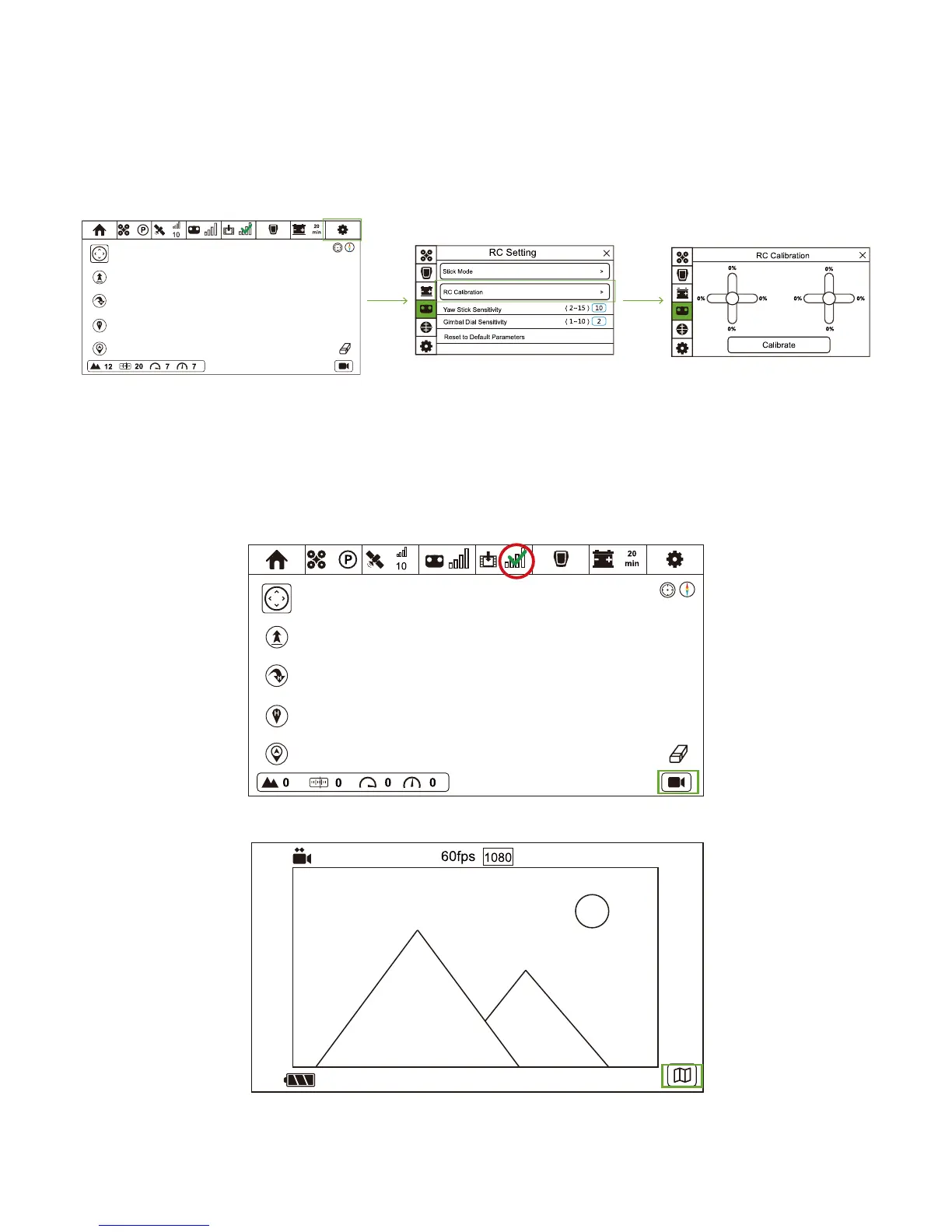
② Turn on CEEWA APP and enter Flight Interface. Tap “Others” icon and choose Calibration icon to enter RC Setting interface.
③ Select “RC Calibration” option and tap “Calibrate”.
④ Push both sticks to 100% in every direction, and observe whether or not the value in the interface has reached 100%.
Check the connection between Image Transmission Ground System and Image Transmission. Ensure Smartphone has connected to
the Wi-Fi hotspot and image can be shown in Image Transmission Interface of CEEWA APP.
① Turn on the Wi-Fi of your smartphone and connect to the hot spot which starts with FS, such as FS_5G_AP_251694.
② When Green checkmark shows on Image Transmission Connection Status icon, it indicates that Image Transmission has
successfully connected to APP.
③ Enter Image Transmission Interface of CEEWA APP by tapping the icon on the bottom right side.
④ In Image Transmission Interface, you could return Flight Interface by tapping the icon on the bottom right side.
⑤ In Image Transmission Interface, tap the screen to activate Menu Bar and Status Bar. Except Nav. Mode and Follow-Line, you
could use all the functions as usual.
Step 11: Check Image Transmission



 To Next Page