50
Step 10: Calibration
Please turn on BLUETOOTH of your smartphone.
CEEWA APP requires: iOS 8.0 or later.
Android OS 4.3 or above with Bluetooth 4.0.
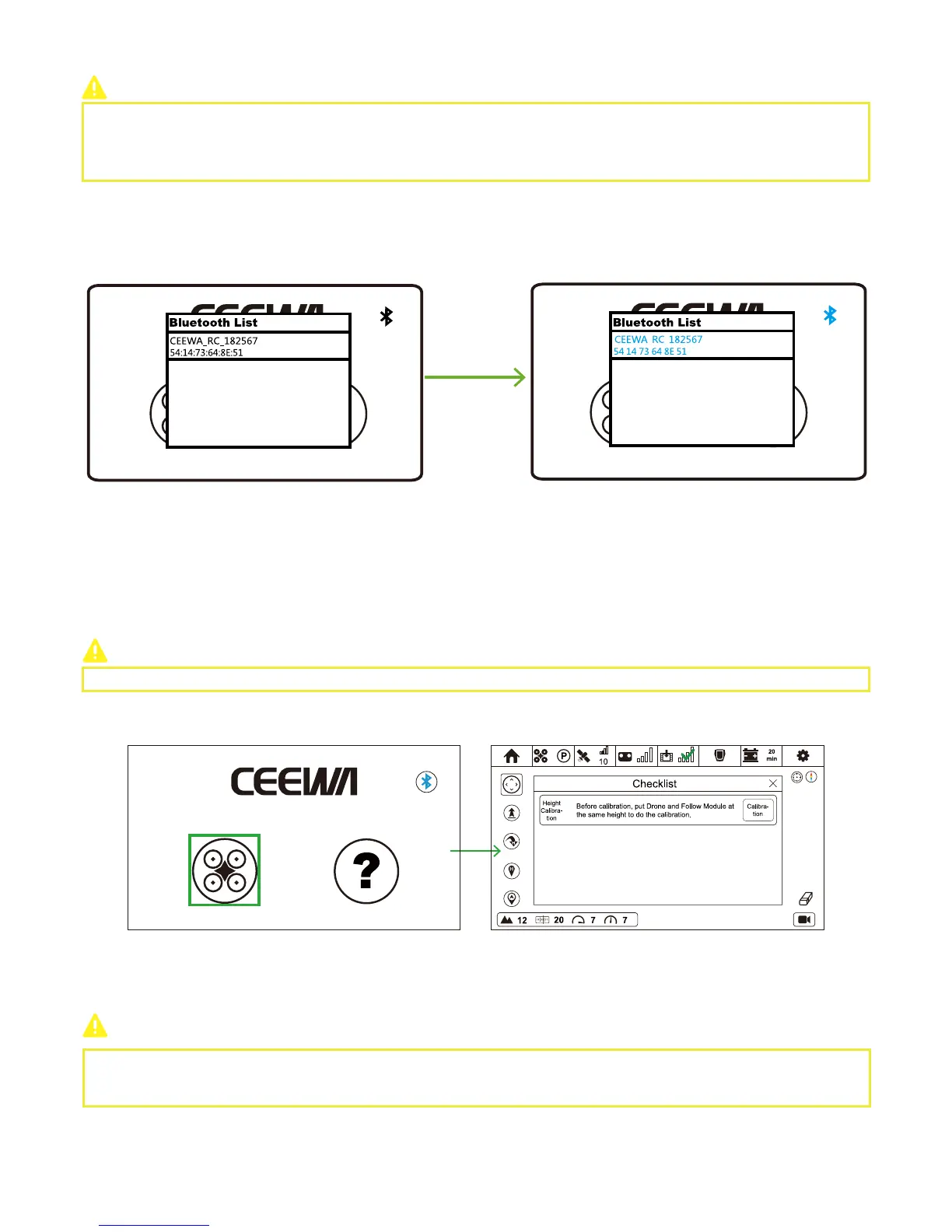
You should pair Remote Controller to CEEWA APP through Bluetooth.
① Power on Remote Controller.
② Turn on CEEWA APP and choose your desired device in the pop-up window. The Bluetooth name of Remote Controller usually
starts with CEEWA_RC.
③ Choose Remote Controller in the window and wait for connection. When the device name and Bluetooth icon on the upper
right corner turn to blue, pairing finishes. All the above steps show when you pair them for the first time, and CEEWA APP will auto
connect it since then.
④ If you want to change the auto-pairing device, just tap the Bluetooth icon on the upper right corner and select your desired
device in the pop-up window.
If the Bluetooth icon becomes white, it implies that CEEWA APP disconnects with Remote Controller.
If the Bluetooth icon alternately blinks blue and white, it means that CEEWA APP is trying to connect.
If the Bluetooth icon becomes blue, connection has been built.
Drone Compass Calibration and Follow Module Compass Calibration should be finished outdoors.
After pairing, please click Flight icon to enter Flight Interface.
Sports Watch and Remote Controller cannot be used at the same time.
Step 9
:
Turn on CEEWA APP & Pair to Remote Controller



 To Next Page