36
User’s Manual
CellaVision
®
DM1200
Customizing Views
Galleries:
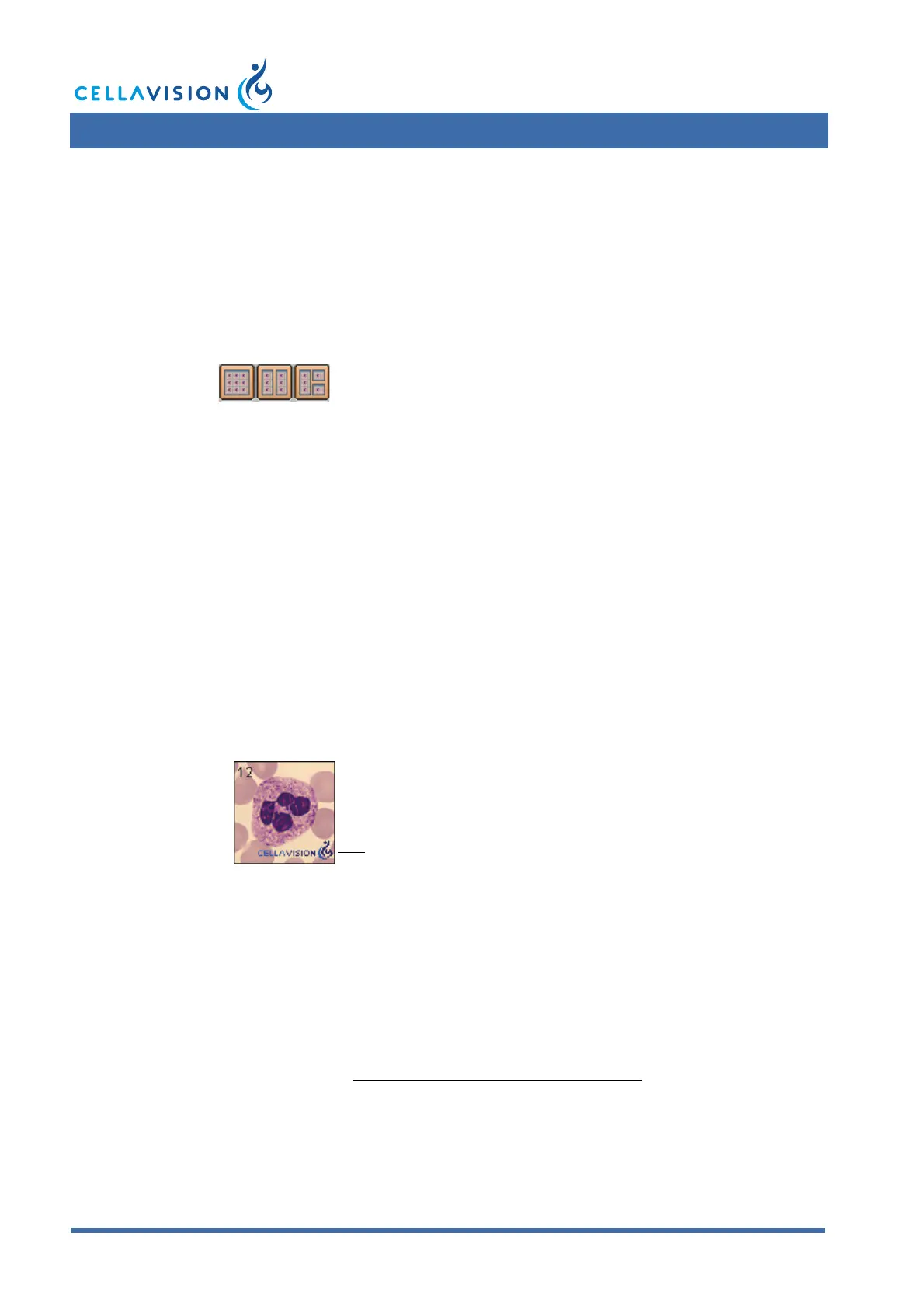
WBCs are presented, by class, in galleries. The main gallery is always shown
together with up to two additional galleries. Click WBC Galleries to change the
number of galleries.
Left- and right-clicking in the WBC and Non-WBCs panels also changes cell class
in the main and the 2nd gallery, respectively. You can also select cell class in the
drop-down list.
The system keeps track of all WBCs viewed by the operator. A tick mark appears
when all WBCs of a cell class have been displayed. It is not possible to sign the
slide unless all cell classes have been viewed.
Reference Cells:
A library of reference cells for different cell classes is provided with the system.
These cells are marked with a CellaVision logo. The main gallery always displays
WBCs from the slide, while the other show reference cells when checkbox
Reference cells is activated. The main gallery has shortcuts to display reference
cells in the other galleries. Click Ref.cells in Gallery 2 and the 2nd gallery will
display reference cells of the cell class selected in the main gallery.
You may expand this library by saving WBCs from processed slides as custom
reference cells.
1. Right-click on the WBC.
2. Select Save as custom ref. cell in the menu.
3. Restart the program.
The WBC will be displayed at the top of the 2nd or 3rd galleries, followed by the
reference cells provided with the system. If you want to organize your custom
reference cells, see 9.9 Adjusting Reference Cells Settings.
Note! Reference cells are not available for body fluids.
(Cont'd)
WBC Galleries
Indicates reference cell provided with the system


 To Next Page