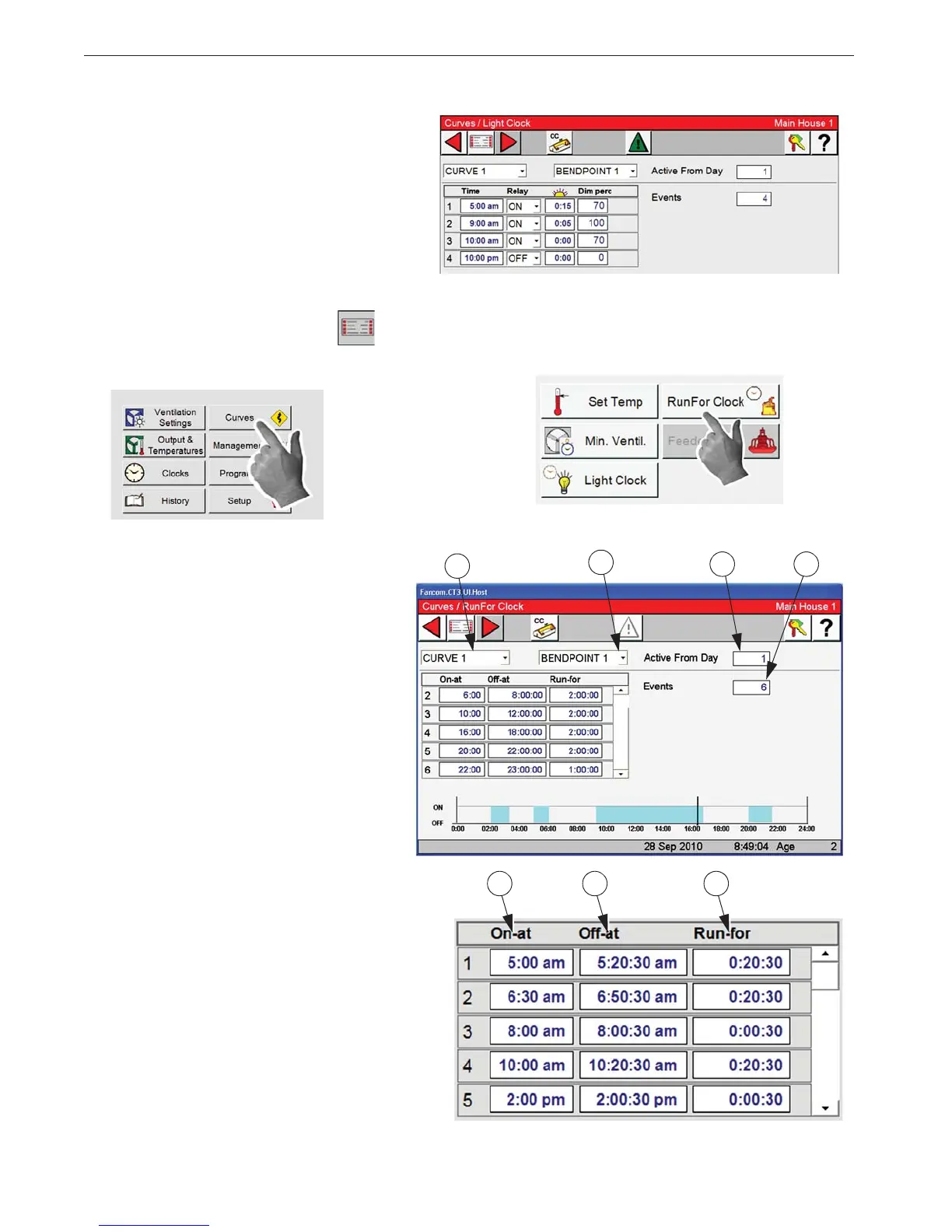
Example: In the example (right), the lights
will turn on at 5:00a and will take 15 minutes
to go from 0 percent light to 70 percent light.
At 9:00a the lights will take 5 minutes to
"spike" up to 100 percent. At 10:00a the light
spike is removed immediately (no sunset
time) and the lights return to 70 percent. At
10:00p the lights are immediately turned off.
1. Select the Main menu button.
2. Select the Curves Button.
3. Select the RunFor Clock button.
4. Curves- Four different curves can be setup. Select the curve you want to setup from the drop
down. The curves are assigned to the
Feed clock in the (Clocks/Feed/Feed
Clocks) screen.
5. Bend Point- This is the current dis-
played bend point of the Light Clock
Curve. Only one bend point can be
shown at a time. Up to ten bend points
can be used on each Curve. Select the
Bend point you want to setup from the
drop down.
6. Active From Day- This is the day
that the current bend point will become
the active light clock settings.
7. Events- A maximum of 24.
8. On-at- Enter the start time of the feeding in
this column.
9. Off-at- Enter the off time of the feeding.
This column allows the user to enter a time
down to the second for operating feeders that
only need to run for (mins. /sec or stimula-
tions).
10. Run-for- Shows the amount of feeding time per Event.
4
5
6 7


 To Next Page