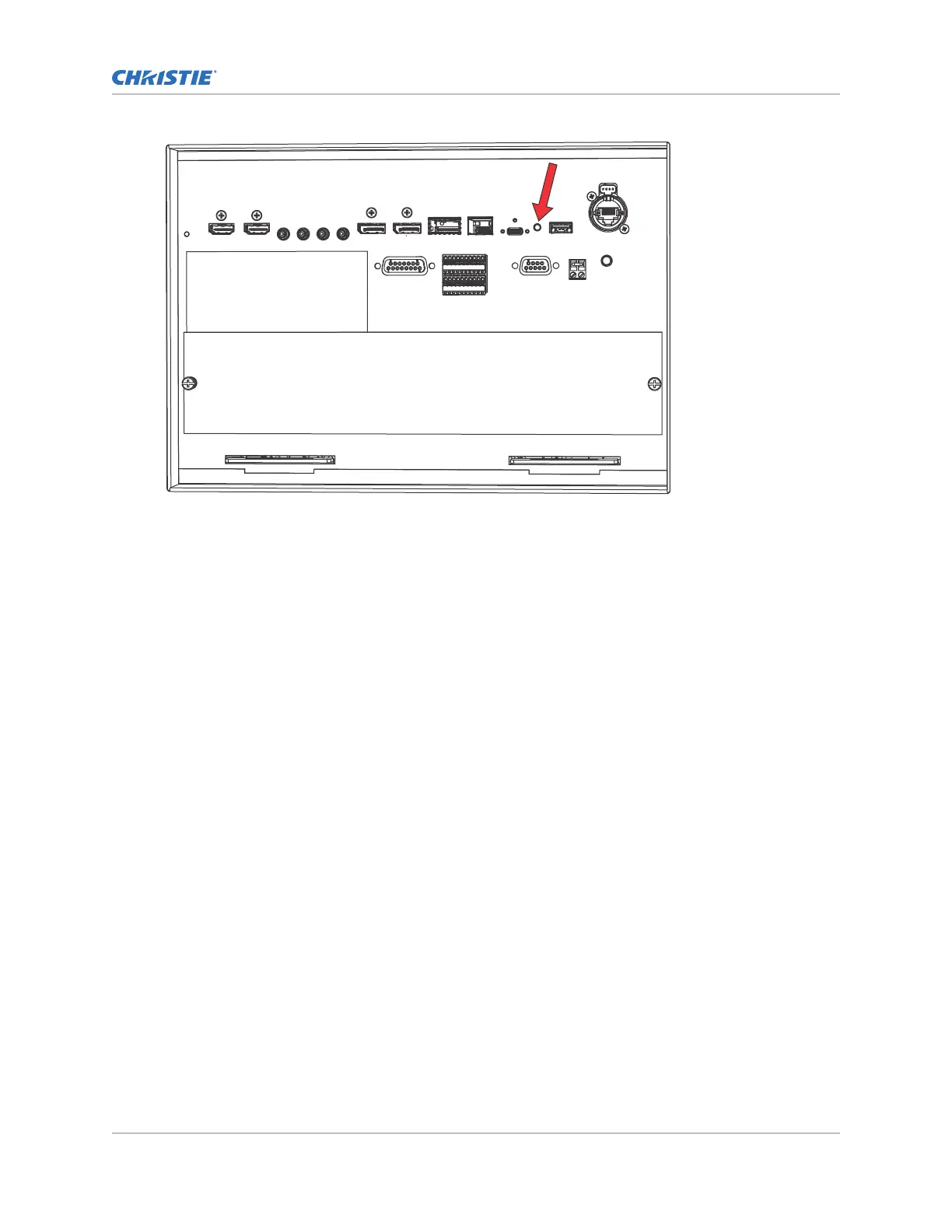
3. Once the unit is powered on, select and hold the Marriage button on the projector for 30
seconds.
The IP address of the projector is reset to the default 192.168.206.110 and the subnet is
255.255.255.0.
Using the Remote user interface (UI)
Use the remote user interface (UI) to access projector functionalit
y.
1. Log into the Remote UI.
The default IP address is 192.168.206.110.
2. From the Remote UI default page, to access the main projector user interface, select the
Projector Control tab.
3. To upload and download files from the projector, use the File Menu.
Examples of items that can be uploaded include:
• Projector upgrade packages
• Backup packages to restore from
• Rental files to license the projector for Rental mode
• Test patterns (PNG files only)
• Gamma files
Examples of items that can be downloaded include:
• Projector backup files
• Projector certificates (required for content decryption)
• Interrogator files (for support and troubleshooting)
4. If the projector has a GDC IMB SR-1000 installed and configured, access the GDC IMB Web UI
by using the Media Block tab.
Operating the projector
CineLife+ User Guide 18
020-103073-10 R
ev. 1 (02-2023)
Copyright
©
2023 Christie Digital Systems USA, Inc. All rights reserved.
If printed, please recycle this document after use.



 To Next Page