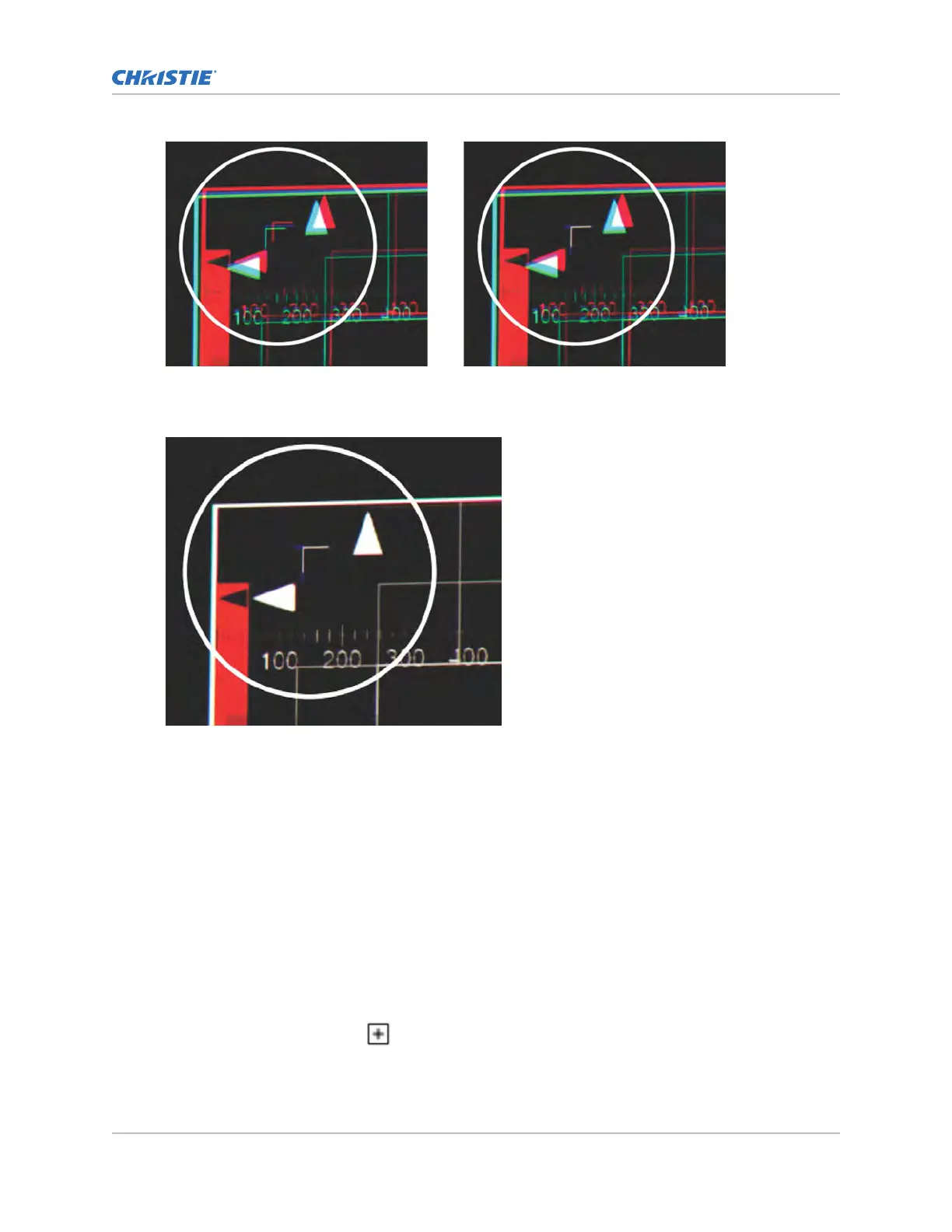
10. To set the convergence for that corner of the screen, select Apply.
11. Repeat steps 7 to 10 for the remaining corners.
12.
If necessary, reset the correction back to zero (no correction) or the previously saved
correction by selecting Reset.
In the Reset dialog, reset the current corner or all four corners. When the locations and value
are set, select Reset.
13. To save the current ECC settings, when the convergence is complete, select Save beside the
ILS file named at the top of the panel.
Creating a source file
Create source files to store resolution, offset, and aspect ratio settings for input devices. When the
Auto Square Pixels file is selected, the incoming video format is automatically detected.
1. In the left navigation menu, select Image Settings > Source File Setup.
2. Select Create Source File.
3. Enter a name for the source file and select Create.
Adjusting the image size and position
CineLife+ User Guide 82
020-103073-10 R
ev. 1 (02-2023)
Copyright
©
2023 Christie Digital Systems USA, Inc. All rights reserved.
If printed, please recycle this document after use.



 To Next Page