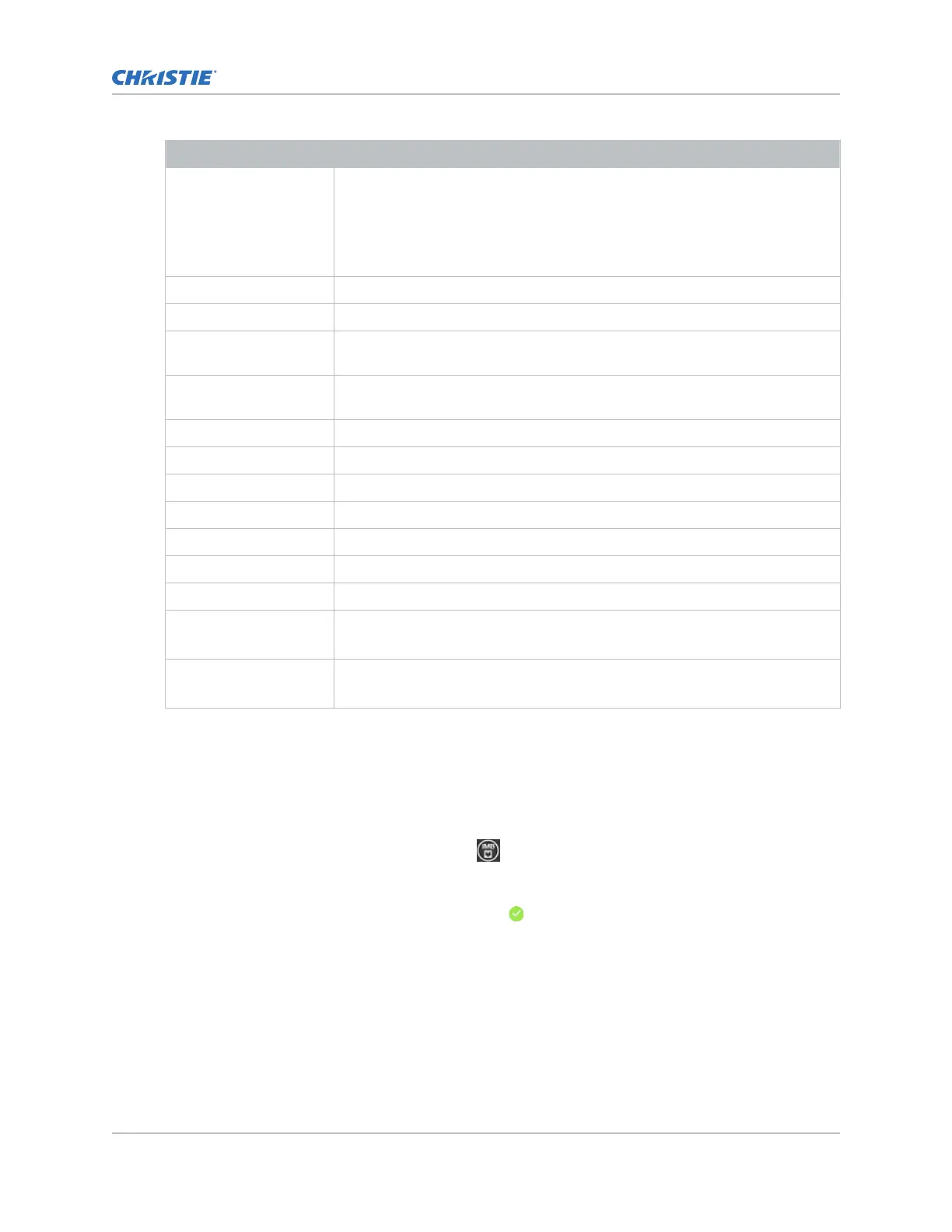
Field Name Description
• Auto (Default)—The left-eye/right-eye 3D-sync information is
automatically determined from the metadata carried in the source or from
the specific input t
ype selection.
• 2D mode—Forces the input signal to be interpreted as a 2D signal,
overriding any metadata in the input signal.
Color Space Method of color decoding for the current source.
ILS File Intelligent Lens System
™
(ILS) file associated with the channel.
2D Light Source File 2D light source file associated with the channel. Any changes made to the
settings are applied to all channels using this file.
3D Light Source File 3D light source file associated with the channel. Any changes made to the
settings are applied to all channels using this file.
2D MCGD File Measured Color Gamut Data file associated with the 2D image.
3D MCGD Left Eye File Measured Color Gamut Data file associated with the left 3D image.
TCGD File Target Color Gamut Data file associated with the channel.
Screen File Screen type, masking, cropping, and lens settings for the channel.
Gamma File Gamma correction required for the proper tonal range of the source material.
3D File 3D settings files associated with the channel.
Source File Resolution and aspect ratio for the channel.
Christie Pureformity
Color
™
Correction File
Color correction file associated with the channel.
Bypass (Default)
Warp File Warp file associated with the channel.
Bypass (Default)
4. Select Save.
Selecting the active channel
Select a channel to use customiz
ed projector settings for different inputs.
1. In the right toolbar, select Channel Setup.
The Channels window displays the available channels.
2.
Select a channel.
In the Channel Setup panel, a green checkmark
indicates the active channel.
Editing an existing channel
Edit an existing channel when the par
ameters of the input device change.
1. In the left navigation menu, select Channel Setup.
2. In the left pane, select a channel.
Working with channels
CineLife+ User Guide 74
020-103073-10 R
ev. 1 (02-2023)
Copyright
©
2023 Christie Digital Systems USA, Inc. All rights reserved.
If printed, please recycle this document after use.



 To Next Page