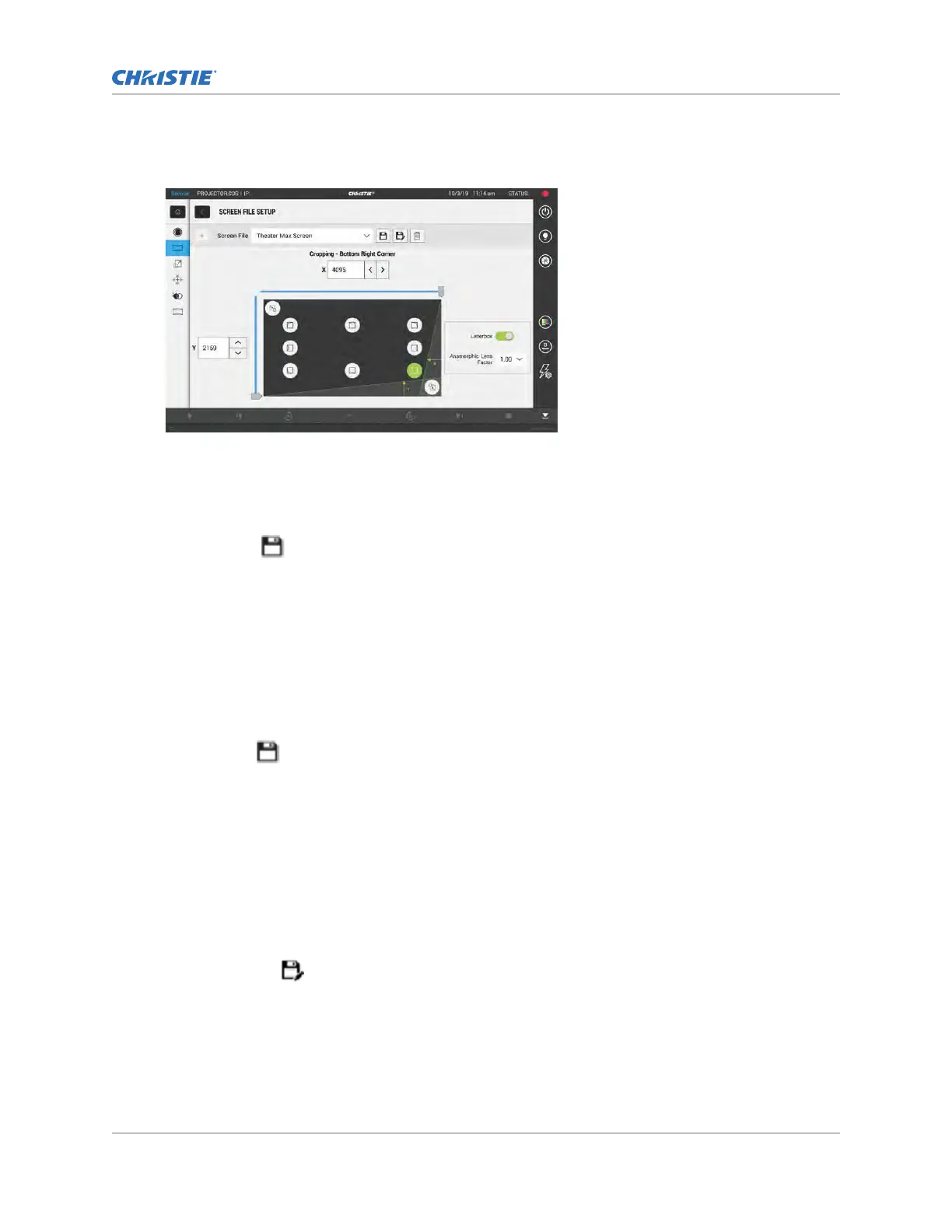
3. Enter a name for the screen file and select Create.
4.
To crop the image in a specific location, select one of the screen icons.
5. To adjust the amount of cropping on the X or Y axis, move the slider up or down.
6.
To display all image data and maintain the aspect ratio, select the Letterbox slider.
The color of the slider changes to green to indicate it is active.
7. If required, adjust the Anamorphic Lens Factor value to match the lens installed.
8. Select Save.
Editing screen file settings
Edit screen file settings when the image par
ameters change.
1. In the left navigation menu, select Image Settings > Screen File Setup.
2. In the Screen File list, select a screen file.
3. Modify the screen file settings.
4. Select Save
.
Copying existing screen file settings to a new
screen file
T
o duplicate screen file settings quickly, copy the settings of an existing file to a new screen file.
1. Select Image Settings > Screen File Setup.
2. In the Screen File list, select the screen file you want to copy.
3. Select Save As
.
4.
Enter a name for the source file and select Save.
Adjusting the image size and position
CineLife+ User Guide 84
020-103073-10 R
ev. 1 (02-2023)
Copyright
©
2023 Christie Digital Systems USA, Inc. All rights reserved.
If printed, please recycle this document after use.



 To Next Page