32 | P a g e
Channel Layers (Splits and Layers) [Lyr1-6] Sub-Page
This is the modifier that enables channel splitting and layering aka “Splits and Layers”. Each of the 6
variants has a source and destination MIDI channel. But what makes this mod really work is how it only
passes the notes that are inside the note range and filters out notes below and above. It also can blend
(aka “crossfade”) the ends of the note range. The Blend setting is the number of crossfaded notes above
and below the note range. How it works is the velocity of the blended notes are scaled from 100% to 0%
above the note range and the opposite below, like a crossfade ramp. So if two note range blend zones
overlap, it creates a cross fade from layer to layer. Of course the synth voices used needs to assign
velocity with volume.
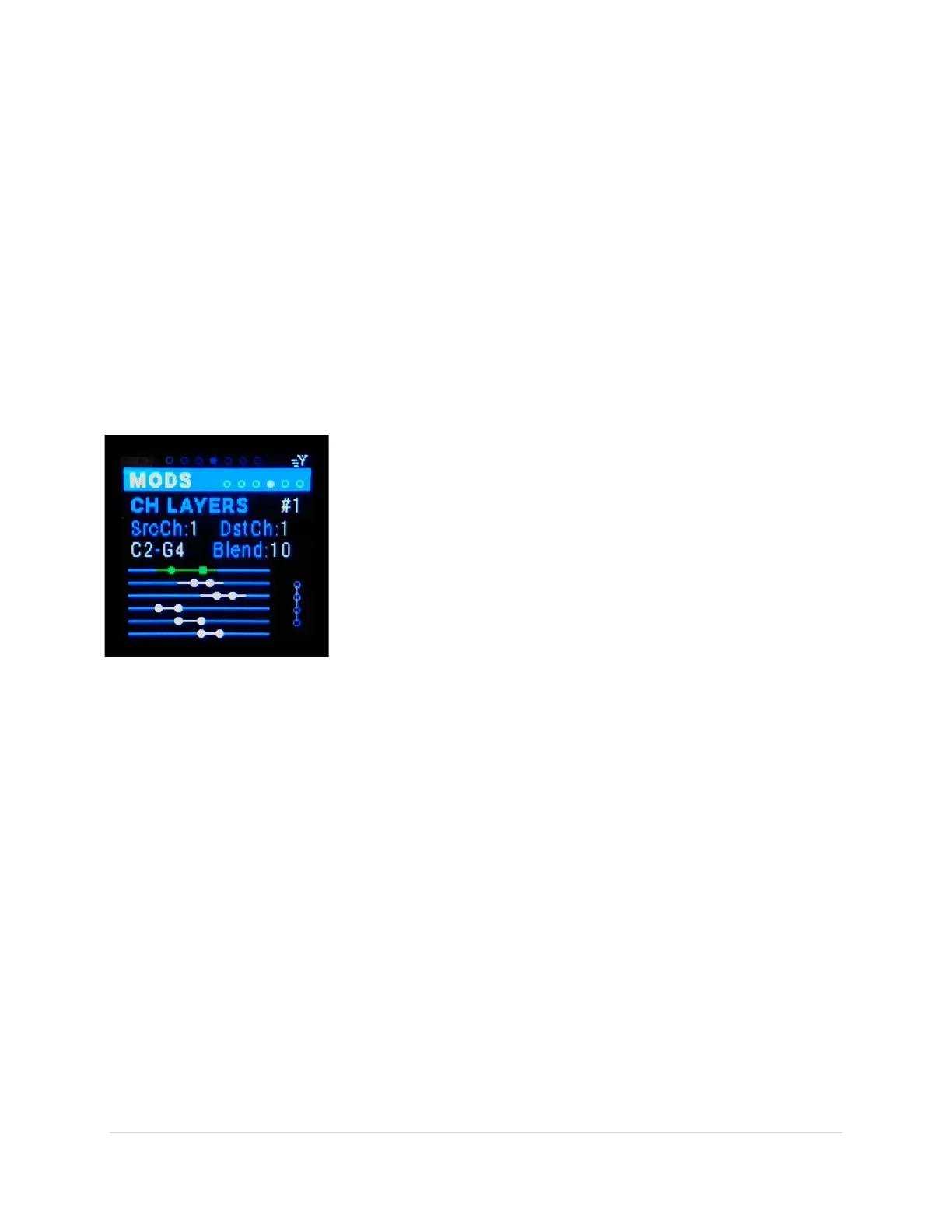
The Note ranges are drawn in the graphic at the bottom of the screen. Each line represents a layer. The
note ranges are shown between the circles. The note being edited is a square. The note ranges are
between the circles and the blend is shown by a line beyond the circles. Note: each Src Channel has a
different color in the graphic.
Channel Layers variation (tab-stop)
There are 6 variations of Channel Layers #1- #6. Use the Up/Dn buttons
to move to the variation number, the number gets underlined. Use the
Encoder knob to scroll through the 6 variations.
Src Ch (tab-stop)
Choose the MIDI source channel 1-16. Use the Up/Dn buttons to move
to the Src Ch number, the number gets underlined. Use the Encoder
knob to scroll through the choices.
Dest Ch (tab-stop)
Choose the MIDI destination channel 1-16. Use the Up/Dn buttons to move to the destination channel
number, the number gets underlined. Use the Encoder knob to scroll through the choices.
Note Range Min (tab-stop)
Choose the lowest Note of the range. Notes are lettered and can be followed by # (sharp) or b (flat),
then by a number which is the MIDI octave i.e. C#3. Notice Notes labeled 1-11 are the -1 octave notes.
Note Range Max (tab-stop)
Choose the highest Note of the range. Notes are lettered and can be followed by # (sharp) or b (flat),
then by a number which is the MIDI octave i.e. C#3. Notice Notes labeled 1-11 are the -1 octave notes.
Blend (tab-stop)
Choose the number of notes for the blend (0-127).
Chaining (tab stop) – future feature
Typical Use…
If you’d like to have a keyboard split at middle C, here are the steps. We’ll use MIDI IN 3 for the
controller and MIDI OUTS 6 & 8 for the two synths:
1) plug in your MIDI controller keyboard (or sequencer) into MIDI IN 3.


 To Next Page