ineo 164 8-5
8.2 WIA scanner driver
8
8.2 WIA scanner driver
This section describes the functions of the WIA scanner driver.
8.2.1 Scanning a document
The scanning operation can be performed from WIA- compatible applications. The operating procedure var-
ies according to the application used.
As an example, the procedure using Adobe Photoshop 7.0 is described below.
1 Place the document face down on the Original Glass.
% For details on placing originals, refer to page 3-6.
2 Start the application on the computer.
3 Click [File].
4 Point to [Import], then click [WIA Support].
% If a message dialog box appears, check its contents and click [OK].
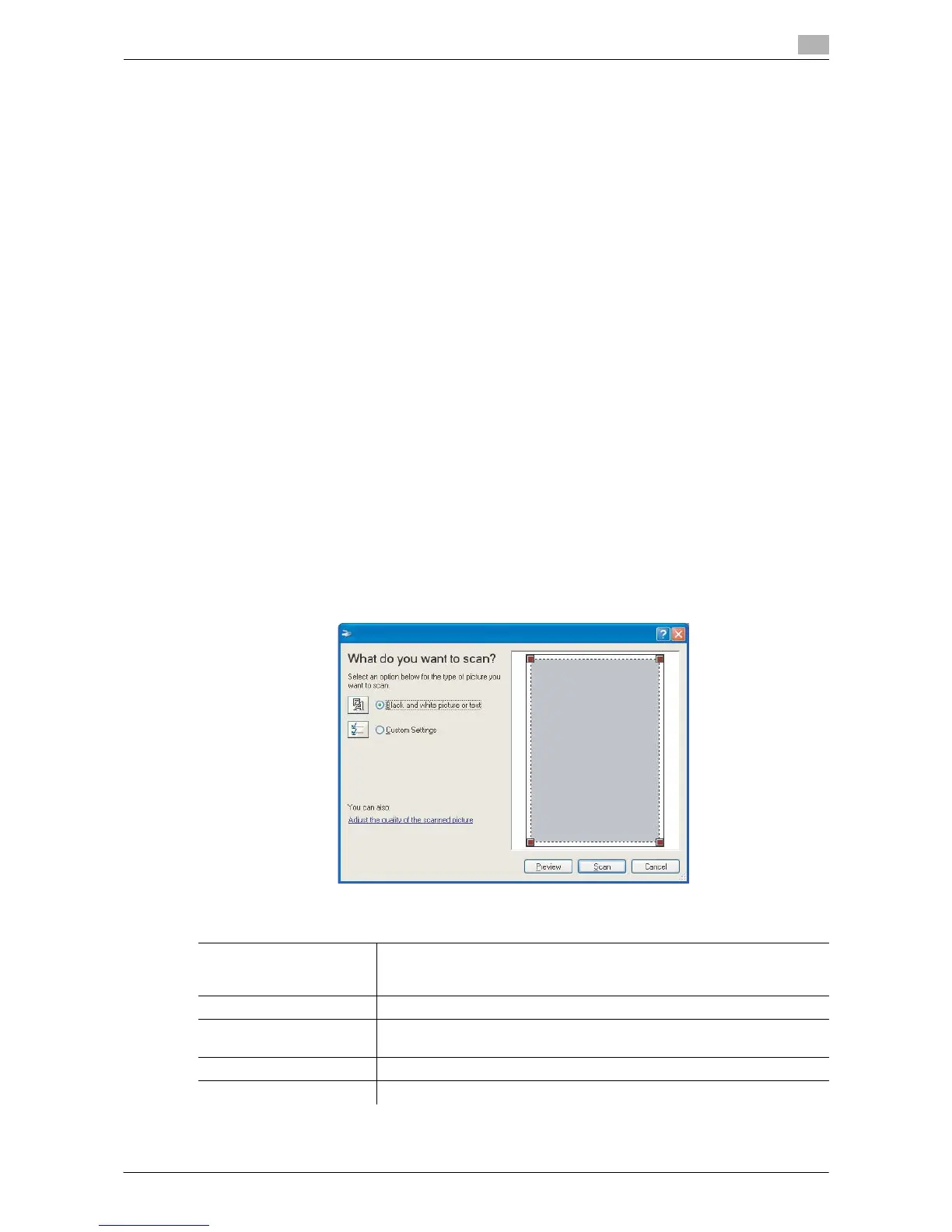
5 Specify the necessary settings.
% For details, refer to page 8-5.
6 Click [Scan].
Scanning begins.
% To stop scanning, click [Cancel] or press [Esc].
8.2.2 WIA scanner driver settings
Settings
[Black and white picture or
text]
The image is scanned with the preset quality.
[Resolution]: 300
[Brightness]: 0
[Custom setting] Adjust the quality of the scanned image.
[Preview] A scanned image appears. Drag the rectangle over the image to select an
area.
[Scan] Click this button to scan an image.
[Cancel] Click this button to close the properties window.










 To Next Page