WIA scanner driver
8
8-6 ineo 164
8.2
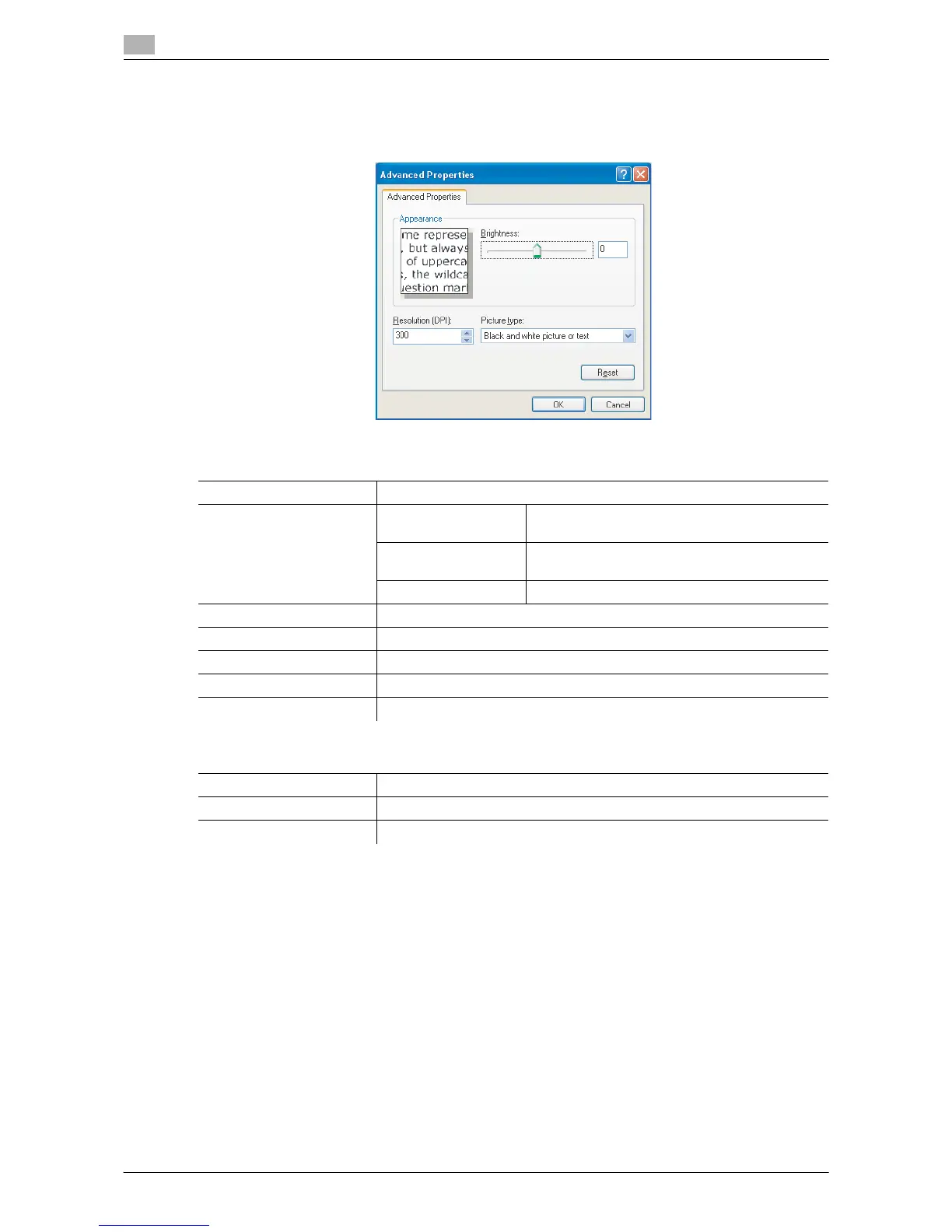
Adjusting the quality from [Custom Settings]
% Select [Custom Settings], then click [Adjust the quality of the scanned picture].
Settings
[Appearance] Displays a sample image.
[Resolution] [150] Normal resolution for the standard size character
(e.g. typed document) and scan efficiency.
[300] Higher resolution for the small character (e.g.
newspaper).
[600] The highest resolution for image data.
[Brightness] Adjust the brightness of the image.
[Picture Type] [Black and white picture or text] is set.
[Reset] Click this button to return to the previous settings.
[OK] Click this button to enable changed settings.
[Cancel] Click this button to close the properties window.
Factory default
[Resolution] [300]
[Brightness] [0]
[Picture Type] [Black and white picture or text]










 To Next Page