4 • Display device screens | Dexcom ONE+ User Guide
26
What you see What it means
How to
User Guide
CGM Safety Statements
Profile
Find answers
Profile > Help: Find help, including:
l
Answers to your questions
l
Links to product guides
l
Videos
l
Inserting and removing sensors
l
Sensor readings
l
Alerts
l
When to use your BG meter
Receiver
Menu
Back
10:30 50%
Reports
Events
Settings
Information
Power off
Help
Replace sensor
Stop sensor session
Scroll down
Scroll up
Select
Go back
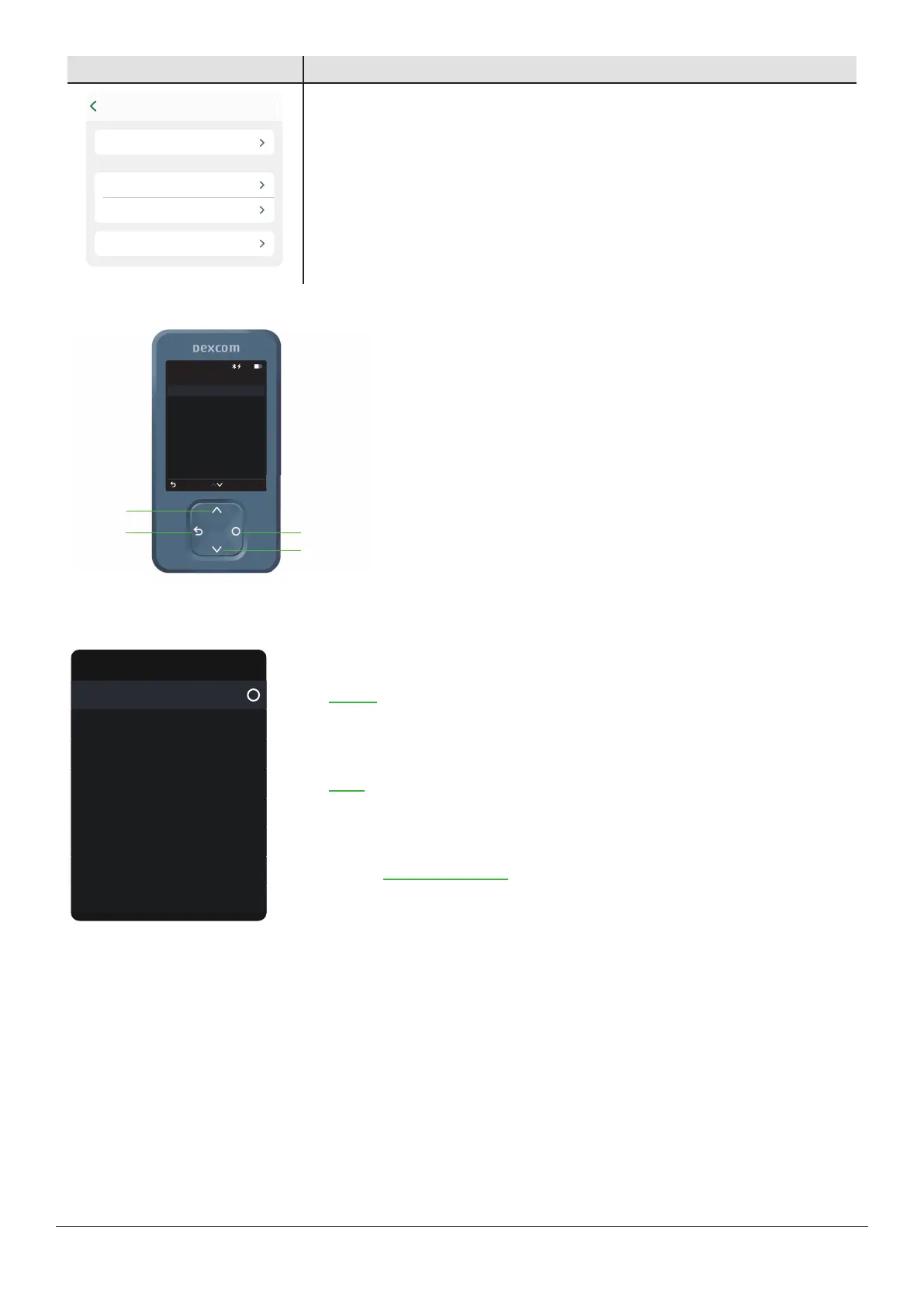
Navigate using the four buttons at the bottom of the receiver.
l
Press the down arrow to scroll down the screen.
l
Press the up arrow to scroll up the screen.
l
To scroll faster, press and hold an arrow button.
l
To move to the next field, use the Select button.
From the home screen, select Menu to get to other features.
Menu
Reports
Settings
Events
Information
Help
Power off
Replace sensor
Stop sensor session
l
Reports: Get your summary glucose information for a specific period. (More in
Reports.)
l
Events: Enter events like insulin doses and BG meter values, or use your BG meter
value to calibrate (optional).
l
Settings: Edit alerts, change settings, customize sounds, and more. (More in
Alerts.)
l
Information: Find out how much time you have left in your sensor. You can also test
the speaker.
l
Replace sensor and stop sensor session: Stop this sensor and start a new one.
(More in Next sensor session.)
l
Power off: Turn off the receiver. No readings or alerts when powered off.



 To Next Page